How to Configure IVPN on Android for Maximum Privacy
Quick Overview
In a world full of data trackers and prying eyes, configuring IVPN on Android for maximum privacy isn't just smart—it's essential. This guide walks you through easy steps to install and tweak the app, plus shares my real-world tips to lock down your online life. Expect better protection on public Wi-Fi and fewer worries about who sees your data. (42 words)
Why IVPN Stands Out for Android Privacy
I've switched VPNs a few times over the years, and IVPN always pulls me back. It's open-source, audited, and doesn't log your activity. No email needed to sign up—just an account ID. This keeps things simple and private right from the start.
What draws me in? Features like the built-in AntiTracker block ads and trackers at the source. Multi-hop routes your traffic through two servers for extra layers of hiding. And the kill switch? It cuts internet if the VPN drops, so no accidental leaks.
For Android users, these tools shine on the go. Think coffee shop Wi-Fi—IVPN auto-connects and shields you without a fuss.
Before diving into setup, let's touch on the basics. A VPN encrypts your data and swaps your IP address. But not all are equal. IVPN uses WireGuard for speed and OpenVPN for rock-solid security. Pick based on your needs: WireGuard for daily browsing, OpenVPN for high-stakes stuff.
Step-by-Step: Installing IVPN on Your Android
Ready to get started? Grab your phone— this takes about 10 minutes.
-
Download the App: Head to the Google Play Store or F-Droid for the open-source version. Search 'IVPN' and hit install. I prefer F-Droid to skip Google's trackers.
-
Launch and Sign Up: Open the app. Tap 'Create Account' or log in with your ID if you have one. No personal details required— that's privacy in action.
-
Pick a Server: Choose a location close for speed or far for better hiding. Enable 'Connect on Launch' for always-on ease.
-
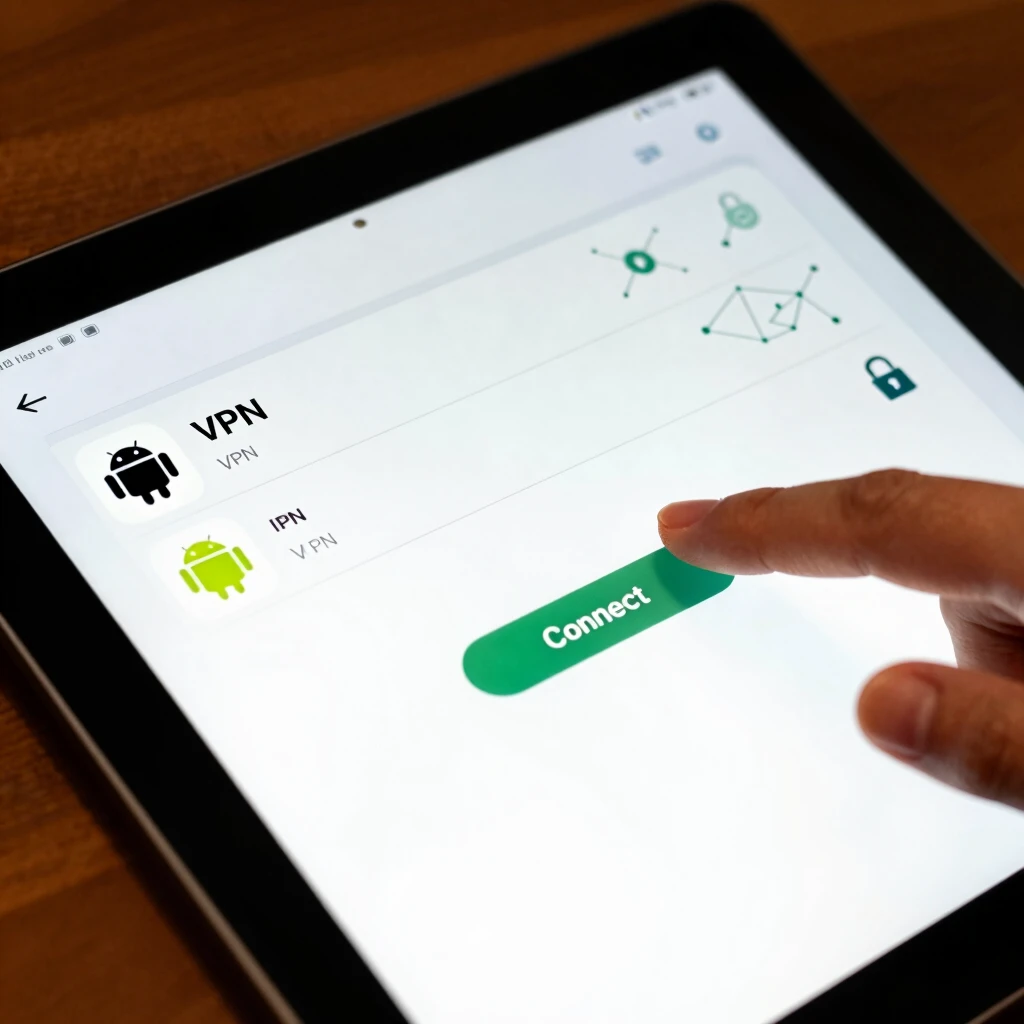
Hit Connect: Grant permissions, and you're in. Watch the status bar for the key icon—your shield is up.
Pro tip from my travels: Test the connection on a site like whatismyipaddress.com. See a new IP? Good. If not, restart the app.
Fine-Tuning for Maximum Privacy: Advanced Settings
Basic setup is great, but let's crank it up. In the app's settings menu, explore these gems:
-
Enable Kill Switch: Under 'Connection,' turn on 'Always-on VPN.' This blocks all traffic without VPN—crucial for spotty signals.
-
Activate AntiTracker: Blocks ads, malware, and trackers. I've noticed pages load cleaner, and battery life improves.
-
Set Up Multi-Hop: Route through two countries. Ideal for journalists or activists. Go to 'Advanced' and select entry/exit points.
-
Custom DNS: Use DoT (DNS over TLS) with a trusted provider like Quad9. Prevents ISP snooping on your visits.
-
WireGuard Key Rotation: Auto-rotate keys every few hours. Keeps your connection fresh and untraceable.
| Feature | Why It Helps Privacy | My Take |
|---|---|---|
| Kill Switch | Stops leaks on disconnect | Saved me during a subway dropout |
| Multi-Hop | Adds routing layers | Feels like double encryption |
| AntiTracker | Cuts trackers at source | Fewer creepy ads follow me |
| Key Rotation | Refreshes identifiers | Peace of mind for long sessions |
One catch: Android's DNS can leak without tweaks. Follow EFF's guide on VPN pitfalls to patch that. It's a quick read that saved my setup once.
Pair IVPN with Top Online Privacy Tools for Android Users
How to configure IVPN on Android for maximum privacy gets even better with companions. Don't stop at VPN—build a full shield.
Start with encrypted DNS via Android's Private DNS setting. Pair it with IVPN's custom options for double protection. Then, grab a solid browser like Firefox with uBlock Origin.
For passwords, online privacy tools shine. I've ditched sticky notes for a manager. It generates and stores strong ones, autofilling without hassle.
Speaking of which, picking the perfect password manager for you boils down to needs. Bitwarden is free, open-source, and syncs across devices. Check NIST's tips on strong passwords for why length beats complexity.
Other must-haves: - Signal for messaging: End-to-end encryption, no data sales. - DuckDuckGo Browser: No tracking searches. - Orbot for Tor: For ultimate anonymity on risky sites.
These stack with IVPN like bricks in a wall. My routine? VPN always on, manager for logins, Signal for chats. Feels unbreakable.

From personal experience, combining them cut my spam emails by half. Trackers couldn't follow me anymore. But remember, no tool is perfect—Privacy Guides' VPN overview warns about trusting providers. IVPN earns that trust with audits.
Common Pitfalls and How I Fixed Them
Battery drain? Turn off multi-hop for casual use. Slow speeds? Stick to nearby servers. And always update the app—bugs get patched fast.
Once, I forgot the kill switch on a trip. Data leaked for seconds. Lesson learned: Test weekly.
For families, set trusted networks at home to skip VPN there, saving juice without risk.
The FTC echoes this: Layer tools for best results, per their personal info protection advice. Simple swaps make big differences.
Wrapping Up: Your Path to Safer Surfing
Configuring IVPN on Android for maximum privacy transformed how I use my phone. From quick installs to smart tweaks, it's empowering. Add in solid online privacy tools, and you're ahead of most.
Start today—your future self will thank you. Stay curious, stay private.