How to Lock Down Your Online Presence: Simple Steps for Ultimate Privacy
Quick Overview
In today's digital world, your online presence shapes your life more than you might think. From targeted ads to identity theft risks, it's time to take control. This guide walks you through how to lock down your online presence with simple, effective steps. You'll gain actionable advice to boost your online privacy without overwhelming tech skills. Let's dive in and secure your space.

Why Bother Locking Down Your Online Presence?
I remember the day I got an email from a company I'd never heard of. They knew my address, birthday, and even my recent shopping habits. It hit me hard—my data was everywhere, and I felt exposed. That wake-up call pushed me to act. Locking down your online presence isn't just smart; it's essential. It shields you from scams, reduces spam, and lets you browse freely without worry.
Think about it: every search, like, or purchase leaves a trail. Data brokers scoop it up and sell it. According to the Privacy Rights Clearinghouse, over 2,000 breaches exposed millions of records in 2024 alone. But here's the good news—you can fight back with straightforward changes.
Simple Steps to Lock Down Your Online Privacy
Start small, and build from there. These steps transformed my routine without much hassle. Follow them, and you'll see quick wins.
Step 1: Audit Your Accounts
List every online account you have. Use a notebook or app like LastPass. Check for old ones from forgotten sign-ups. Delete what you don't need. For keepers, update passwords to strong, unique ones—at least 12 characters with mixes of letters, numbers, and symbols.
I once found 15 dormant accounts. Closing them cut my spam by half in weeks.
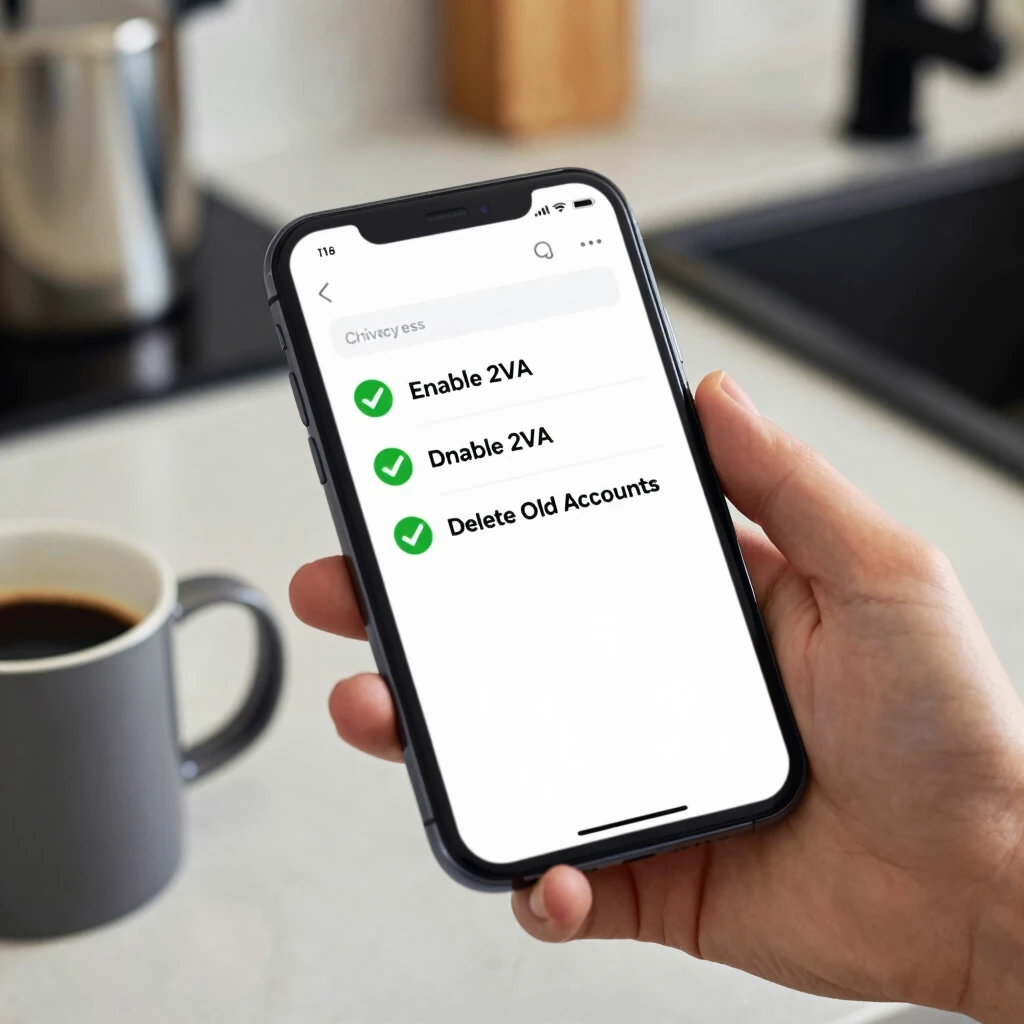
Step 2: Enable Two-Factor Authentication (2FA)
Turn on 2FA everywhere possible. It adds a second check, like a text code or app approval, beyond your password. Sites like Google and Facebook make it easy—head to settings and flip the switch.
Pro tip: Use an authenticator app over SMS for better security. It saved me when a hacker tried my email login; the extra layer stopped them cold.
Step 3: Adjust Privacy Settings
Social media is a goldmine for snoopers. On platforms like Instagram or LinkedIn, set posts to private. Limit who sees your info. Review app permissions too—do you really need that fitness tracker accessing your contacts?
Spend 10 minutes per platform. I did this during a coffee break and felt lighter right away.
Step 4: Use a VPN for Safe Browsing
A Virtual Private Network (VPN) hides your IP address and encrypts your connection. It's like a tunnel for your data. Free options exist, but paid ones like ExpressVPN offer speed and reliability.
I switched during travel. No more hotel Wi-Fi worries—my banking felt secure.
Essential Online Privacy Tools to Know
Tools make the job easier. They automate the grunt work so you focus on living. Here's a quick rundown of my favorites:
| Tool | What It Does | Why I Use It |
|---|---|---|
| Signal | Secure messaging app | End-to-end encryption beats WhatsApp for privacy. |
| DuckDuckGo | Private search engine | No tracking like Google—clean results, no ads following me. |
| uBlock Origin | Browser extension | Blocks trackers and pop-ups effortlessly. |
| Bitwarden | Password manager | Stores logins securely; generates strong ones on the fly. |
Pick one or two to start. I began with DuckDuckGo—simple swap, big difference in ad overload.
These online privacy tools aren't flashy, but they work quietly in the background. Over time, they build a fortress around your data. Remember, the best tool is the one you actually use.
How to Set Up Incogni to Delete Personal Data
Data brokers hoard your info—names, emails, addresses—and sell it without consent. Incogni changes that. It's a service that sends removal requests on your behalf. I signed up after that creepy email incident, and it wiped my details from over 180 brokers.
Setting it up takes minutes:
-
Visit Incogni's Site: Head to incogni.com and choose a plan. They offer monthly or yearly options.
-
Create an Account: Enter basic info like email. No need for full details—they handle the rest.
-
Verify and Launch: Confirm via email. Incogni scans databases and starts automated requests. You'll get reports on progress.
Expect results in 30-45 days. My first report showed 250+ removals. It's not instant magic, but it's hands-off power. Pair it with manual opt-outs from sites like Spokeo for full coverage.
One caveat: It won't erase everything forever—data refreshes. But regular use keeps the flow low. For more on data rights, check the FTC's guide at consumer.ftc.gov.
Advanced Tips for Ironclad Online Privacy
Once basics are down, level up. Clear browser cookies weekly with tools like CCleaner. Use privacy-focused browsers like Brave—it blocks ads by default.
On emails, create aliases with services like ProtonMail. Shop smart: Opt out of data sharing at checkout.
From my experience, consistency matters most. I set calendar reminders for monthly audits. It turned privacy from chore to habit.
Don't forget mobile. Lock your phone with biometrics, and review app privacy labels in stores. iOS and Android now flag data hogs—use that intel.
For families, talk openly. Teach kids about sharing pitfalls. My niece learned young: No full names in bios.
Wrapping It Up: Your Privacy, Your Power
Locking down your online presence starts with awareness and ends with action. You've got the blueprint—audit accounts, enable 2FA, tweak settings, grab tools like Incogni, and stay vigilant. Small steps yield big peace of mind.
In a world that watches, choose to step back. Your data is yours; protect it fiercely. Start today, and thank yourself tomorrow.