A Parent's Guide to Online Safety: Protecting Your Kids in the Digital World
A Quick Overview
As a parent, you want your kids to explore the online world with excitement, not fear. This guide offers straightforward advice on keeping them safe. From spotting risks to using online privacy tools, you'll find steps that fit your busy life. Let's build a secure digital space together—in just a few minutes of reading, you'll feel more confident.

Why Online Safety Matters for Families
I remember the day my 10-year-old came home buzzing about a new online game. It sounded fun, but then I noticed pop-up ads asking for her email. That moment hit me hard—kids dive into the digital world so fast, and we parents need to keep up. Online spaces offer amazing learning chances, but they also hide dangers like strangers reaching out or data grabs that follow your family everywhere.
Today, over 90% of teens use social media daily, according to Common Sense Media. Yet, many parents feel lost. This guide cuts through the confusion. We'll cover real risks, easy fixes, and tools that work without overwhelming you.
Spotting the Everyday Online Risks
Think about what your kids see online. It's not just videos or games—it's a mix of ads, chats, and shares that can turn tricky quick. Here are some common threats:
- Stranger Contact: Apps like Roblox or Snapchat let anyone message kids. A quick 'hi' can lead to sharing too much.
- Data Collection: Sites track what your child searches, building profiles for targeted ads. This invades privacy and risks identity theft.
- Cyberbullying: Mean comments or shares hurt fast, especially on platforms like Instagram.
- Phishing Scams: Fake links promise free stuff but steal info.
From my own chats with other parents, these issues pop up often. One friend shared how her son clicked a bad link during homework, leading to virus scares. Awareness is your first shield.
| Risk | Signs to Watch For | Quick Action |
|---|---|---|
| Stranger Contact | Unknown friend requests | Review and block immediately |
| Data Collection | Endless personalized ads | Use privacy settings |
| Cyberbullying | Sudden mood changes after screen time | Talk openly and report |
| Phishing | Urgent emails for info | Teach 'think before click' |
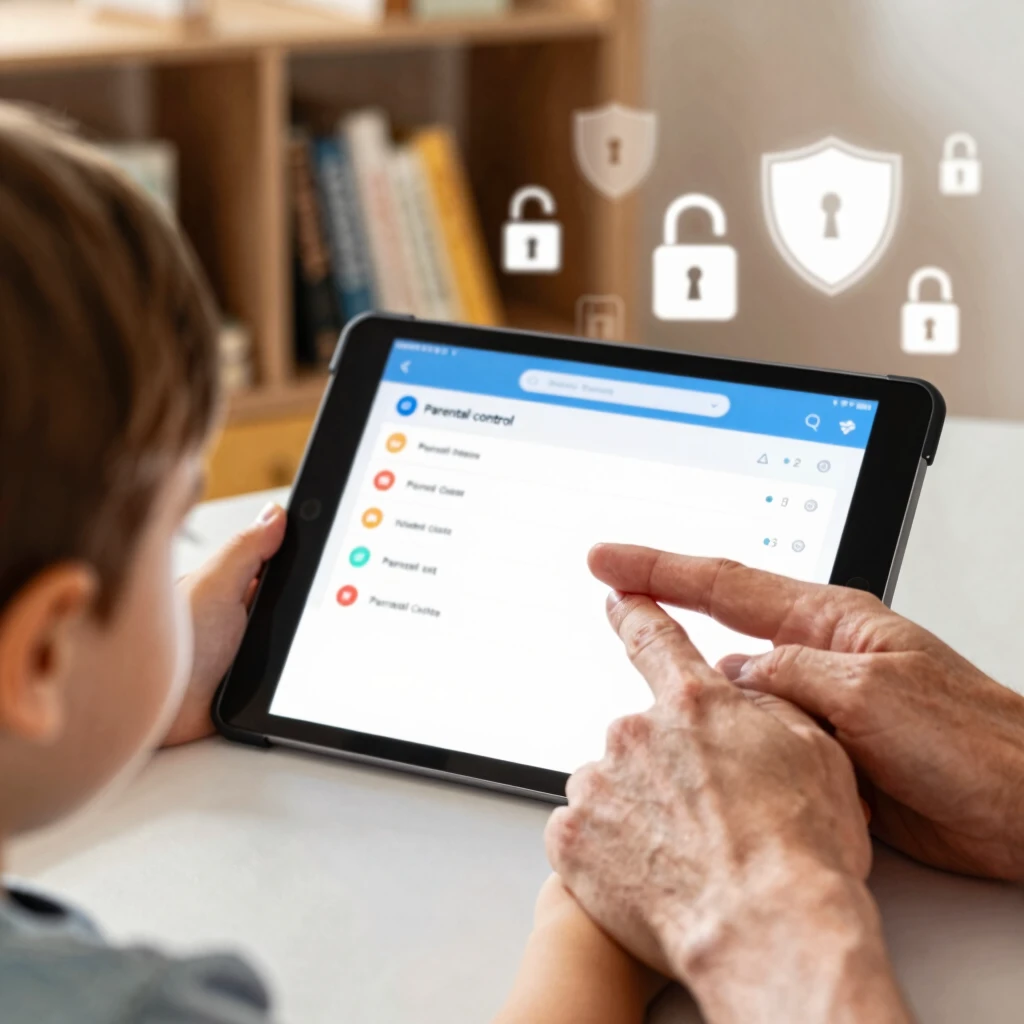
Online Privacy for Parents: Tips for Protecting Children
Protecting your kids starts with you. As the gatekeeper, set the tone by modeling good habits. Show them how to think before posting—ask, 'Would I say this face-to-face?' This builds trust and teaches smarts.
Here are actionable tips:
- Chat Regularly: Make screen time a family topic. Over dinner, ask what they loved online today. It opens doors without nagging.
- Set Device Rules: Agree on no-phones at meals or bedtime. Tools like Apple's Screen Time help enforce this gently.
- Use Kid-Friendly Apps: Switch to YouTube Kids or Messenger Kids for safer chats.
- Monitor Without Snooping: Apps like Qustodio let you check activity logs, but explain why—it keeps things honest.
I once caught my daughter sharing school pics publicly. We talked it out, adjusted settings, and she felt empowered, not punished. These steps foster safety through connection.
Simple Steps to Lock Down Your Online Privacy
Locking down privacy feels big, but break it into bites. Start with your devices and accounts—kids watch and copy.
Follow these simple steps:
- Update Everything: Enable auto-updates on phones and computers. Patches fix security holes fast.
- Strong Passwords: Ditch 'password123.' Use a mix of letters, numbers, and symbols. A manager like LastPass stores them safely.
- Two-Factor Authentication (2FA): Turn it on for emails and social accounts. It adds a code sent to your phone—hackers hate it.
- Private Browsing: Teach kids to use incognito mode for quick searches, but remind them it's not fully hidden.
- Clear Cookies Often: This wipes trackers. Do it weekly via browser settings.
One parent I know skipped 2FA and faced account hacks. After fixing it, peace returned. These habits shield your whole family.

Exploring Online Privacy Tools
Tools make protection easier. Pick ones that fit your tech comfort.
- VPNs: Hide your IP address. ExpressVPN works great for family Wi-Fi.
- Ad Blockers: Stop creepy ads with uBlock Origin—free and simple.
- Parental Controls: Google's Family Link tracks app use without constant checks.
For deeper cleanups, consider services that scrub your data from brokers.
How to Set Up Incogni to Delete Personal Data
Incogni stands out among online privacy tools. It automates requests to delete your info from data brokers—those companies selling your details.
Here's how to get started:
- Sign Up: Visit incogni.com. Choose a plan (starts affordable). Enter your email and basics—no deep dives needed.
- Verify Identity: Upload a quick ID scan. They handle the rest securely.
- Launch Requests: Incogni sends deletion asks to over 180 brokers. You get updates via dashboard.
- Monitor Progress: Check emails for wins. It runs ongoing, so set it and relax.
- Add Family: Link kids' info if over 13 (with consent). It covers emails and addresses.
I tried Incogni last year after spam flooded my inbox. Within months, junk mail dropped 70%. For parents, it's a set-it-forget-it win. Learn more at Incogni's site.
Building Lasting Digital Habits
Safety isn't one-and-done—it's daily practice. Involve your kids in setup sessions; they learn while you bond. Remember, balance matters. Tech connects us, but real talks build the strongest walls.
From Pew Research, families who discuss online rules report fewer issues. You're not alone—join parent forums like NetSmartz for support.
Wrapping It Up
You've got this. A Parent's Guide to Online Safety boils down to awareness, tools, and talks. Start with one tip today: chat over screens or tweak a setting. Your efforts keep the digital world fun and safe. Watch your family thrive online.