Navigating the Digital World: Tips for Staying Safe Online
A Quick Overview
The internet opens doors to endless opportunities, but it also hides risks like data breaches and scams. In Navigating the Digital World: Tips for Staying Safe Online, we'll explore practical ways to shield your information. Whether you're new to tech or a daily surfer, these steps build a safer online routine. Let's dive in and make the web work for you, not against you.
Why Online Safety Matters Today
Think about how much of your life happens online. You shop, chat with friends, and even bank from your couch. But with every click, you leave a trail. Hackers love those trails. I once ignored a weird email and lost access to my account for days. That wake-up call changed everything.
According to the Federal Trade Commission (FTC), millions face identity theft yearly. Staying safe isn't about fear—it's about smart habits. We'll cover basics like passwords and advanced picks like online privacy tools.
Start with Strong Passwords and Two-Factor Authentication
Your password is your first lock. Weak ones, like 'password123,' invite trouble. Create long phrases instead—think 'BlueSkyRainsOnTuesdays!' Use a password manager to track them all.
Next, add two-factor authentication (2FA). It sends a code to your phone after you log in. Even if someone guesses your password, they can't get in without that extra step.
Here's a quick list to get you started:
- Mix it up: Use letters, numbers, and symbols.
- Go unique: One password per site.
- Enable 2FA: Check settings on Gmail, Facebook, and banks.
- Test it: Try logging in from a new device to see it work.
These steps cut risks by over 99%, per cybersecurity experts.
I remember setting up 2FA on my email during a late-night scroll. It felt like overkill until a suspicious login alert popped up—from another country! That second code saved me hassle.
Beware of Phishing: Spot the Fakes
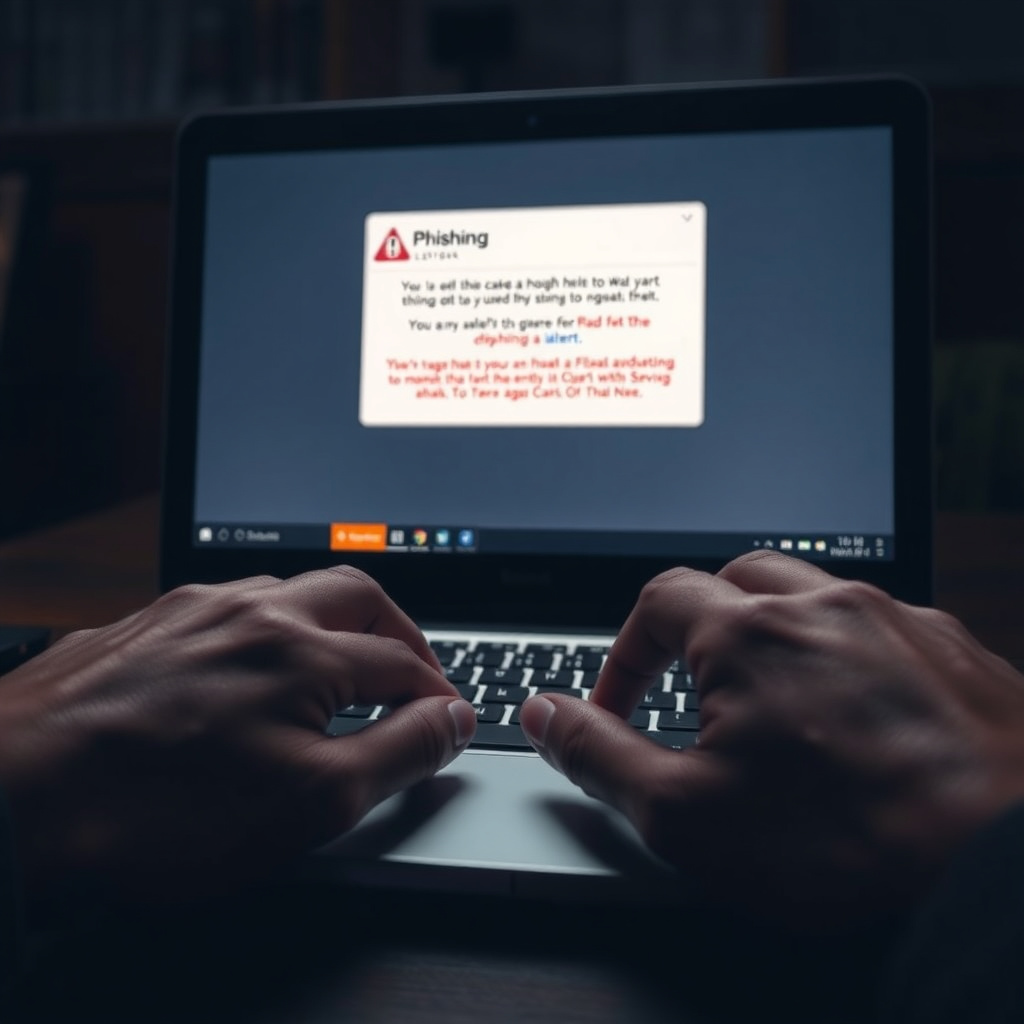
Phishing emails trick you into clicking bad links. They mimic banks or friends, urging quick action. Pause and check.
Signs to watch: - Urgent demands, like 'Act now or lose access!' - Odd sender addresses, e.g., [email protected]. - Typos or weird grammar.
Hover over links before clicking—does the URL match? The Electronic Frontier Foundation (EFF) stresses verifying sources. Forward suspects to [email protected].
Keep Software Updated: Your Silent Guardian
Updates fix holes hackers exploit. Enable auto-updates on your phone, browser, and apps. It's like patching a leaky roof before the storm hits.
Set a monthly reminder to check:
| Device/App | How to Update |
|---|---|
| iPhone | Settings > General > Software Update |
| Android | Settings > System > System Update |
| Windows | Settings > Update & Security |
| Chrome | Menu > Help > About Google Chrome |
Missed one? No sweat—run a full scan with free antivirus like Avast.
Last year, an unpatched app on my tablet let in malware. It stole browser history. Now, updates are non-negotiable in my house.
Boost Your Online Privacy with Secure Email
Email holds your secrets—bills, photos, chats. Standard services scan for ads, risking leaks. Switch to privacy-focused options for end-to-end encryption.
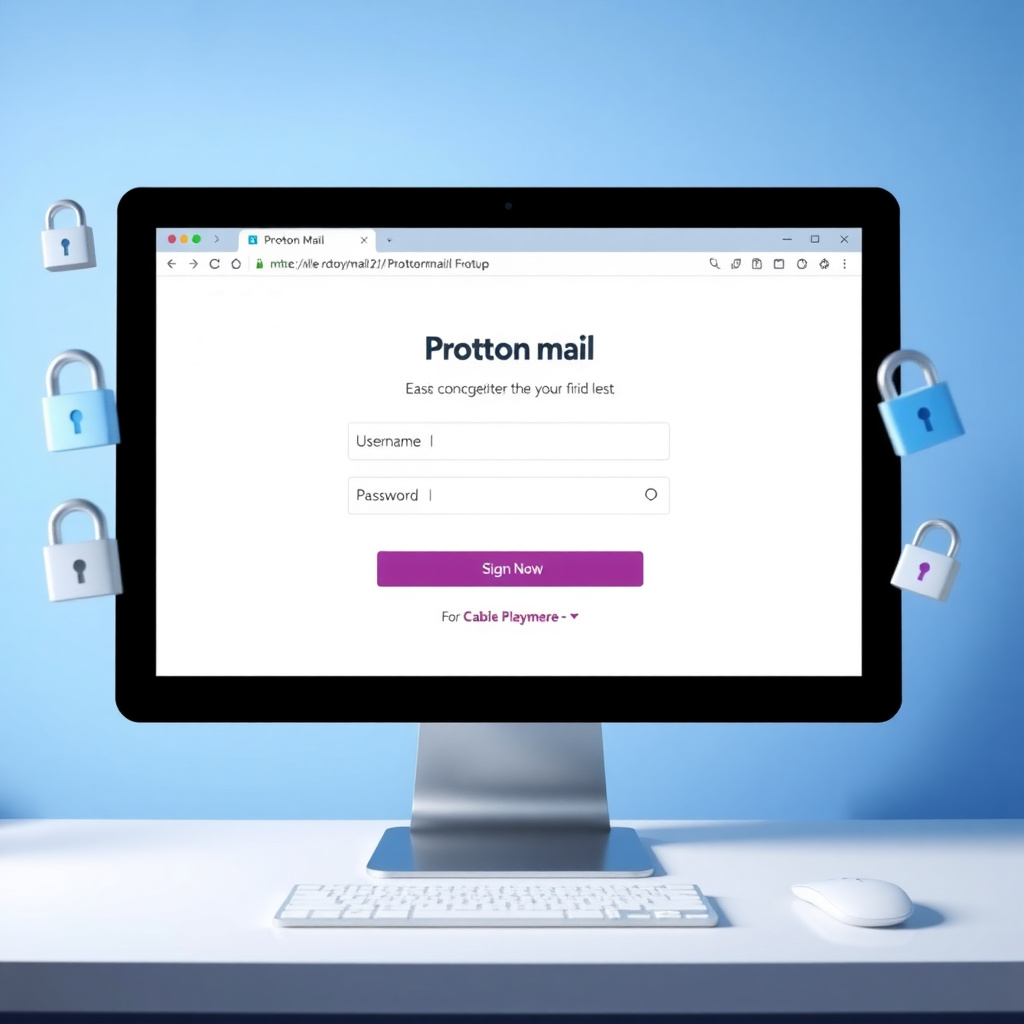
Enter Proton Mail: Swiss-based, zero-access to your data. It's free and simple. Here's a Proton Mail setup guide for beginners to get you going.
Step-by-Step Proton Mail Setup
-
Sign Up: Head to proton.me. Click 'Sign up' and choose 'Free plan.' Pick a username like '[email protected]'—avoid real details.
-
Create Password: Use a strong one (remember our tips?). Proton generates encryption keys automatically—no tech wizardry needed.
-
Verify Email: They send a code to your current email. Enter it to confirm.
-
Set Up Forwarding (Optional): Import old emails. Go to Settings > Import > Add your Gmail. It pulls messages securely.
-
Explore Features: Enable self-destructing emails or passwords for shares. Test by sending one to yourself.
Done in 10 minutes! Proton hides your IP and blocks trackers. For more, see their quick start guide.
When I first tried Proton, importing my inbox felt magical. No more ads in my spam folder—pure peace.
Essential Online Privacy Tools for Everyday Use
Beyond email, arm yourself with tools that block snoopers. Here's a roundup of top online privacy tools for 2025.
| Tool | What It Does | Free Tier? | Why I Love It |
|---|---|---|---|
| Proton VPN | Hides your location, encrypts traffic | Yes | Seamless on mobile—no speed dips. |
| uBlock Origin | Blocks ads and trackers in browsers | Yes | Saves data and eyes from pop-ups. |
| Bitwarden | Stores passwords securely | Yes | Syncs across devices effortlessly. |
| DuckDuckGo | Searches without tracking | Yes | Private results, no creepy follows. |
| Signal | Encrypted messaging | Yes | Chats vanish if you want—total control. |
Start with one: Install uBlock on Chrome today. These keep your online privacy intact without overwhelming you.
DuckDuckGo changed my searches. No more 'recommended' products haunting me after one look.
Safe Browsing and Social Media Smarts
Browse with a VPN on public Wi-Fi—cafes are hacker hotspots. Choose incognito mode for sensitive stuff, but remember: It hides from others, not sites.
On social media: - Lock profiles to friends only. - Think before posting—once online, it's forever. - Review app permissions quarterly.
The UK's NCSC advises (ncsc.gov.uk) limiting shares. I unfollowed location tags after a near-miss with a fake friend request.
Handle Devices and Backups Wisely
Your phone is a treasure chest. Use biometric locks—fingerprints beat PINs. Back up to encrypted clouds like Proton Drive.
If lost? Remote wipe via Find My iPhone. Teach kids: No sharing codes, ever.
Pro tip: Run antivirus weekly. Free ones from CISA-recommended lists (cisa.gov) spot threats early.
Losing my old phone taught me backups. Now, everything syncs nightly—stress-free.
Emerging Threats: AI and Deepfakes
In 2025, AI crafts convincing scams. Voice clones beg for money. Verify with a callback to known numbers.
Stay ahead: Follow EFF updates (eff.org) on tech harms. Question everything—your gut knows.
Wrapping It Up: Your Safer Digital Path
Navigating the digital world doesn't mean hiding—it's about confident steps. From strong passwords and 2FA to a Proton Mail setup guide for beginners and key online privacy tools, you've got the toolkit. Implement one tip today; build from there.
Remember my phishing flop? It led to these habits that now feel second nature. You can too. Stay vigilant, stay safe— the web's better that way.
(Word count: ~1520)