How to Configure IVPN on Android for Maximum Privacy
Introduction
In today's digital world, privacy is more important than ever. With our smartphones being an extension of ourselves, it's crucial to protect our online activities. IVPN is a powerful tool that can help you do just that on your Android device. In this article, we'll guide you through configuring IVPN for maximum privacy, and we'll also introduce you to an additional tool that can further enhance your privacy when sharing images.
Basic Setup
Getting started with IVPN on Android is straightforward. First, download the IVPN app from the Google Play Store. Once installed, open the app and log in with your IVPN account credentials. If you don't have an account yet, you can sign up on the IVPN website.
After logging in, you'll be presented with the main screen of the IVPN app. Here, you can choose a server to connect to. IVPN has servers in various locations around the world, so you can select one that's geographically close to you for better performance or one in a specific country if you need to access region-restricted content.
You can also choose the protocol to use. IVPN supports WireGuard and OpenVPN. WireGuard is generally faster and more efficient, while OpenVPN is more established and might be necessary for certain configurations. For most users, WireGuard is a good choice.
Once you've selected your server and protocol, simply tap the connect button to establish the VPN connection. You'll see a notification indicating that the VPN is active.
Advanced Configuration
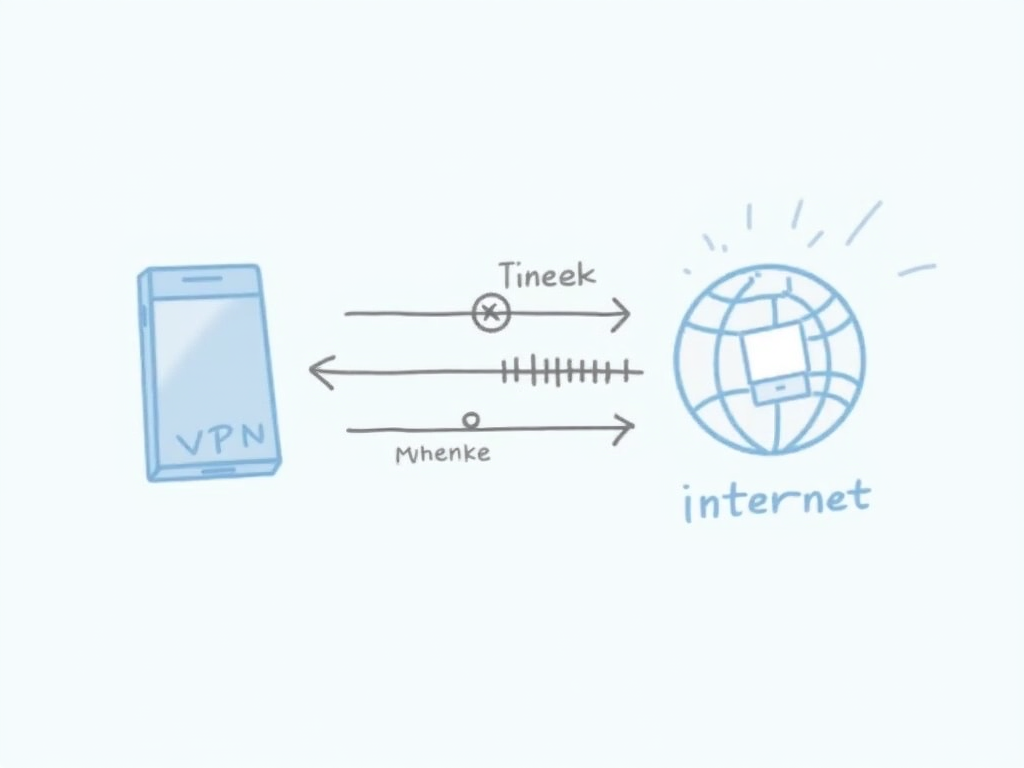
To maximize your privacy, you'll want to explore IVPN's advanced settings. One key feature is the kill switch, which ensures that your internet connection is cut off if the VPN connection drops, preventing any data leaks. You can enable this in the app's settings.
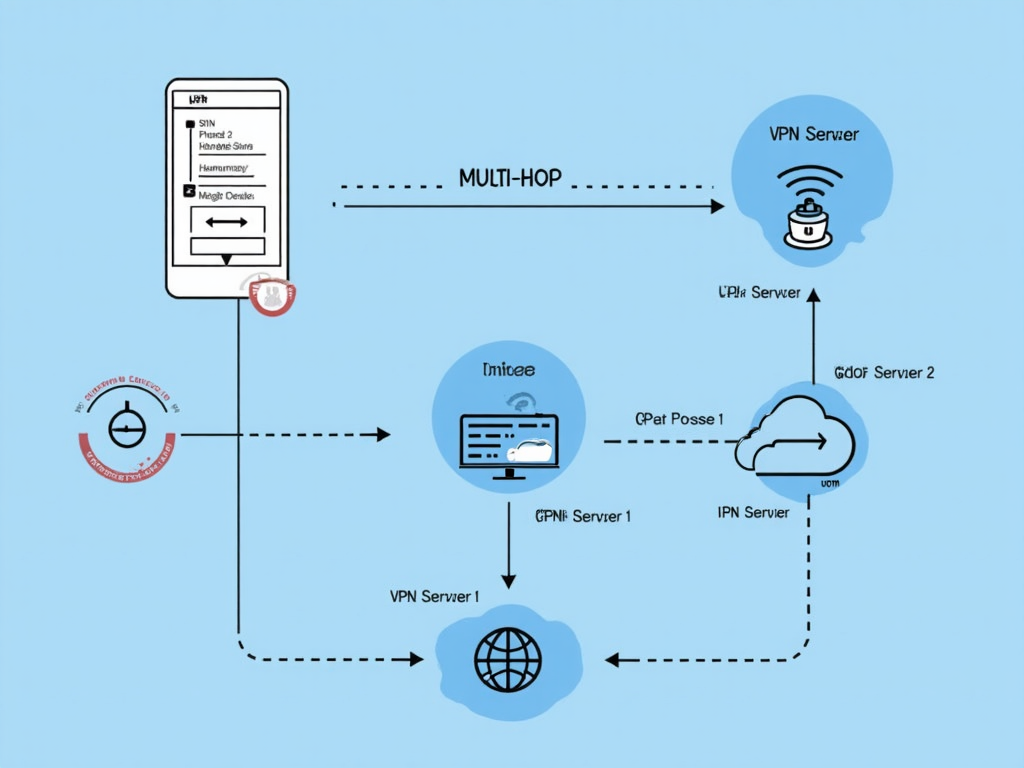
Another important feature is multi-hop, which routes your traffic through two VPN servers instead of one. This adds an extra layer of security, making it even harder for anyone to trace your online activities. However, it might slightly decrease your connection speed.
IVPN also offers DNS filtering, which can block ads, trackers, and malware at the DNS level. This not only enhances your privacy but also improves your browsing experience by reducing clutter and potential threats.
You can enable these features in the settings menu. It's recommended to turn on the kill switch and DNS filtering for maximum privacy. Multi-hop is optional but can be useful if you need extra security.
Additional Privacy Tools
While IVPN does an excellent job of protecting your online activities, there are other aspects of privacy to consider. For example, when sharing images on social media or messaging apps, you might inadvertently include sensitive text that could compromise your privacy. This could be anything from a street sign revealing your location to a document with personal details.
To mitigate this risk, you can use tools like AI Text Remover. This tool uses advanced AI algorithms to detect and remove text from images automatically. It's easy to use: simply upload your image, and the tool will process it, removing any text while preserving the rest of the image. This way, you can share your photos without worrying about unintended disclosures.
AI Text Remover is a valuable addition to your privacy toolkit, complementing the protection offered by IVPN.

Common Mistakes to Avoid
While IVPN is a powerful tool, it's important to use it correctly to maximize its benefits. Here are some common mistakes to avoid:
- Not enabling the kill switch: Without this feature, your data could be exposed if the VPN connection drops.
- Using weak passwords: Make sure your IVPN account is protected with a strong, unique password.
- Connecting to servers in countries with weak privacy laws: Choose servers in privacy-friendly jurisdictions.
- Ignoring app updates: Keep the IVPN app updated to ensure you have the latest security features.
- Sharing sensitive information without additional protection: Remember that a VPN protects your internet traffic, but other measures, like using AI Text Remover for images, are necessary for comprehensive privacy.
Summary
Protecting your privacy on Android is essential, and IVPN is a powerful tool to help you do that. By following the steps outlined in this article, you can configure IVPN for maximum privacy. Additionally, using tools like AI Text Remover can provide an extra layer of protection when sharing images. Remember, privacy is a continuous effort, so stay informed and use the right tools to keep your data safe.
If you found this article helpful, consider sharing it with friends and family who might benefit from learning about online privacy. Together, we can create a more privacy-conscious community.