Proton Mail Setup Guide for Beginners: Secure Your Emails and Boost Online Privacy
Overview
If you're new to secure email, this Proton Mail setup guide for beginners walks you through everything. In about 30 minutes, you'll have a private account that protects your messages. It's a simple way to improve your online privacy without tech headaches.
In today's world, where data breaches happen often, using online privacy tools like Proton Mail makes sense. I've switched to it myself after getting tired of big tech scanning my emails. It feels good knowing my conversations stay private.
Proton Mail stands out because it uses end-to-end encryption. This means only you and the receiver can read the message—no one else, not even Proton. Studies show that strong privacy measures reduce risks from hackers and trackers.[0]
Why bother with online privacy? Well, your emails might contain sensitive info like bank details or health updates. Without protection, companies or bad actors could access them. Experts argue that digital privacy is key to personal freedom in our connected lives.[1]
Why Choose Proton Mail?
Proton Mail started in 2014 by scientists at CERN. They wanted a secure alternative to Gmail. Unlike free services that sell your data, Proton focuses on privacy. It's based in Switzerland, known for strong privacy laws.
From my experience, the free plan works great for basics. You get 1GB storage and 150 messages per day. Paid plans add more features, like custom domains. It's one of the best online privacy tools for everyday users.
Key benefits include: - Zero-knowledge encryption: Proton can't read your emails. - No ads or tracking. - Easy import from other emails. - Mobile apps for on-the-go access.
Encryption helps keep your data safe during transit and storage. Government agencies recommend it to prevent unauthorized access.[20] For secure communication, tools like this are essential.[17]
Step-by-Step Proton Mail Setup Guide for Beginners
Let's dive into setting up your account. I'll share tips from my own setup to make it smooth.
-
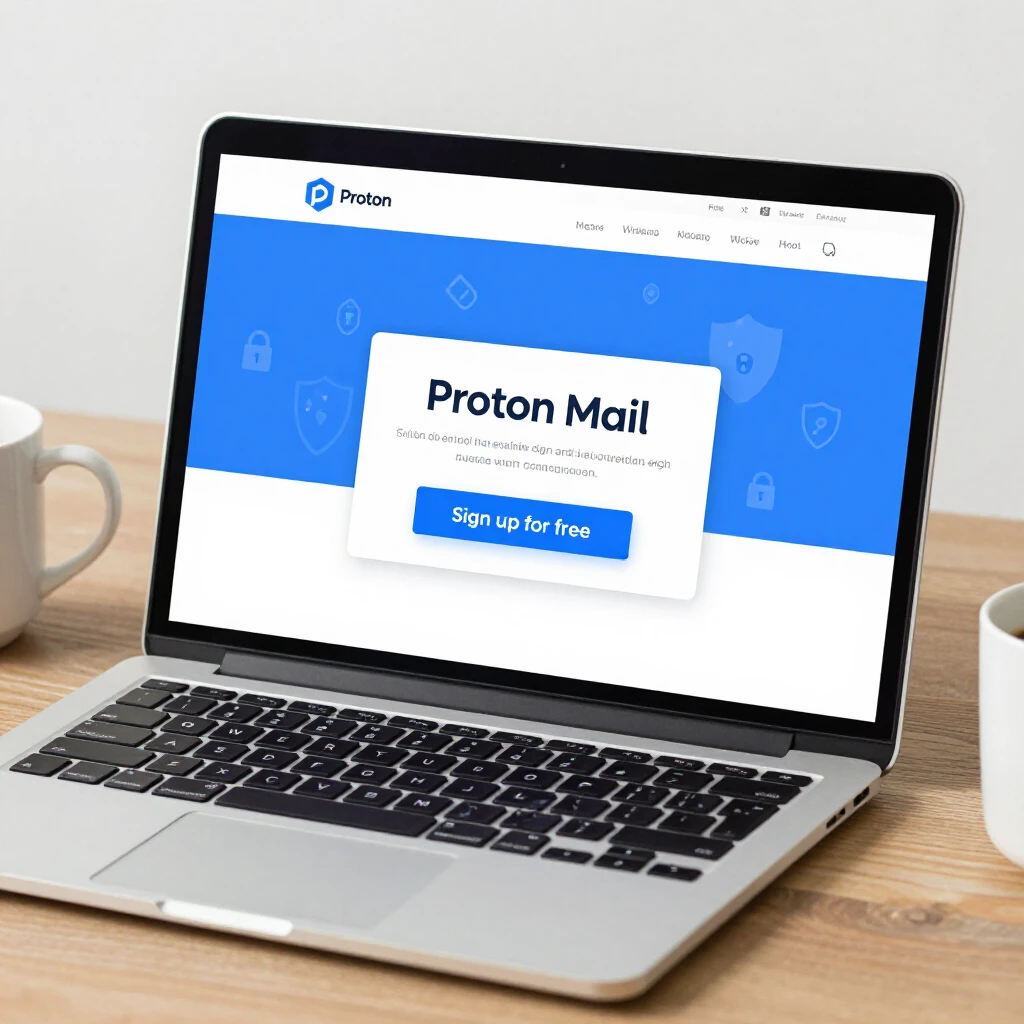
Visit the Website Go to proton.me. Click 'Sign up' in the top right. Choose the free plan to start.
-
Create Your Username Pick a unique username like [email protected]. Make it memorable but not too personal for better privacy.
-
Set a Strong Password Use at least 12 characters with letters, numbers, and symbols. I suggest a passphrase like 'BlueSky2025!'. Avoid reusing passwords from other sites.
-
Verify Your Account Proton sends a code to an alternate email or phone. Enter it to confirm. This step adds security.
-
Complete Setup Answer a quick captcha. You're in! The dashboard shows your inbox.
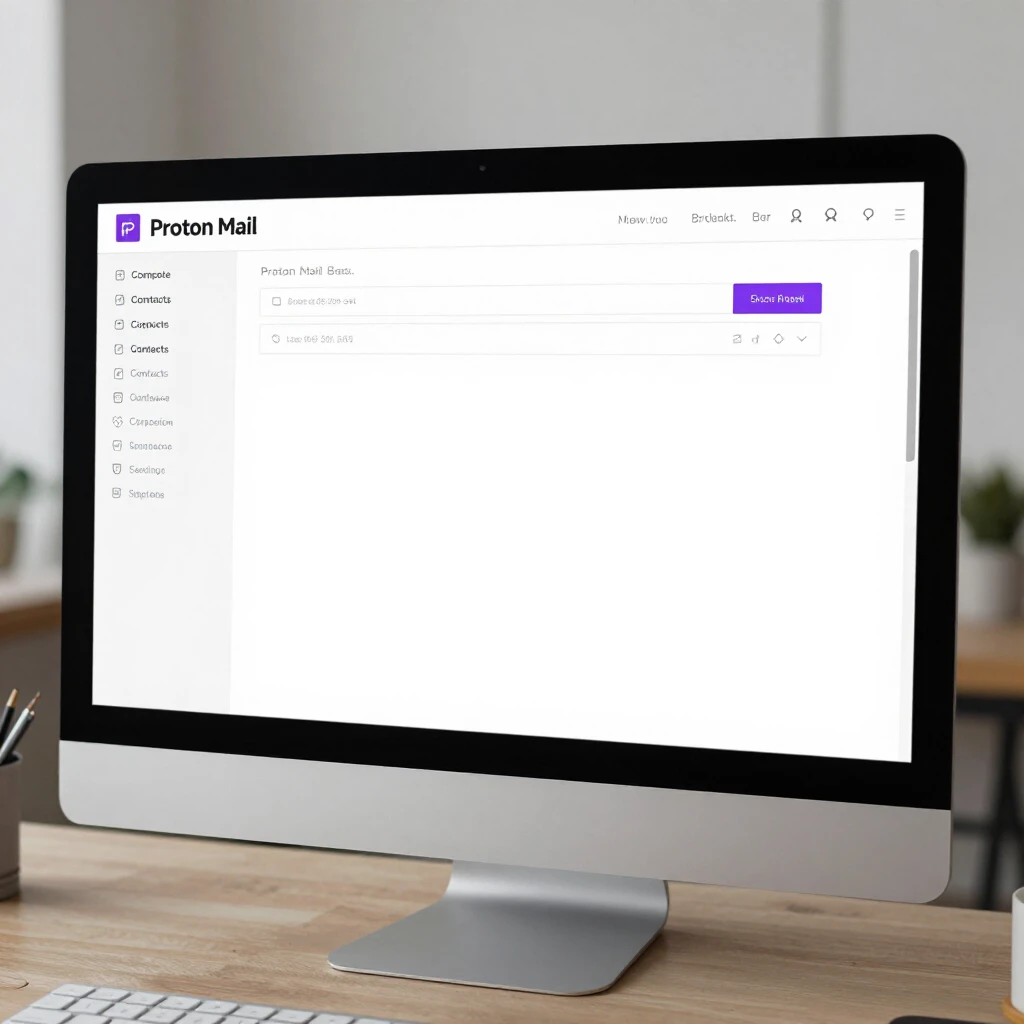
In my first week, I loved how intuitive it was. No overwhelming ads—just clean email.
Customizing Your Account
Once set up, tweak settings for better use. Go to 'Settings' > 'Account' to add a recovery email.
Enable two-factor authentication (2FA). It adds a code from your phone for logins. This stops hackers even if they guess your password.
For online privacy, turn on address verification. It checks if senders are real.
Sending Your First Secure Email
Click 'Compose'. Type the recipient, subject, and message. Proton encrypts it automatically for other Proton users.
For non-Proton recipients, set a password for the email. They get a link to view it securely.
I sent a test email to myself. It arrived encrypted, proving the system works.
Importing Old Emails
If switching from Gmail, use the import tool. Go to 'Settings' > 'Import via Easy Switch'. It pulls in your old messages safely.
Be patient—it can take hours for large inboxes. In my case, it transferred 5,000 emails without issues.
Mobile App Setup
Download the Proton Mail app from your app store. Log in with your credentials. Enable notifications for new messages.
The app syncs perfectly. I check emails on my phone without worrying about security.
Advanced Features for Beginners
Try labels and filters. Create folders like 'Work' or 'Family' to organize.
Use the calendar integration if you upgrade. It's encrypted too.
For extra privacy, pair Proton with a VPN. It hides your IP when browsing.
| Feature | Free Plan | Paid Plan |
|---|---|---|
| Storage | 1GB | Up to 500GB |
| Messages per day | 150 | Unlimited |
| Custom domains | No | Yes |
| Priority support | No | Yes |
This table helped me decide to upgrade after a month.
Common Mistakes to Avoid
Don't share your password. Use a manager like Bitwarden.
Watch for phishing. Proton marks suspicious emails.
Update the app regularly for security fixes.
In my experience, staying vigilant keeps things safe.
Troubleshooting Tips
If login fails, reset your password via the recovery email.
For slow loading, check your internet. Proton works well on most connections.
Contact support if needed—they're helpful for beginners.
Summary
Setting up Proton Mail is straightforward and boosts your online privacy. Follow this guide, and you'll have a secure email in no time. Remember, small steps like this protect your data in a big way.