How to Block Ads on All Your Devices
Overview
Tired of ads popping up everywhere? This guide shows you how to block ads on all your devices. You'll learn simple steps for browsers, mobiles, and whole networks, boosting your online privacy and speed.
Why You Should Block Ads
Ads follow you online, slowing down pages and invading your privacy. They track your clicks and searches to build profiles on you. Blocking them makes browsing faster and safer.
In my experience, after blocking ads, web pages load quicker, and I worry less about data leaks. Studies show ads can use up to 50% of your mobile data. By using online privacy tools, you take control back.
For more on how sites gather your info, check out how websites and apps collect and use your information from the FTC.
Start with Your Browser
Browsers are where most ads appear. Install an ad blocker extension to stop them.
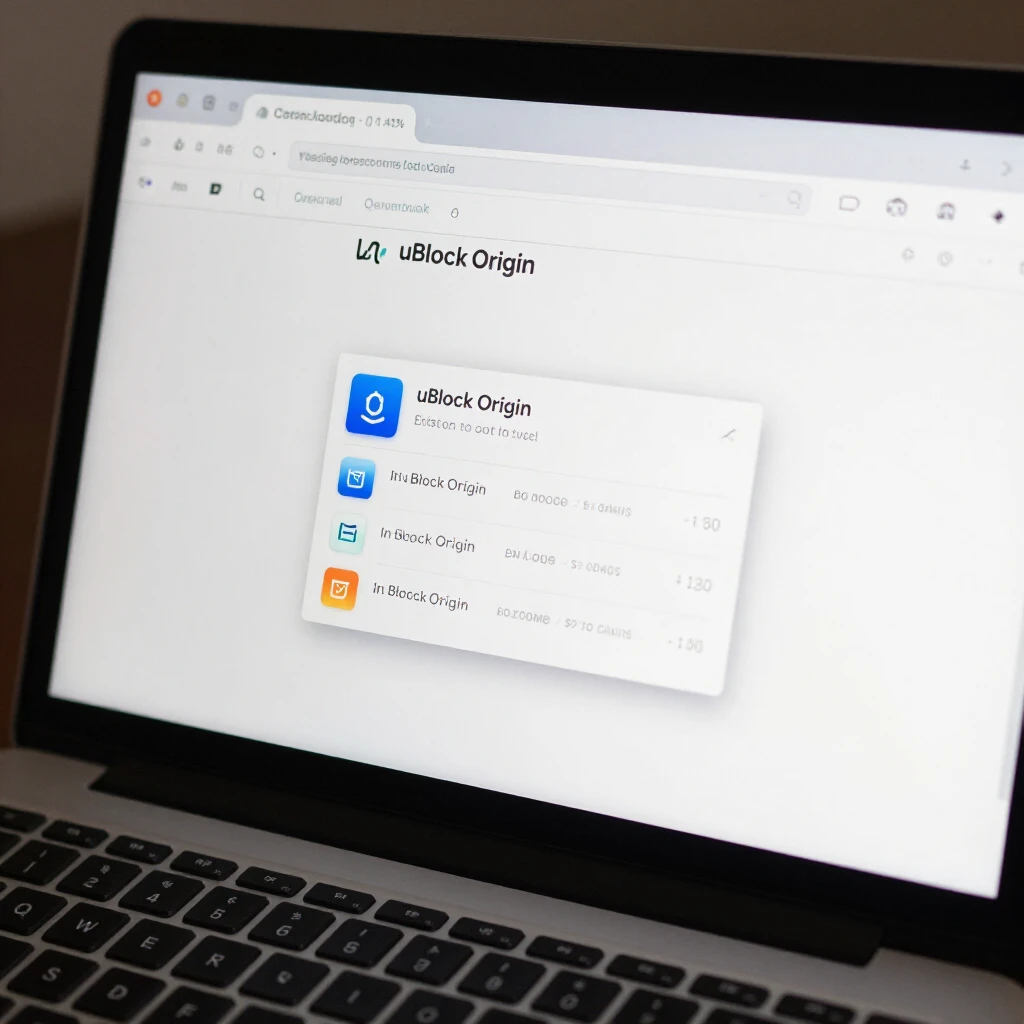
For Chrome or Firefox, try uBlock Origin. It's free and effective. Go to the extension store, search for it, and add it. Turn on filters for ads and trackers.
Mozilla explains that ad blockers prevent ads from loading and hide ad spaces. Learn more in their guide to ad blockers.
Privacy Badger from the EFF learns and blocks trackers automatically. I've used it for years; it adapts to sites without much setup. Download it from EFF's Privacy Badger page.
Block Ads on Mobile Devices
Mobiles get hit with ads in apps and browsers. For iPhones, go to Settings > Safari > Extensions and add an ad blocker like AdGuard.
On Android, use Firefox with add-ons or set up private DNS.
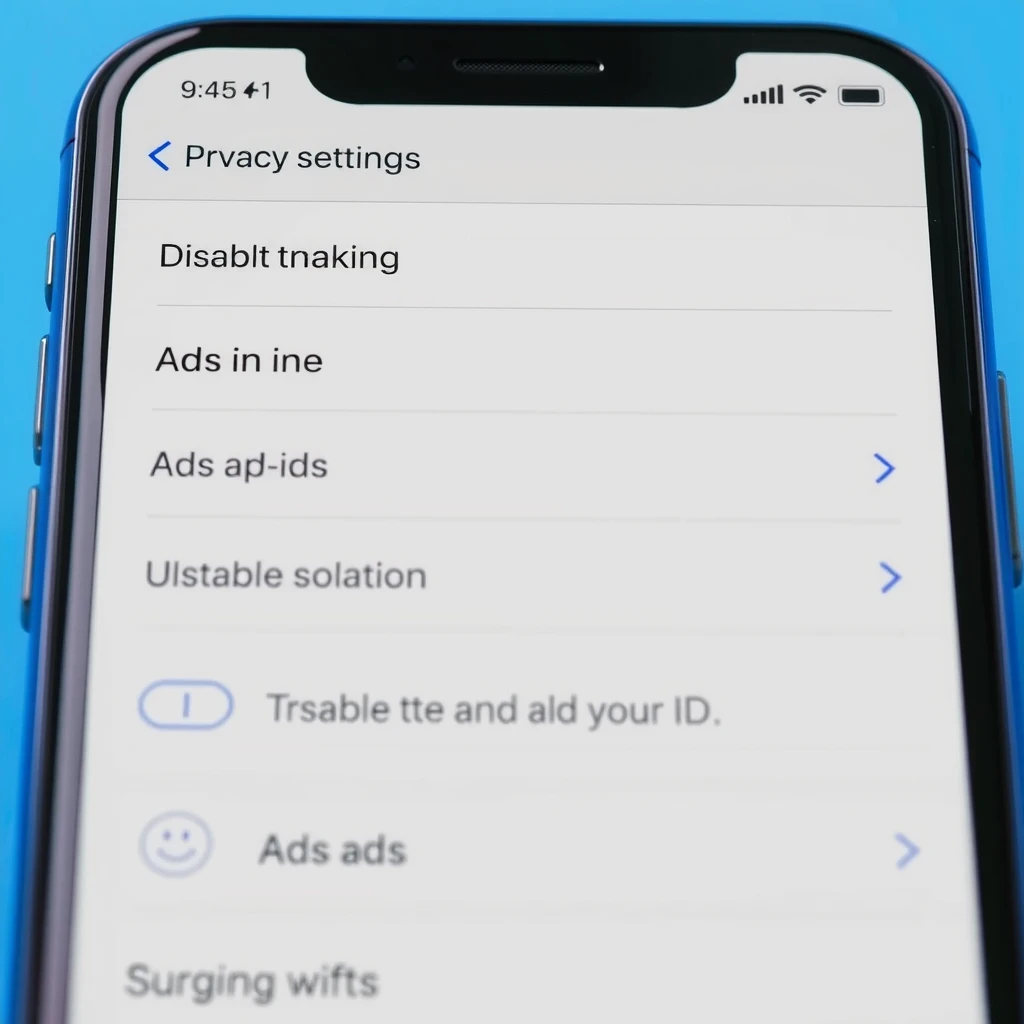
To limit tracking, disable ad IDs. On iOS: Settings > Privacy & Security > Tracking > Allow Apps to Request to Track (turn off). On Android: Settings > Privacy > Ads > Delete advertising ID.
The California Privacy Protection Agency shares tips on limiting mobile device tracking. This stops apps from sharing your data with advertisers.
From my own use, turning off tracking cut down on personalized ads, making my phone feel more private.
Network-Wide Protection with NextDNS
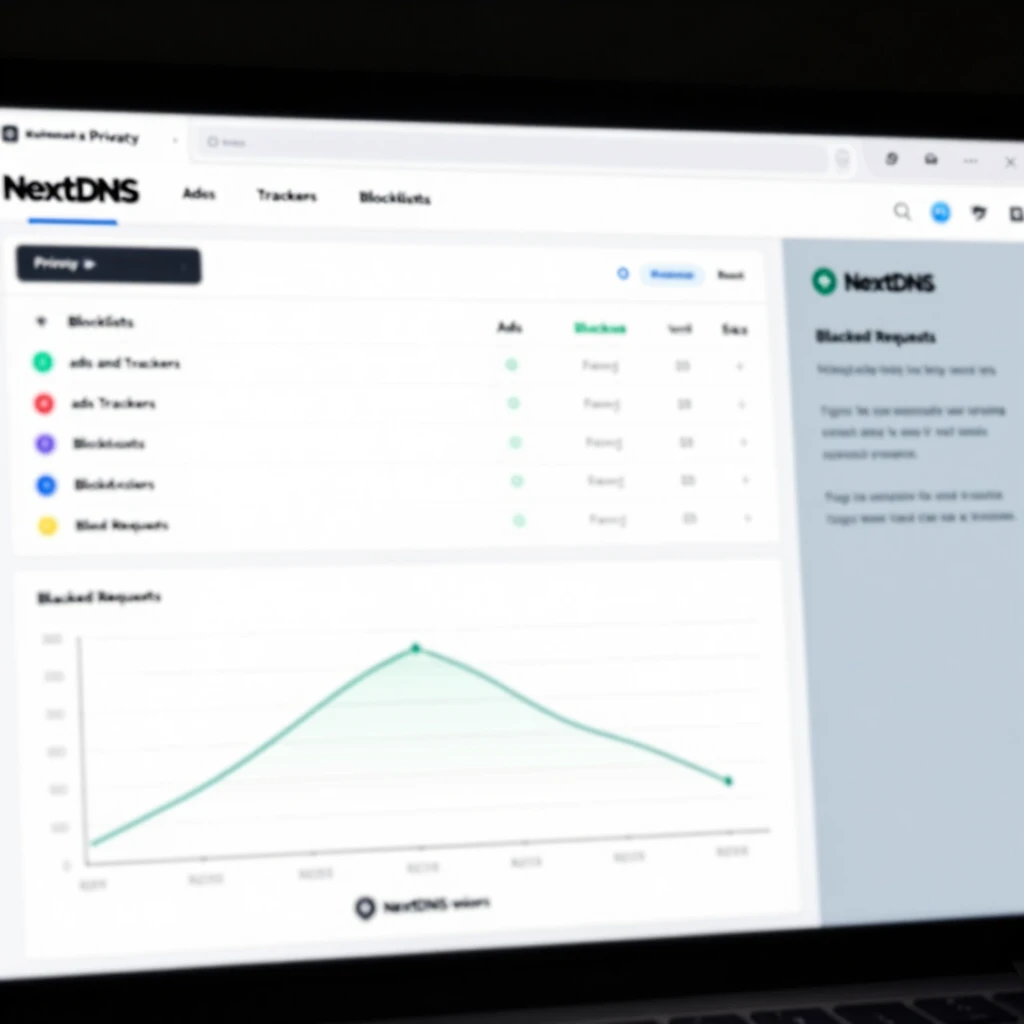
For blocking ads on all your devices at once, use NextDNS. It's a DNS service that filters ads and trackers before they reach you.
Here's a NextDNS setup guide for blocking ads and trackers:
-
Sign up at nextdns.io. Create a free account.
-
You'll get a unique config ID, like abc123.nextdns.io.
-
In your dashboard, go to Privacy > Blocklists. Add lists like OISD Basic, AdGuard DNS, and StevenBlack Hosts. These block ads, trackers, and malware.
-
For devices:
- Windows: Right-click network icon > Open Network & Internet settings > Change adapter options > Right-click your connection > Properties > IPv4 > Use these DNS: Enter NextDNS servers (from your dashboard).
- Mac: System Settings > Network > Your connection > Details > DNS > Add NextDNS IPs.
- iOS: Settings > Wi-Fi > i next to network > Configure DNS > Manual > Add NextDNS servers.
- Android: Settings > Network & internet > Private DNS > Private DNS provider hostname > Enter your config ID (e.g., dns.nextdns.io/abc123).
- Router: Log into router admin (usually 192.168.1.1), find DNS settings, enter NextDNS IPs. This covers all home devices.
Enable security features like threat blocking. In my tests, NextDNS cut ads by 90% network-wide, and it's great for families.
For broader privacy, CISA recommends limiting your digital footprint, which aligns with using tools like NextDNS.
More Online Privacy Tools
Beyond ad blockers, use VPNs to hide your IP. Tools like Signal for messaging keep chats private.
Trackers hide in cookies; clear them often. Use browser settings to block third-party cookies.
I've found combining ad blockers with privacy-focused search engines like DuckDuckGo enhances online privacy. It stops data collection at the source.
| Tool | Purpose | Ease of Use |
|---|---|---|
| uBlock Origin | Blocks ads in browsers | Easy |
| NextDNS | Network-wide ad blocking | Medium |
| Privacy Badger | Auto-blocks trackers | Easy |
| VPN | Hides location | Easy |
Remember, no tool is perfect. Stay aware of what you share online.
Wrapping Up
Blocking ads on all your devices improves speed, saves data, and boosts online privacy. Start with browser extensions, move to mobile settings, and use NextDNS for full coverage. These steps have transformed my online experience—yours can too.