How to Secure Your Smartphone: A Complete Guide to Mobile Privacy
Overview
Your smartphone is a gateway to your personal life, holding sensitive data like messages, photos, and financial details. But with apps and trackers constantly vying for your information, securing your device is more critical than ever. This guide dives into practical steps for how to secure your smartphone, from picking the right browser to choosing privacy-focused creative tools.
Why Smartphone Security Matters
I’ve always been cautious about my phone’s privacy, especially after a friend had their identity stolen through a hacked app. Smartphones are treasure troves of data—your location, search history, even your voice can be tracked. According to a 2023 Pew Research study on mobile privacy, 60% of Americans worry about how their phone data is used, yet many don’t take basic steps to protect it. Securing your smartphone isn’t just about avoiding hacks; it’s about controlling who sees your digital footprint.
Start with the Basics: Lock It Down
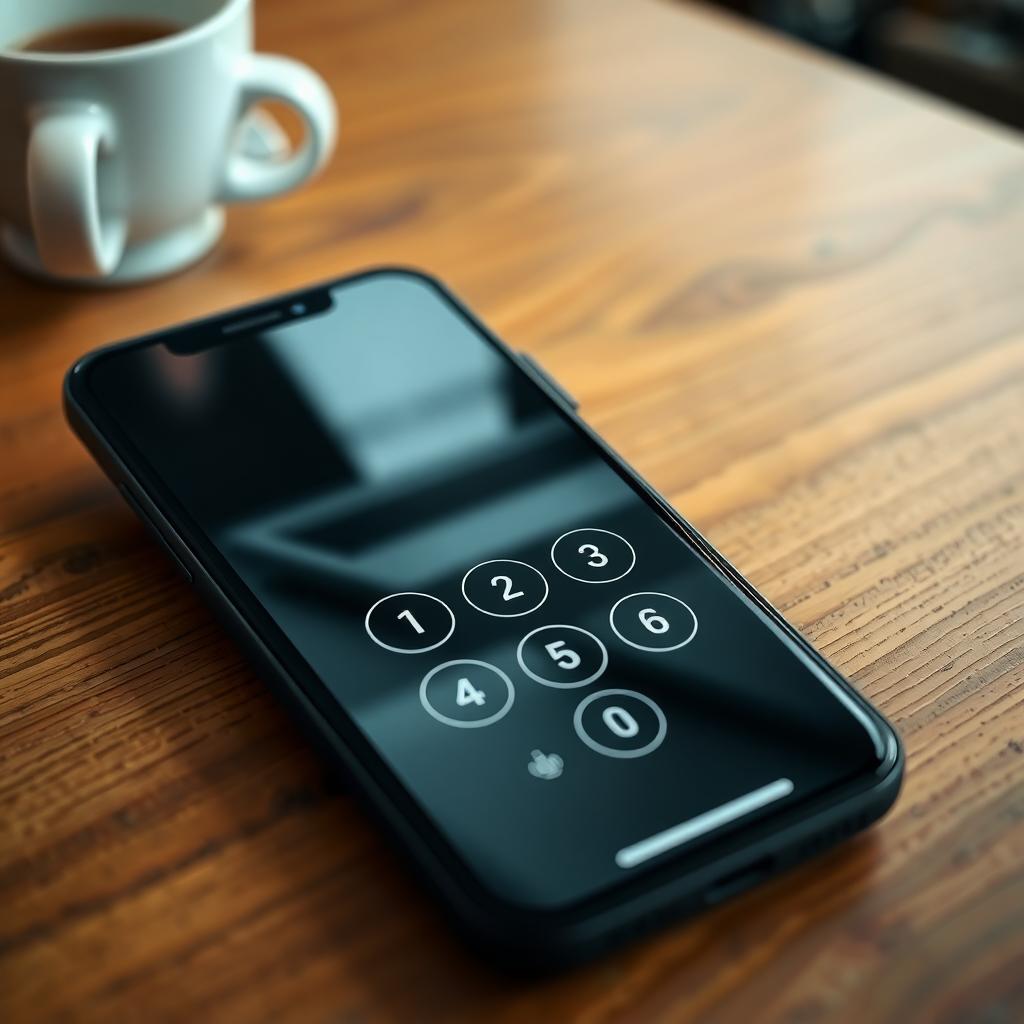
The first step to secure your smartphone is setting a strong lock screen. I learned this the hard way when I left my phone at a coffee shop. A PIN or biometric lock (fingerprint or face recognition) is non-negotiable. Use a complex PIN—six digits or more, avoiding repetitive numbers like 123456. Passwords are even better if your device supports them. Enable auto-lock after 30 seconds of inactivity to minimize risks if your phone is lost or stolen.
Mobile Privacy: Picking the Right Browser
Your browser is your window to the internet, and it’s a prime target for trackers. Mobile privacy: picking the right browser can make or break your security. Default browsers like Safari or Chrome often prioritize convenience over privacy, storing cookies and search data. Instead, opt for privacy-focused browsers like Firefox Focus or DuckDuckGo, which block trackers by default. I switched to a privacy browser after noticing ads for products I’d only mentioned in texts—it was a wake-up call.
Firefox Focus vs DuckDuckGo: Which Mobile Browser Is More Private?
Let’s compare Firefox Focus vs DuckDuckGo: which mobile browser is more private? Both are excellent, but they cater to different needs. Firefox Focus, backed by Mozilla, is a minimalist browser that automatically deletes cookies, history, and trackers after each session. It’s like a clean slate every time you browse. I love its simplicity—there’s even a single button to erase your session instantly. Mozilla’s privacy documentation highlights its default tracking protection, which blocks social media trackers and ads.
DuckDuckGo, on the other hand, doubles as a search engine and browser, emphasizing encrypted connections and zero tracking. It offers a ‘Fire Button’ to wipe your data and a privacy grade for each website, which I find handy for spotting risky sites. A 2025 Android Authority review notes DuckDuckGo’s edge in user-friendly features like site privacy scores. If you want a no-fuss experience, Firefox Focus is better; for more tools and feedback, DuckDuckGo shines.
| Feature | Firefox Focus | DuckDuckGo |
|---|---|---|
| Tracker Blocking | Automatic, aggressive | Automatic, with site grades |
| Data Deletion | One-tap erase | Fire Button |
| Search Engine | Uses default engine | Built-in private search |
| Customization | Minimal | Moderate |
| Best For | Simplicity | Feature-rich privacy |
App Permissions: Less Is More
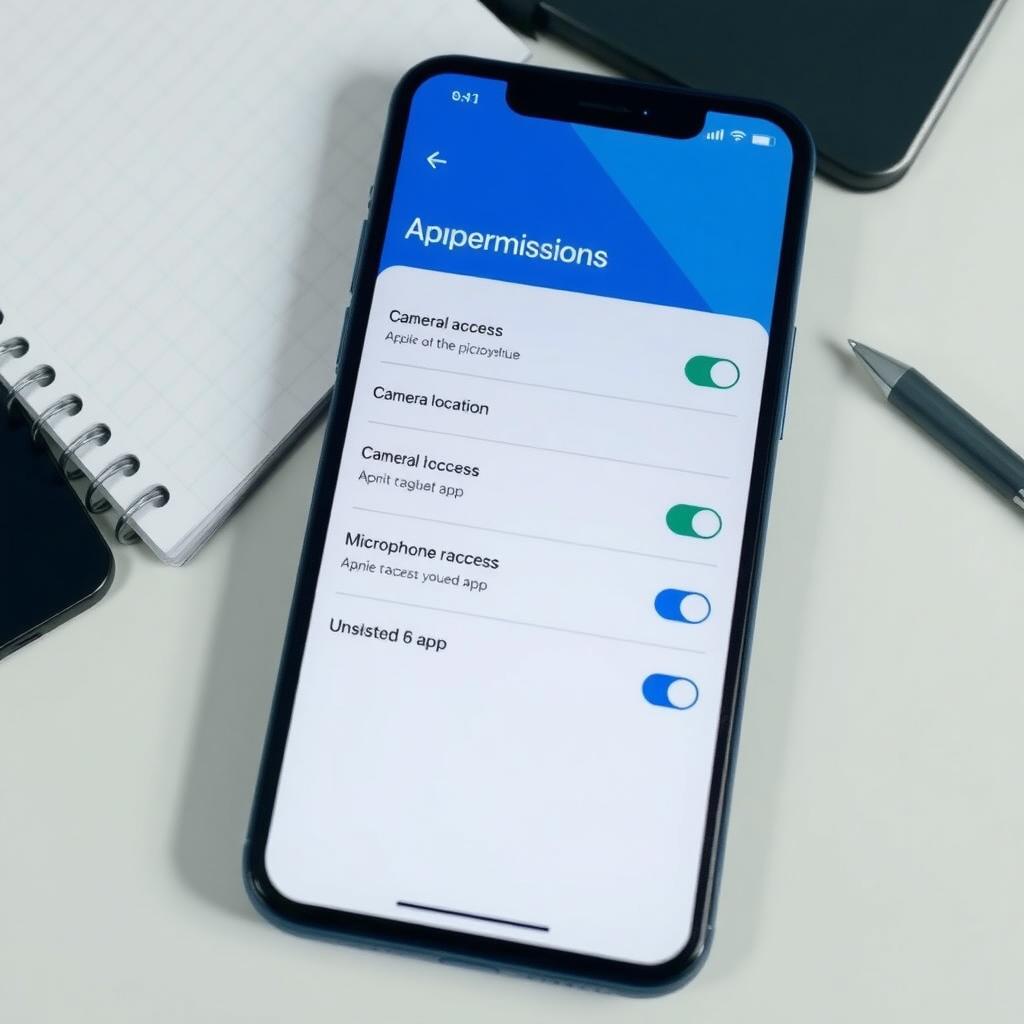
Apps often ask for more access than they need. That flashlight app doesn’t need your location or contacts. I check permissions regularly, especially after installing new apps. Go to your phone’s settings and review what each app can access. On Android, navigate to Settings > Apps > Permissions; on iOS, it’s Settings > Privacy. Disable anything unnecessary—your camera app doesn’t need your microphone. A Consumer Reports guide on smartphone privacy suggests deleting unused apps, as they can still share data in the background.
How to Choose Privacy-Focused Creative Tools
Creative apps—like photo editors, video makers, or note-taking tools—can be privacy traps. How to choose privacy-focused creative tools starts with checking their data policies. I once used a photo editor that shared my images with third-party advertisers—never again. Look for apps with clear privacy policies, ideally open-source ones like Krita or Obsidian. Check if they collect data unnecessarily; a drawing app shouldn’t need your GPS. The Electronic Frontier Foundation’s guide to app privacy recommends choosing apps that encrypt data and avoid cloud storage unless you opt in.
Creative Tools and Privacy: What to Watch For
When exploring creative tools and privacy: what to watch for, prioritize transparency and control. Avoid apps that require excessive permissions or vague terms of service. I stick to tools that let me work offline or store data locally. For example, I use Signal for private notes instead of cloud-based apps—it’s encrypted and doesn’t sync unless I choose to. Also, watch for apps that bundle trackers; a 2025 PrivacyTools.io report found that many creative apps embed ad trackers, even in paid versions.
Updates and Encryption: Stay Current
Keeping your phone’s software updated is a simple but powerful step. I ignored updates once, only to find my phone vulnerable to a known exploit. Check for updates in Settings > System > Software Update (Android) or Settings > General > Software Update (iOS). Enable encryption, which is standard on modern devices but worth verifying. On Android, go to Settings > Security > Encryption; on iOS, it’s automatic with a passcode. Encryption scrambles your data, making it unreadable without your credentials.
Use a VPN and Secure Wi-Fi
Public Wi-Fi is a hacker’s playground. I always use a VPN on public networks to encrypt my connection. Trusted VPNs like ProtonVPN or NordVPN mask your IP and secure your data. Also, turn off Wi-Fi and Bluetooth when not in use—they can be exploited to track your device. I learned this after my phone auto-connected to a sketchy airport Wi-Fi network.
Backup and Remote Wipe
Back up your data regularly to a secure location, like an encrypted external drive or a privacy-respecting cloud service. I use Nextcloud for backups—it’s self-hosted and private. Enable remote wipe features (Find My Device on Android, Find My iPhone on iOS) to erase your phone if it’s lost. This saved me once when I misplaced my phone during a trip.
Summary
Securing your smartphone is about taking control of your data. From using a strong lock screen to choosing privacy-focused browsers like Firefox Focus or DuckDuckGo, every step counts. Review app permissions, pick transparent creative tools, and stay updated with encryption and VPNs. These habits have kept my phone safe, and they can work for you too.