How to Use BleachBit to Clean Your Computer for Privacy
Quick Overview
In today's digital world, your computer collects tons of data about what you do online. BleachBit helps you wipe away those traces safely. This guide shows you how to use BleachBit to clean your computer for privacy, making it a top choice among online privacy tools.

Why Protecting Your Online Privacy Matters
Every time you browse the web, download files, or use apps, your computer stores bits of information. This includes cookies, cache, history, and temporary files. These can reveal your habits to advertisers, hackers, or anyone who accesses your device.
I've seen firsthand how unchecked data buildup slows down computers and raises privacy risks. Using tools like BleachBit regularly keeps things running smoothly and your info private.
According to experts, maintaining online privacy is crucial in an era of widespread data collection.
BleachBit stands out as one of the best online privacy tools because it's free, open-source, and powerful. It goes beyond simple deletion by shredding files to prevent recovery.
What Is BleachBit?
BleachBit is a free, open-source program for Windows and Linux. It cleans junk files, frees disk space, and guards your privacy. It supports thousands of applications, including browsers like Firefox and Chrome.
Key features include: - Deleting cache, cookies, and internet history - Shredding files securely - Wiping free disk space to hide old deleted files - Vacuuming databases for faster performance
You can download it from the official site: BleachBit Official Website.
Step-by-Step: How to Download and Install BleachBit
- Visit the official BleachBit website.
- Choose the version for your operating system (Windows or Linux).
- For Windows, select the installer or portable version.
- Run the installer and follow the prompts.
The portable option is great if you want to run it from a USB drive without installing.
In my experience, installation takes less than a minute, and it's straightforward even for beginners.
Getting Started with BleachBit
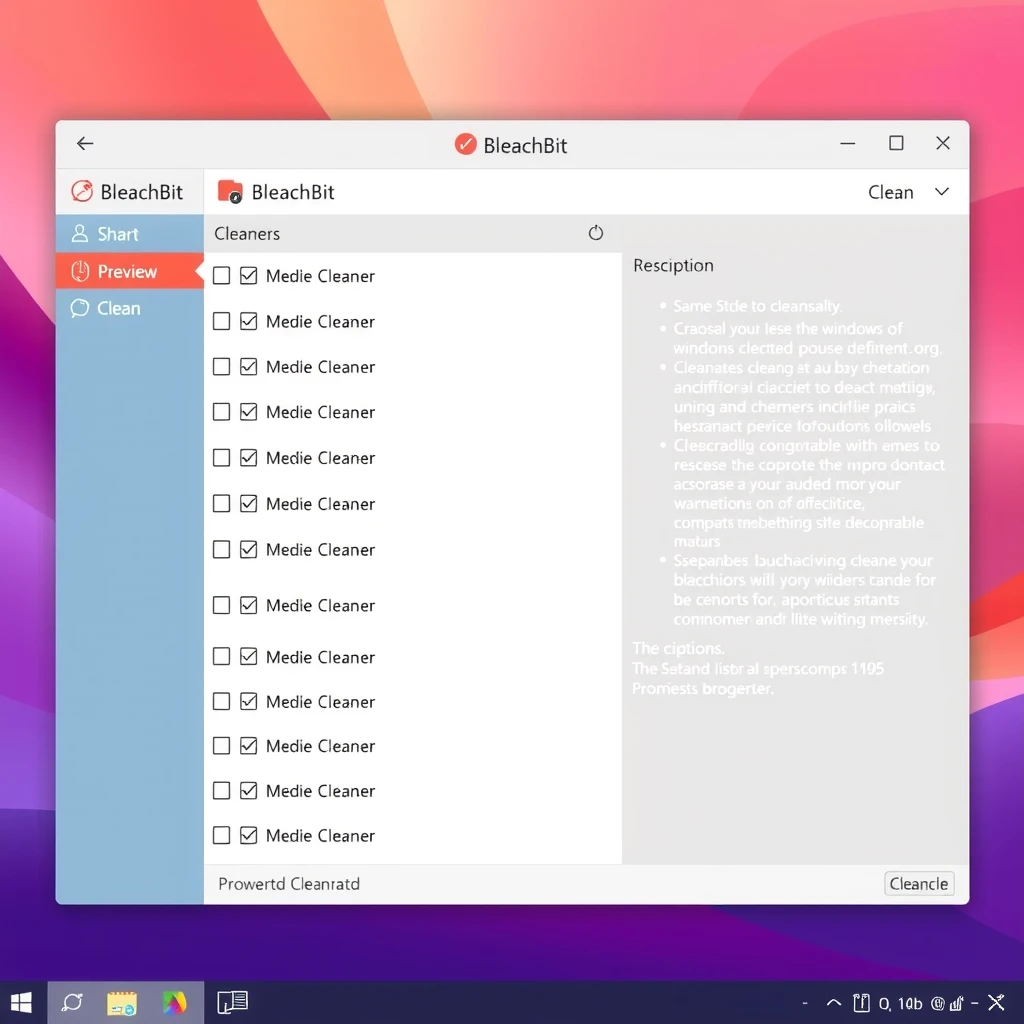
Open BleachBit. You'll see a list of cleaners on the left, like System, Firefox, Chrome, and more.
Each cleaner has options. Click on one to read its description on the right. This helps you understand what it cleans.
Safe Options to Start With
Begin with these common, low-risk choices:
| Category | Recommended Options | What It Does |
|---|---|---|
| Browsers | Cache, Cookies, History | Removes tracking data |
| System | Temporary files, Recycle Bin, Clipboard | Frees space safely |
| Applications | Logs, Thumbnails | Clears unused junk |
Always preview first!
How to Use BleachBit to Clean Your Computer for Privacy
Follow these steps every time:
- Check the boxes for the cleaners and options you want.
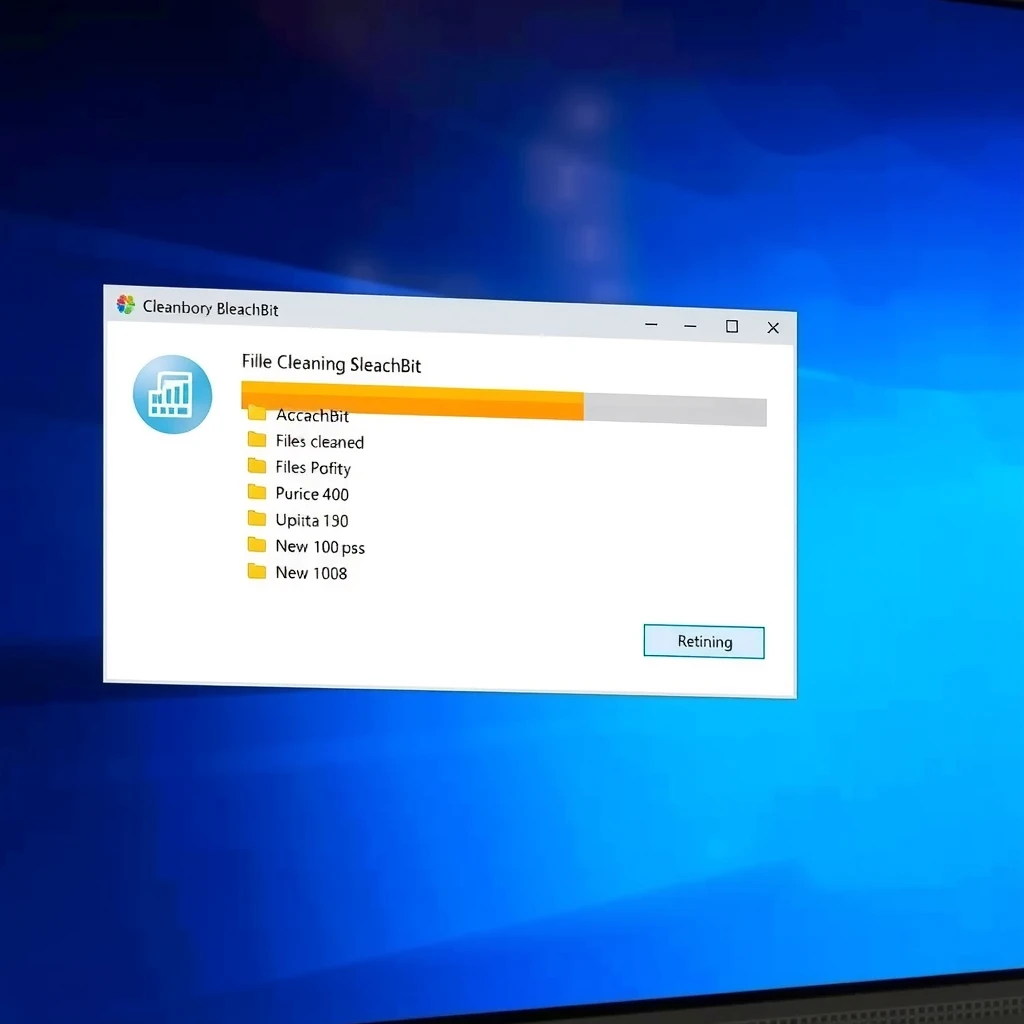
- Click Preview – this shows what will be deleted without changing anything.
- Review the list. It tells you how much space you'll free.
- If everything looks good, click Clean.
- Confirm the action.
The process might take a few minutes, depending on your selection.
For extra privacy, enable Overwrite files in Preferences. This shreds data multiple times, making recovery nearly impossible.
Advanced Privacy Features
- Wipe Free Space: Hides traces of previously deleted files. Use this occasionally – it takes time but boosts privacy.
- Shred Specific Files: Right-click files in Explorer (Windows) and choose BleachBit to shred them.
- Custom Cleaners: Advanced users can add more via winapp2.ini files.
I run a full clean monthly and wipe free space quarterly. It keeps my system snappy and private.
Common Mistakes to Avoid
- Don't check everything blindly. Some options, like deep scans, might affect app settings.
- Run as administrator for system-wide cleaning on Windows.
- Backup important data first, though BleachBit is safe when previewed.
From personal use, starting small builds confidence.
Combining BleachBit with Other Online Privacy Tools
BleachBit excels at local cleaning, but pair it with: - VPNs for hiding your IP - Privacy-focused browsers like Firefox with extensions - Strong passwords and two-factor authentication
Together, they create strong online privacy protection.
Final Thoughts
Learning how to use BleachBit to clean your computer for privacy is simple and rewarding. It frees space, speeds up your device, and keeps your data yours. Start today – your future self will thank you.
As an open-source tool, BleachBit puts control in your hands without ads or tracking.
For more details on features and usage, check the BleachBit Documentation.