How to Protect Your Data When Using Online Tools
Overview
In today’s digital world, online tools make life easier, from managing tasks to staying connected. But with convenience comes risk—your personal data can be exposed if you’re not careful. This guide explains how to protect your data when using online tools, offering practical tips to keep your information safe.
Why Online Privacy Matters
Every time you use an online tool, you share data—sometimes without realizing it. Websites track your browsing habits, apps collect location data, and forms ask for personal details. I’ve seen friends panic after noticing targeted ads based on private conversations. It’s unsettling, but you can take control. Protecting your data isn’t just about avoiding hacks; it’s about maintaining your freedom and peace of mind.
Data breaches are common. In 2023, over 2.6 billion personal records were exposed worldwide, according to IBM’s Cost of a Data Breach Report. Online privacy tools can help you reduce risks, but you need to know how to use them effectively.

Choose Privacy-Focused Browsers
Your browser is the gateway to the internet, so picking one that prioritizes privacy is key. Two great options are Firefox Focus and DuckDuckGo. Let’s break down Firefox Focus vs DuckDuckGo: which mobile browser is more private?
- Firefox Focus: This browser, built by Mozilla, automatically blocks trackers and ads. It deletes your browsing history, cookies, and passwords after each session, leaving no trace. I love its simplicity—it’s perfect for quick, private searches on the go.
- DuckDuckGo: Known for its search engine, DuckDuckGo’s mobile browser also blocks trackers and forces websites to use encrypted connections when possible. It assigns websites a privacy grade (A to F), which helps you understand how safe a site is.
Which is better? Firefox Focus is ideal for minimalists who want a clean slate after every session. DuckDuckGo offers more features, like the privacy grade, which I find helpful for assessing unfamiliar sites. Both are excellent, but I lean toward DuckDuckGo for its transparency.
Use Online Privacy Tools
Beyond browsers, other tools can boost your security. Here are my top picks:
| Tool | Purpose | Why It’s Great |
|---|---|---|
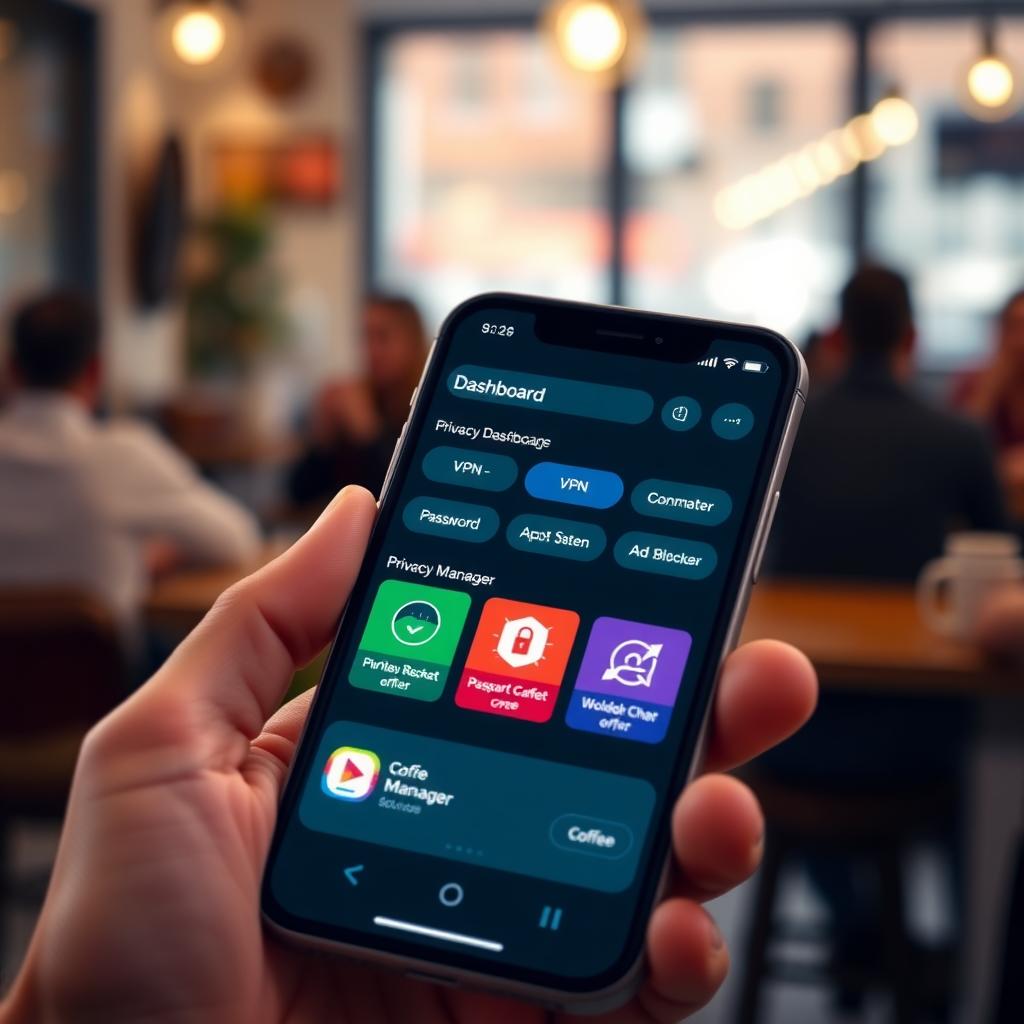
| VPN (e.g., NordVPN, ProtonVPN) | Encrypts your internet connection | Hides your IP address and protects data on public Wi-Fi |
| Password Manager (e.g., Bitwarden) | Stores and generates strong passwords | Keeps your accounts secure with unique, complex passwords |
| Ad Blocker (e.g., uBlock Origin) | Blocks trackers and ads | Reduces data collection and speeds up browsing |
I started using a VPN after noticing how many coffee shop Wi-Fi networks were unsecured. It’s a small price for peace of mind. Pair these tools with a privacy-focused browser, and you’ve got a solid defense.
Adopt Safe Browsing Habits
Tools alone aren’t enough—your habits matter. Here’s what I do to stay safe:
- Check Website Security: Look for “https://” and a padlock in the address bar. It means the site encrypts your data.
- Limit Data Sharing: Only fill out required fields in online forms. I once skipped optional fields on a signup form and avoided unwanted marketing emails.
- Update Software Regularly: Outdated apps can have vulnerabilities. Set your devices to auto-update.
- Use Two-Factor Authentication (2FA): This adds a second layer of security, like a text code or app notification. I enabled 2FA on my email after a friend’s account was hacked.
These steps take minutes but can save you hours of stress.
Be Cautious with Cloud Storage
Cloud tools like Google Drive or Dropbox are convenient, but they’re not always private. Encrypt sensitive files before uploading them. I use tools like Cryptomator to lock files with a password. Also, review sharing settings—make sure you’re not accidentally sharing private documents with others.
Understand App Permissions
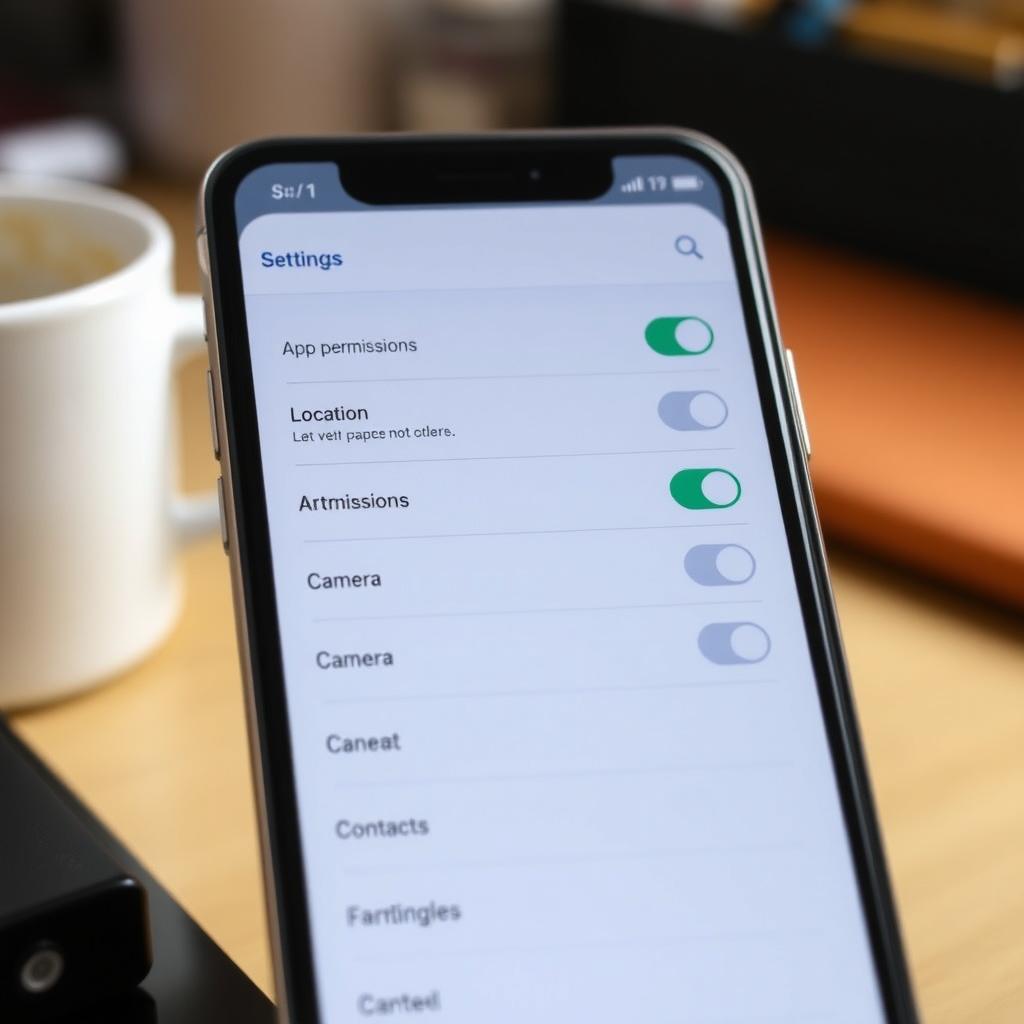
Many apps ask for access to your location, camera, or contacts. Always question why an app needs these permissions. I once denied a flashlight app access to my contacts—it didn’t need them to work! On your phone, review app permissions in settings and revoke unnecessary ones.
Stay Informed About Data Breaches
Sign up for services like Have I Been Pwned to get alerts if your email appears in a breach. I check this monthly and change passwords if needed. Knowledge is power—knowing when your data is exposed lets you act fast.
Balance Convenience and Privacy
Online tools are meant to make life easier, but don’t sacrifice security for convenience. I used to save passwords in my browser for quick logins, but after learning how easily they can be accessed, I switched to a password manager. Small changes like this make a big difference.
Summary
Protecting your data when using online tools requires a mix of smart tools and good habits. Use privacy-focused browsers like Firefox Focus or DuckDuckGo, leverage tools like VPNs and password managers, and stay vigilant about permissions and updates. With these steps, you can enjoy online tools without compromising your privacy.