How to Set Up Two-Factor Authentication for Maximum Security
Overview
In today’s digital world, securing your online accounts is more important than ever. Passwords alone aren’t enough to keep hackers at bay. Two-factor authentication (2FA) adds an extra layer of protection, making it much harder for unauthorized users to access your accounts. This guide on How to Set Up Two-Factor Authentication for Maximum Security walks you through the process, shares practical tips, and explores privacy tools to keep your data safe.
Why Two-Factor Authentication Matters
Imagine locking your front door but leaving the key under the mat. That’s what relying solely on passwords is like. Even strong passwords can be stolen through phishing, data breaches, or malware. 2FA requires a second form of verification, like a code sent to your phone, making it much tougher for attackers to break in.
I’ve seen friends lose access to their email or social media because they didn’t use 2FA. One friend had their Gmail hacked, and the recovery process took weeks. Enabling 2FA could have stopped it. According to a 2023 report from Google, accounts with 2FA enabled are 50% less likely to be compromised.
What Is Two-Factor Authentication?
2FA is a security process that requires two different methods to verify your identity. The first is something you know (your password). The second is something you have (like a phone or hardware key) or something you are (like a fingerprint). Common 2FA methods include:
- Text message codes: A code sent to your phone via SMS.
- Authenticator apps: Apps like Google Authenticator or Authy generate time-based codes.
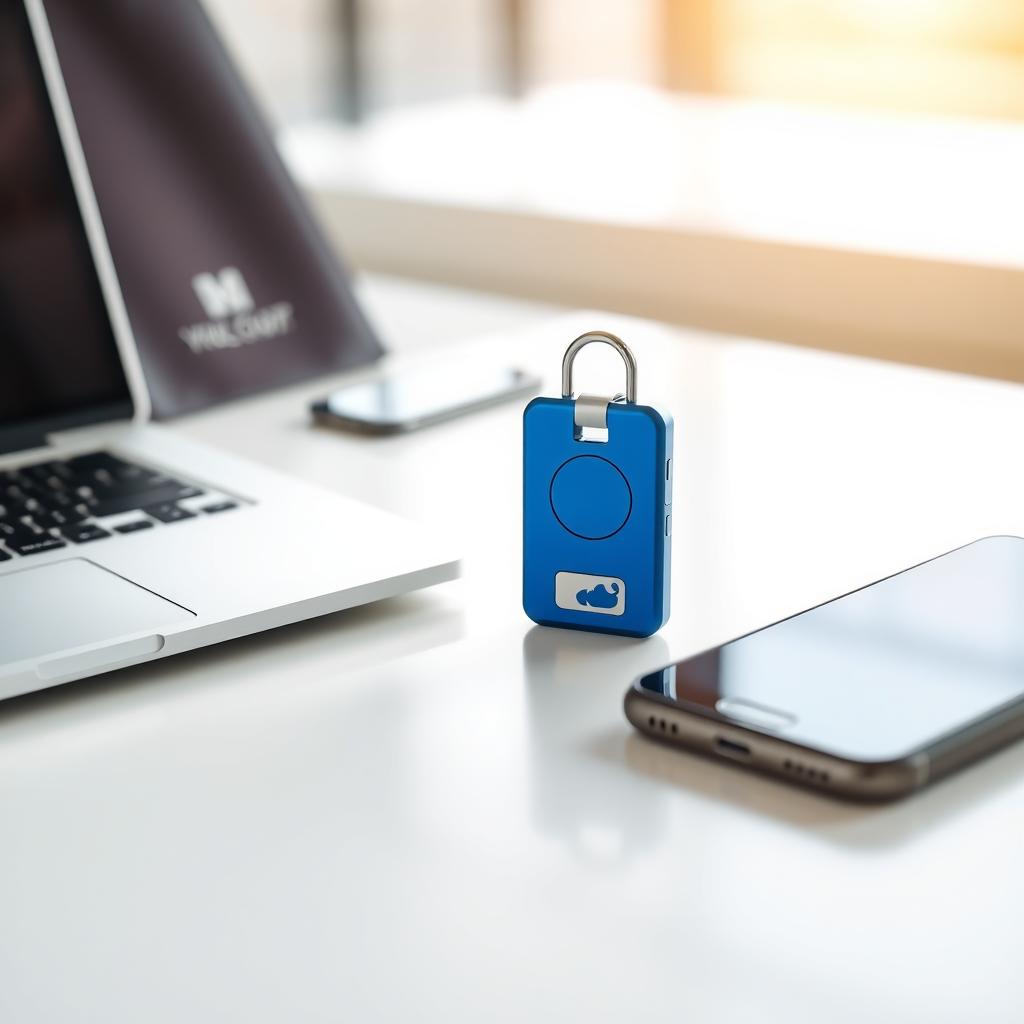
- Hardware tokens: Physical devices like YubiKey.
- Biometrics: Fingerprint or facial recognition.
Each method has pros and cons, which we’ll explore later.

Step-by-Step Guide to Setting Up 2FA
Setting up 2FA is straightforward for most accounts. Here’s a universal guide to get you started:
- Check if 2FA is available: Log in to your account (email, social media, banking, etc.) and go to the security or privacy settings. Look for terms like “two-factor authentication,” “two-step verification,” or “multi-factor authentication.”
- Choose your 2FA method: Most services offer SMS, authenticator apps, or email codes. Authenticator apps are generally more secure than SMS, as texts can be intercepted.
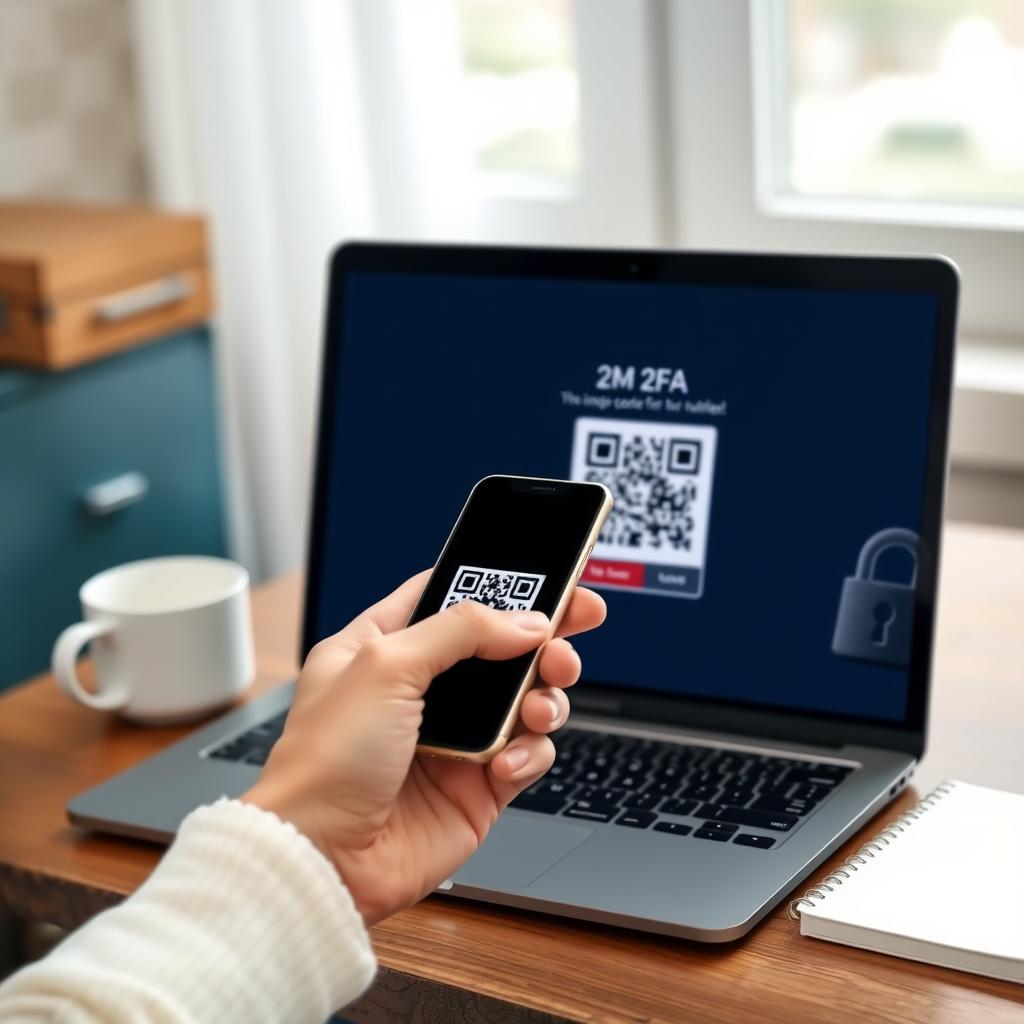
- Set up the method: For apps, scan a QR code with an authenticator like Authy or Google Authenticator. For SMS, enter your phone number to receive codes.
- Save backup codes: Most services provide one-time backup codes in case you lose access to your phone. Store these in a secure place, like a password manager.
- Test it: Log out and log back in to ensure 2FA works.
I recommend starting with your email accounts, as they’re often the key to resetting other accounts. I use Authy for my Gmail and banking apps—it’s reliable and syncs across devices.
Choosing the Best 2FA Method
Not all 2FA methods are equal. Here’s a quick comparison:
| Method | Pros | Cons |
|---|---|---|
| SMS Codes | Easy to set up, no app needed | Vulnerable to SIM-swapping attacks |
| Authenticator Apps | More secure, works offline | Requires app installation |
| Hardware Tokens | Extremely secure, phishing-resistant | Costs money, can be lost |
| Biometrics | Convenient, fast | Not always available, privacy concerns |
For maximum security, I prefer authenticator apps or hardware tokens. SMS is fine for low-risk accounts, but for sensitive ones like banking, opt for an app or a YubiKey. I’ve used a YubiKey for my work accounts, and it feels like carrying a tiny vault.
Combining 2FA with Privacy Tools
While 2FA secures your accounts, protecting your browsing habits is just as crucial. Tools like Firefox Focus and DuckDuckGo help shield you from trackers. According to Understanding Online Tracking - Mozilla, trackers collect data on your browsing habits, which can be used to build detailed profiles. Pairing 2FA with privacy-focused browsers ensures both your accounts and data stay safe.
In my experience, using Firefox Focus feels like a digital detox—it blocks trackers automatically and deletes your history after each session. DuckDuckGo, on the other hand, prioritizes private search results and offers a mobile browser with built-in tracker blocking. For a deeper comparison, check out Firefox Focus vs DuckDuckGo: A Deep Dive to see which suits your needs.
Best Practices for Maximum Security
To make 2FA even more effective, follow these tips:
- Use a password manager: Combine 2FA with strong, unique passwords stored in tools like LastPass or 1Password.
- Avoid public Wi-Fi for sensitive logins: If you must, use a VPN.
- Regularly check 2FA settings: Ensure it’s still enabled, especially after account updates.
- Secure your phone: Use a strong PIN or biometric lock to protect your 2FA codes.
- Explore privacy tools: Beyond browsers, consider Top Privacy Tools for Safe Browsing, like uBlock Origin or Privacy Badger, to block trackers.
I once forgot to lock my phone, and a coworker jokingly accessed my authenticator app. It was a wake-up call to treat my phone like my wallet.
Common Mistakes to Avoid
Even with 2FA, mistakes can weaken your security:
- Reusing backup codes: Treat them as one-time-use and store them securely.
- Ignoring phishing warnings: Always verify login pages before entering 2FA codes.
- Not updating recovery options: Keep your phone number or email current.
I once ignored a phishing email that looked like it came from my bank. Luckily, 2FA stopped the attacker, but it was a close call. Always double-check URLs.
Privacy-Focused Browsing with Firefox Focus and DuckDuckGo
For a deeper look at privacy, Firefox Focus vs DuckDuckGo: which mobile browser is more private? is worth exploring. Firefox Focus is ideal for quick, tracker-free browsing, while DuckDuckGo offers robust search privacy and email protection. I switch between both depending on the task—Firefox Focus for casual browsing, DuckDuckGo for searches I want to keep private.
Summary
Setting up Two-Factor Authentication is a simple yet powerful way to secure your online accounts. By combining 2FA with privacy tools like Firefox Focus, DuckDuckGo, and tracker blockers, you can protect both your accounts and your data. Start with your most critical accounts, choose secure 2FA methods, and follow best practices to stay safe online.