How to Spot a Secure Website: Your Guide to Safe Browsing
Overview: Staying Safe Online
In today’s digital world, knowing how to spot a secure website is crucial for protecting your personal information. From shopping online to checking your bank account, ensuring a website is secure can prevent data theft and scams. This guide will walk you through simple, actionable steps to identify safe websites, use tools like VPNs, and boost your online privacy.
Why Website Security Matters
Every time you enter your credit card details or log into an account, you’re sharing sensitive information. Unsecure websites can expose this data to hackers. In 2023, over 2.6 billion personal records were breached globally, highlighting the need for vigilance. A secure website protects your data with encryption and other safeguards, ensuring your information stays private.
I’ve had my share of close calls—like nearly entering my card details on a shady retail site that looked legitimate but felt off. Trusting my instincts and checking for security markers saved me. Below, I’ll share the exact steps I use to verify a website’s safety, so you can browse with confidence.
Key Indicators of a Secure Website
Spotting a secure website doesn’t require tech expertise. Here are the most reliable signs to look for:
1. Check for HTTPS
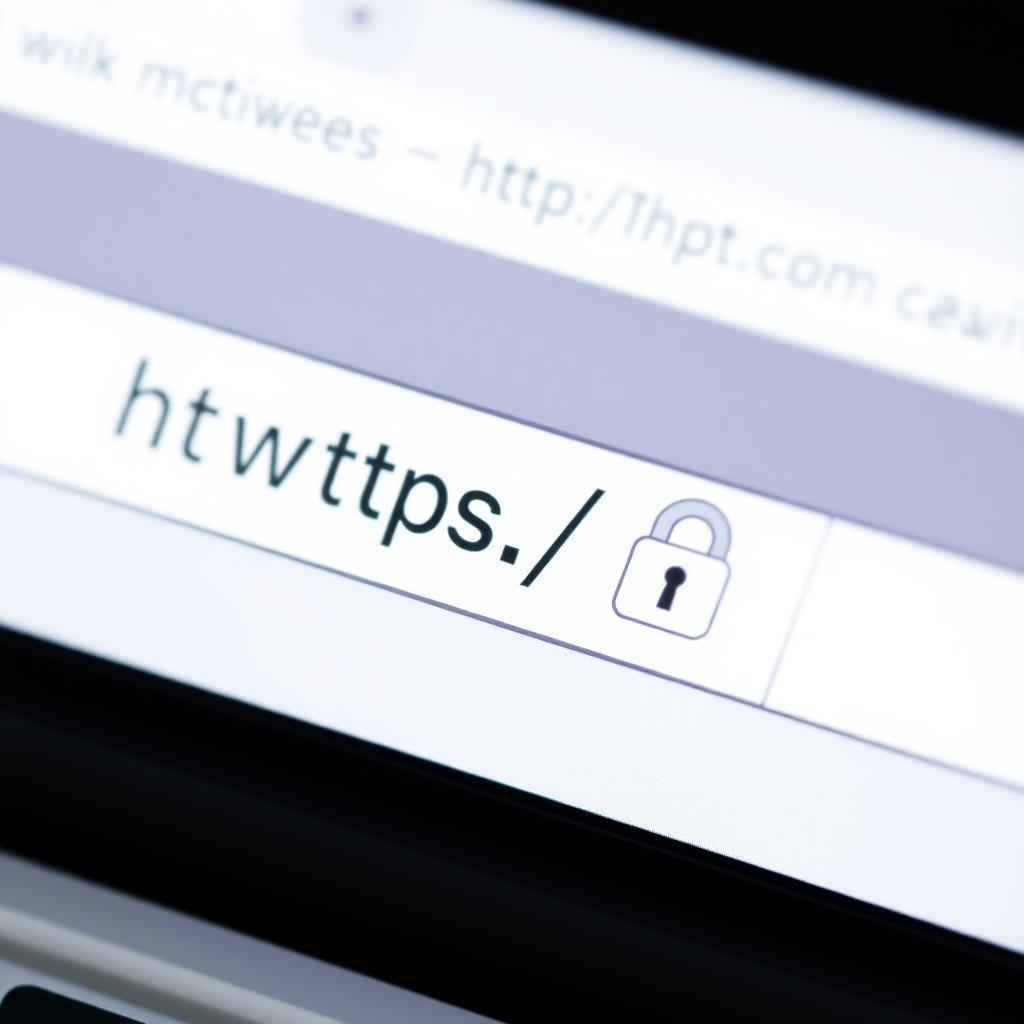
The first thing I always look for is HTTPS in the website’s URL. You’ll see it in the address bar, like https://www.example.com. The S stands for secure, meaning the site uses encryption to protect your data. According to Google’s Transparency Report, over 90% of websites now use HTTPS, but it’s still worth checking. If a site only has HTTP (no S), avoid entering sensitive information.
2. Look for the Padlock Icon
Next to the URL, a small padlock icon signals that the connection is secure. Clicking it reveals details about the site’s SSL (Secure Sockets Layer) certificate, which verifies its authenticity. If there’s no padlock or you see a warning like “Not Secure,” steer clear.
3. Verify the Website’s Domain
Scammers often create fake websites with domains that mimic trusted brands, like amaz0n.com instead of amazon.com. Double-check the spelling of the domain. I once got an email linking to a site that looked like my bank’s but had a slightly altered URL. A quick glance at the domain saved me from a phishing scam.
4. Check for a Valid SSL Certificate
An SSL certificate ensures a website’s identity and encrypts data. You can click the padlock to view certificate details, like who issued it and when it expires. Reputable sites use certificates from trusted authorities like DigiCert or Let’s Encrypt. If the certificate is missing or expired, it’s a red flag.
5. Look for Trust Seals
Trust seals from organizations like Norton or McAfee indicate a website has been vetted for security. These badges are often displayed in the footer. However, don’t blindly trust them—click the seal to verify it links to the issuer’s site. Fake seals are a common trick.
6. Research the Website’s Reputation
Before entering personal info, search the website’s name plus “reviews” or “scam” on a search engine. Sites like ScamAdviser can also provide insights. I make it a habit to check reviews for unfamiliar sites, especially for online shopping.
Tools to Enhance Your Online Privacy
Spotting a secure website is just one part of staying safe online. Using the right tools can add an extra layer of protection. Here are some of my go-to online privacy tools:
VPNs: Your Privacy Shield
A Virtual Private Network (VPN) encrypts your internet connection, hiding your location and data from prying eyes. Whether you’re on public Wi-Fi or browsing at home, a VPN is essential. If you’re wondering how to choose the best VPN for your needs, prioritize speed, no-log policies, and strong encryption. I’ve used VPNs for years, especially when traveling, to secure my connection on sketchy hotel Wi-Fi.
| VPN Feature | Why It Matters |
|---|---|
| No-Log Policy | Ensures your browsing history isn’t stored |
| Strong Encryption | Protects data from hackers |
| Server Locations | More locations mean better speed and access |
| Kill Switch | Stops data leaks if the VPN disconnects |
For detailed guidance, check out this VPN selection guide from Consumer Reports.

Top 5 Online Privacy Tools Every User Should Have
Beyond VPNs, other tools can boost your security: 1. Password Managers: Store complex passwords securely. I use one to generate and save unique passwords for every site. 2. Ad Blockers: Block trackers that monitor your browsing habits. 3. Two-Factor Authentication (2FA) Apps: Add an extra login step, like a code sent to your phone. 4. Encrypted Messaging Apps: Use apps like Signal for private communication. 5. Browser Extensions: Tools like HTTPS Everywhere force websites to use secure connections.
These online privacy tools are simple to set up and make a big difference. For example, enabling 2FA on my email account once stopped a hacker who had my password.
Common Red Flags to Avoid
Even secure-looking websites can be risky. Watch out for these warning signs: - Pop-Up Overload: Excessive ads or pop-ups often indicate a poorly maintained site. - Poor Design: Legitimate sites invest in clean, professional designs. Spelling errors or broken links are red flags. - Too-Good-to-Be-True Offers: Unrealistic discounts or freebies are common lures for scams. - No Contact Information: Reputable sites provide clear contact details, like an email or phone number.
I learned this the hard way when I almost fell for a “free iPhone” scam. The site had HTTPS but was littered with pop-ups and vague contact info. Trust your gut—if something feels off, it probably is.
Practical Tips for Safe Browsing
Here’s how I stay safe online, and you can too: - Update Your Browser: Modern browsers like Chrome or Firefox flag unsecure sites. - Use Incognito Mode: It won’t save your browsing history, reducing tracking. - Clear Cookies Regularly: Cookies can track your activity across sites. - Avoid Public Wi-Fi Without a VPN: Public networks are hacker hotspots. - Bookmark Trusted Sites: Save legitimate URLs to avoid phishing mimics.
These habits have kept my data safe for years, even when I’m browsing on the go.
Summary: Browse with Confidence
Learning how to spot a secure website is a skill that saves time, money, and stress. By checking for HTTPS, padlocks, and valid SSL certificates, you can verify a site’s safety. Combine this with online privacy tools like VPNs, password managers, and 2FA to stay protected. With these steps, you’ll navigate the web confidently and securely.