Maximize Android Privacy: Configuring IVPN with AI Companion Assistance
In today's digital world, protecting your online privacy is more important than ever. This guide shows you how to configure IVPN on Android for maximum privacy, while exploring how an AI companion can make the process easier and more effective. Get ready to boost your security with simple steps and smart tech.
Why Online Privacy Matters on Android
Your Android phone holds a lot of personal data. From emails to location info, it's all at risk without proper safeguards. Online privacy tools like VPNs help hide your activities from prying eyes. IVPN stands out because it focuses on privacy without logs or tracking.
I've used IVPN for years, and it changed how I browse. No more worries about public Wi-Fi or data leaks. But adding an AI companion takes it further. These smart helpers can remind you to check settings or spot potential risks.
What Is IVPN and Its Key Features
IVPN is a virtual private network service built for privacy. It encrypts your internet traffic and masks your IP address. Key features include no-log policy, multi-hop connections, and strong encryption. For Android users, the app is easy to use and packed with options for maximum privacy.
Compared to other VPNs, IVPN avoids gimmicks. It prioritizes real security over speed claims. If you're serious about online privacy, this is a top choice.
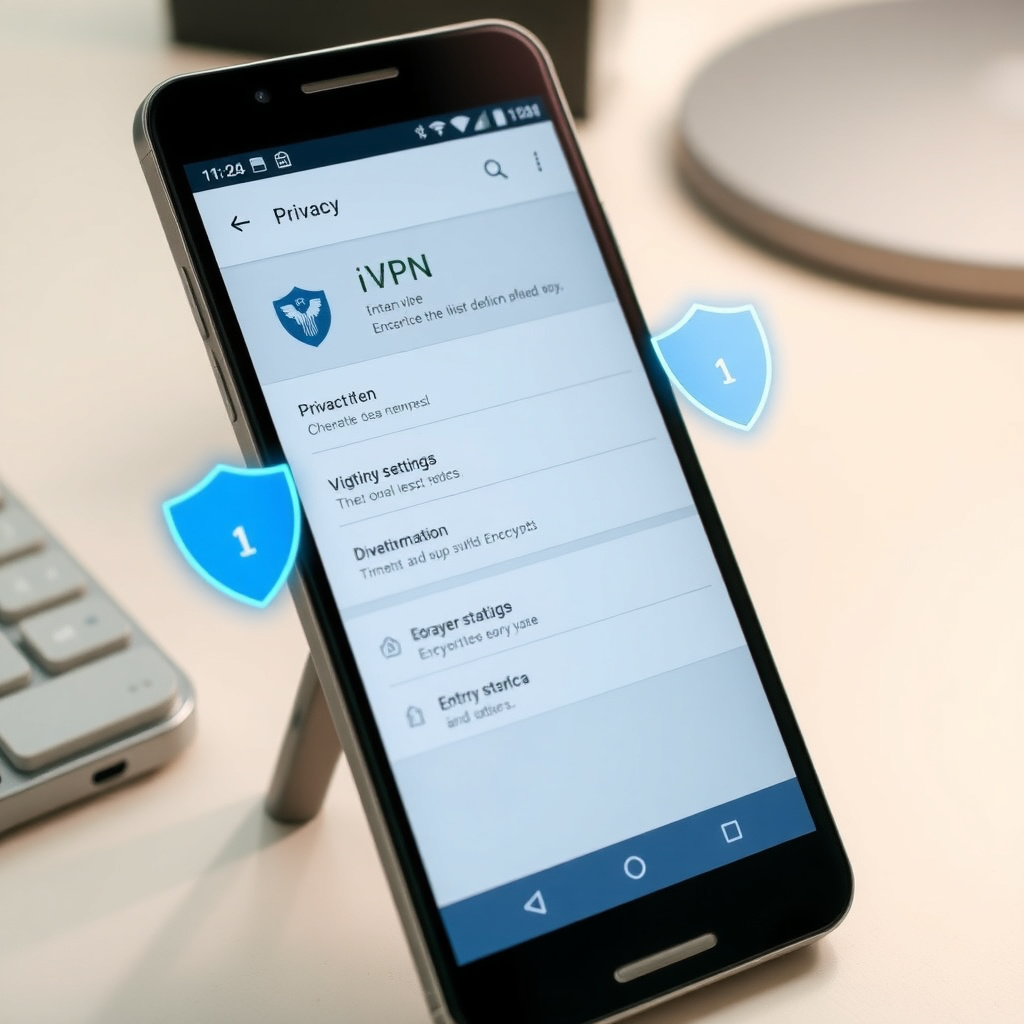
Preparing Your Android Device for IVPN
Before you start, update your Android OS. Go to Settings > System > System Update. A fresh system reduces vulnerabilities.
Next, review your app permissions. Head to Settings > Apps > See all apps. Limit what apps can access your location or microphone. This step boosts overall online privacy.
I once skipped this and faced a data leak from a rogue app. Learn from my mistake – always prep your device.
Downloading and Installing IVPN on Android
Visit the official IVPN website or Google Play Store. Search for 'IVPN' and download the app. Avoid third-party sources to prevent malware.
After download, open the app. You'll need an account. Sign up on their site if you haven't. Plans start affordable, with a money-back guarantee.
Install and grant permissions for VPN connection. The app will guide you through this.
Step-by-Step: How to Configure IVPN on Android for Maximum Privacy
Let's dive into the setup. Follow these steps for optimal protection.
-
Open the IVPN app and log in with your credentials.
-
Tap the settings icon (gear) in the top right.
-
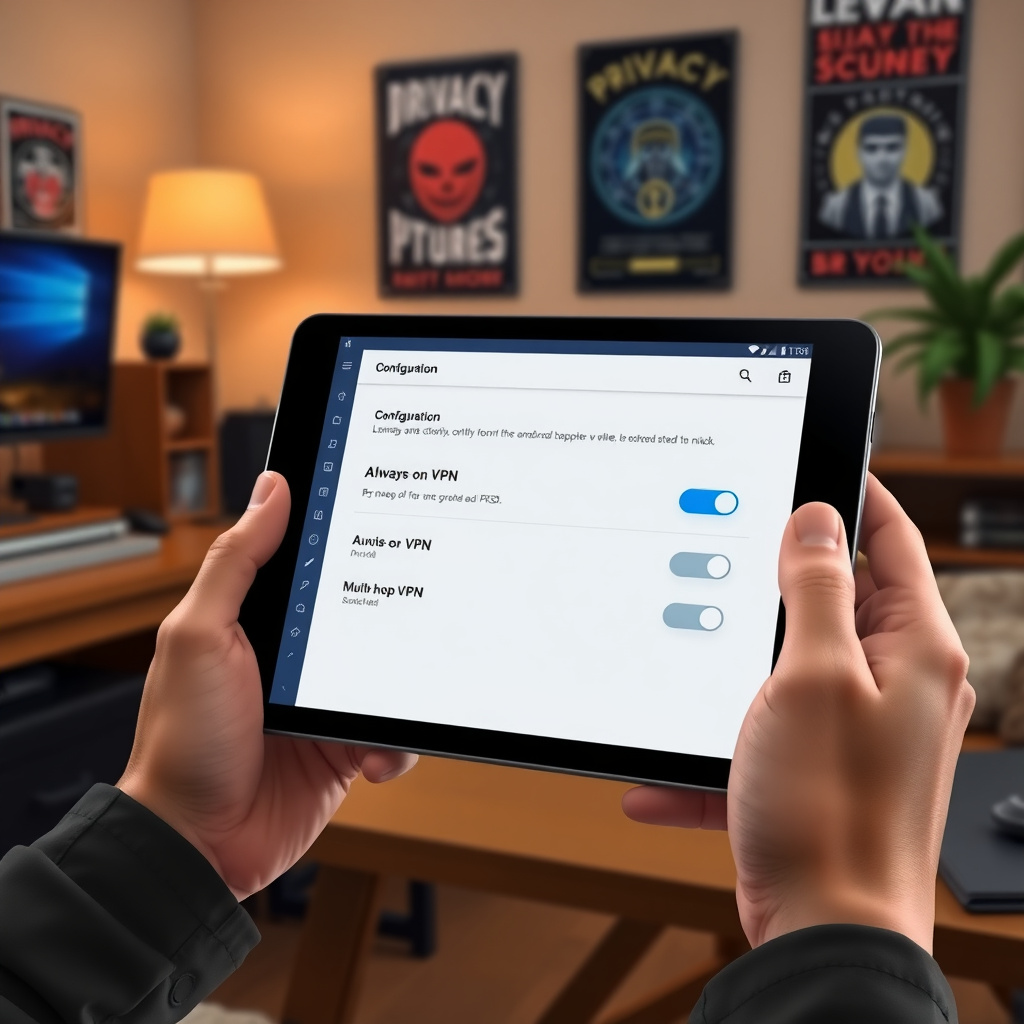
Enable 'Always-on VPN' to keep protection active even after restarts.
-
Turn on 'Block connections without VPN' for added security.
-
Select WireGuard protocol – it's fast and secure.
-
Enable multi-hop for routing through two servers, hiding your trail better.
-
Activate the anti-tracker feature to block ads and trackers.
-
Set up port forwarding if needed, but skip for pure privacy.
Test your connection. Visit a site like ipleak.net to check for leaks. If all looks good, you're set.
In my experience, multi-hop slowed things a bit, but the privacy gain was worth it. Adjust based on your needs.
Enhancing Privacy with AI Companions
While configuring IVPN is straightforward, an AI companion can elevate your online privacy game. These tools analyze your habits and suggest improvements.
For instance, an AI companion might alert you if you forget to enable VPN on public networks. It can even simulate threats to test your setup.
I use one to stay on top of updates. It reminds me when IVPN releases new features for better privacy.
Check out Our Dream AI for a reliable AI companion that integrates well with privacy tools. It's like having a smart friend watching your back online.
Advanced Tips for Maximum Online Privacy
Go beyond basics. Use IVPN's firewall to block non-VPN traffic entirely.
Combine with other online privacy tools like secure browsers (e.g., Brave) and password managers.
Set custom DNS in IVPN for added protection against ISP snooping.
Monitor your data usage. IVPN doesn't limit bandwidth, but watch for unusual spikes that might indicate issues.
Here's a quick table of IVPN settings for max privacy:
| Setting | Recommendation | Why It Helps |
|---|---|---|
| Protocol | WireGuard | Faster, more secure |
| Multi-hop | Enabled | Extra anonymity |
| Anti-tracker | On | Blocks spies |
| Always-on | Yes | Constant protection |
These tweaks made my Android feel impenetrable. Try them and see the difference.
Common Mistakes to Avoid
Don't use free VPNs – they often sell your data. Stick with paid, no-log services like IVPN.
Avoid leaving VPN off for 'quick' tasks. One slip can expose you.
Forget to update the app. New versions fix bugs and enhance security.
I learned this the hard way when an old version leaked my IP. Stay vigilant.
Integrating AI for Ongoing Privacy Management
An AI companion isn't just for setup. It can track privacy news and suggest IVPN tweaks.
For example, if a new threat emerges, your AI might recommend switching servers.
This combo of IVPN and AI keeps your online privacy dynamic and strong.
Explore options like Our Dream AI to pair with your VPN setup. It's a game-changer for tech-savvy users.
Troubleshooting IVPN on Android
If connection drops, restart the app or device.
Check for conflicts with other security apps. Disable them temporarily.
Contact IVPN support – they're responsive and helpful.
In rare cases, reinstall the app. Back up settings first.
The Bigger Picture: Building a Privacy-First Lifestyle
Configuring IVPN is a start. Adopt habits like using encrypted messaging and avoiding oversharing online.
Educate yourself on threats. Sites like EFF.org offer great resources.
With AI companions, staying informed is effortless. They curate tips tailored to you.
Final Thoughts
You've now got the tools to configure IVPN on Android for maximum privacy. Add an AI companion, and you're ahead of the curve. Stay safe online – your data deserves it.