NextDNS Setup Guide for Blocking Ads and Trackers
In today's digital world, ads and trackers follow you everywhere. This comprehensive NextDNS setup guide for blocking ads and trackers shows you how to take back control and enjoy a cleaner, more private internet experience.
Why Choose NextDNS for Ad and Tracker Blocking?
I've been using NextDNS for years now, and it has transformed how I browse the web. Unlike traditional ad blockers that only work in your browser, NextDNS operates at the DNS level. This means it blocks ads and trackers system-wide—on your phone, tablet, computer, and even smart TV.
As one of the top online privacy tools, NextDNS not only stops annoying ads but also prevents companies from tracking your every move. In my experience, pages load faster, batteries last longer on mobile devices, and I feel much safer online.

Protecting your online privacy starts with simple steps like this. NextDNS makes it easy to block millions of known ad and tracker domains in real-time.
Getting Started: Create Your NextDNS Account
Head over to the official NextDNS website at nextdns.io and sign up for a free account. The free plan allows up to 300,000 queries per month, which is plenty for most users.
Once logged in, you'll see your unique configuration ID. This is key for setting up devices. NextDNS provides customized IP addresses, DNS-over-HTTPS (DoH), and DNS-over-TLS (DoT) endpoints.
Configuring NextDNS for Maximum Protection
In the dashboard, go to the Privacy tab. Here, you can enable powerful features:
- Native Tracking Protection: Block built-in trackers from devices like Apple, Microsoft, and Samsung.
- CNAME Cloaking Detection: Stops sneaky trackers that disguise themselves.
- Block Disguised Trackers: Essential for true privacy.
For ad blocking, add blocklists. I recommend starting with OISD (big) for balanced protection and HaGeZi Multi PRO for aggressive blocking. Avoid overloading with too many lists to prevent site breakage.
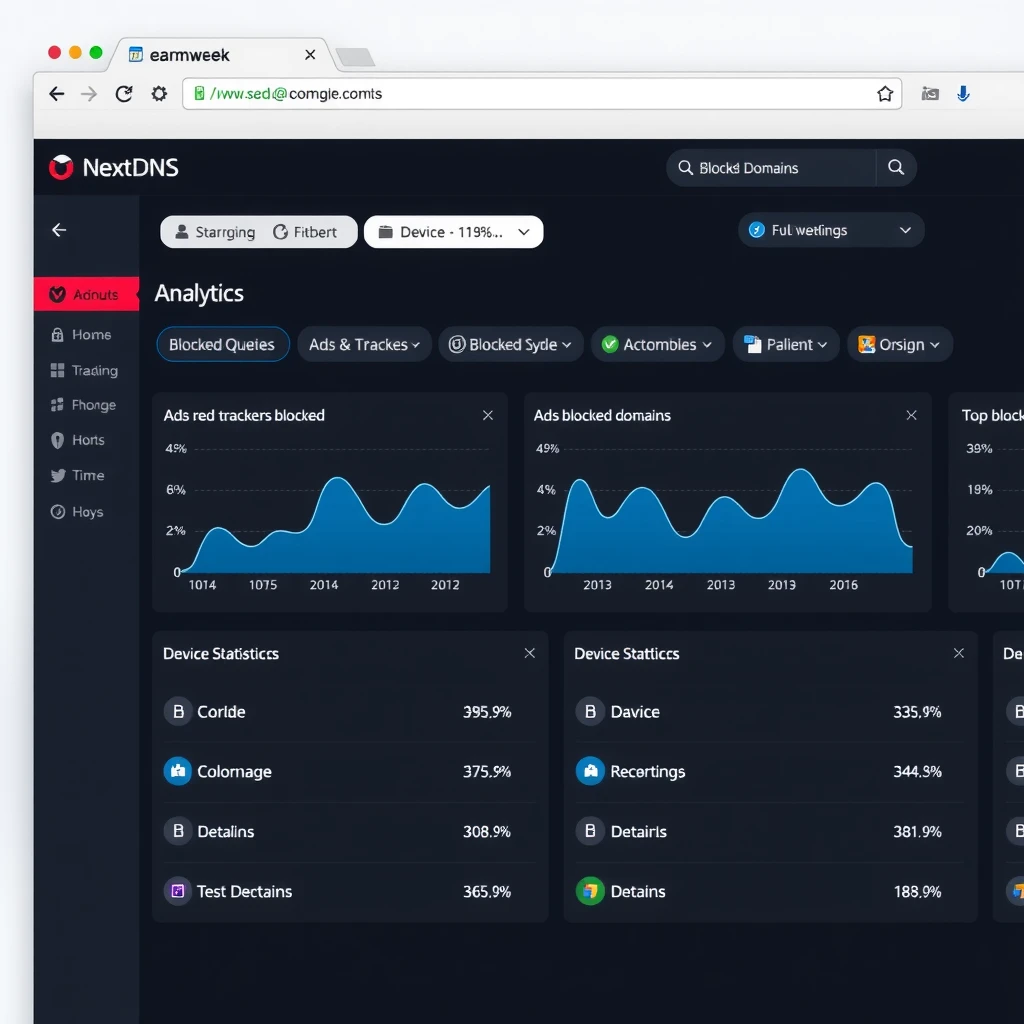
You can also enable Security features like phishing and malware protection. Turn on Cryptojacking Protection to stop hidden crypto mining.
Setting Up NextDNS on Different Devices
On Your Router (Best for Whole-Home Protection)
The easiest way to protect every device is at the router level. Log into your router settings and change the DNS servers to NextDNS's IPv4 addresses (found in your Setup tab).
This covers everything connected to your Wi-Fi, including guests and IoT devices. If your IP changes often, use the NextDNS app or CLI for dynamic updates.
On Mobile Devices
For iOS: Download the configuration profile from apple.nextdns.io and install it.
For Android: Use Private DNS and enter your custom DoH endpoint (like dns.nextdns.io/xxxxxx).
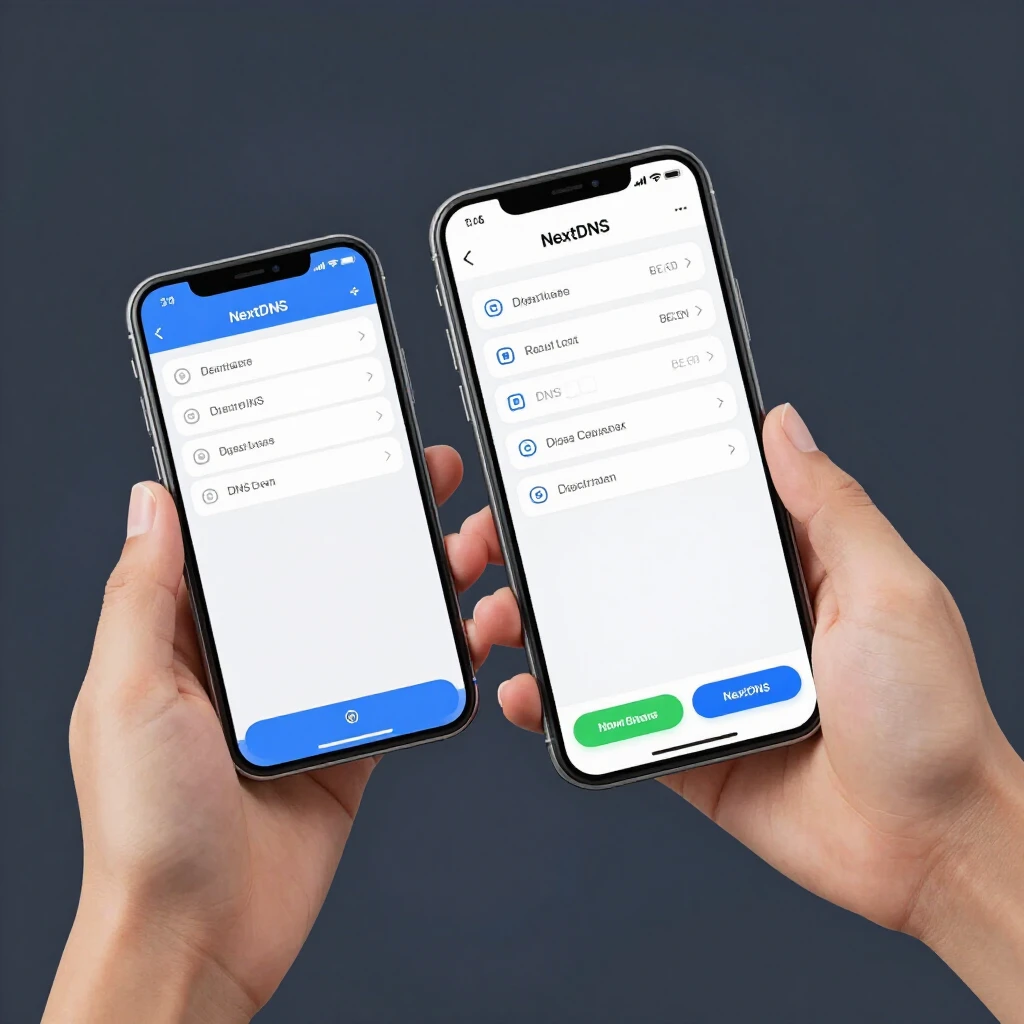
In my tests, this setup blocks ads in apps like YouTube and games, where browser extensions can't reach.
On Computers
Windows and macOS support DoH natively now. Or download the NextDNS app for easy management.
Fine-Tuning Your Setup
Monitor the Logs and Analytics tabs. You'll see exactly what's being blocked. If a site breaks, add the domain to your Allowlist.
Create multiple profiles—one strict for personal devices, one milder for family.
Here's a quick table of recommended blocklists:
| Blocklist | Best For | Notes |
|---|---|---|
| OISD (Big) | Balanced blocking | Minimal breakage |
| HaGeZi Multi PRO | Aggressive ads/trackers | Great for privacy enthusiasts |
| AdGuard DNS Filter | General use | Reliable and updated |
| NextDNS Default | Beginners | Good starting point |
From personal experience, combining OISD with native protections gives over 40% block rate without issues.
Benefits I've Seen in Real Life
Faster loading times, less data usage, and peace of mind knowing trackers aren't collecting my data. On mobile data, it saves money too!
NextDNS is more than just blocking—it's a full online privacy tool with logs retention options and data residency choices.
Common Issues and Fixes
- Sites not loading? Check logs and allowlist.
- YouTube ads? DNS can't fully block them; use browser extensions alongside.
- Dynamic IP? Link your IP in settings or use the app.
NextDNS respects privacy—no logs by default if you choose.
Final Thoughts
Setting up NextDNS is one of the simplest yet most effective steps for better online privacy. This NextDNS setup guide for blocking ads and trackers should get you started quickly. Enjoy a cleaner internet today!
With regular tweaks based on your logs, you'll have a customized shield against ads, trackers, and threats.