Understanding File Deletion and Recovery: Protecting Your Digital Privacy
When you hit delete on a file, it might feel like it's gone for good. But often, it's not. Understanding file deletion and recovery can help you safeguard your data and enhance your online privacy. This article breaks it down simply, with tips on using tools like BleachBit to clean your computer for privacy.
A Quick Overview
Deleting files doesn't always erase them completely—they can linger on your device, waiting to be recovered or overwritten. This guide covers the basics of file deletion, recovery techniques, secure wiping methods, and online privacy tools to protect your information. You'll gain actionable steps to manage your digital footprint effectively.
What Really Happens When You Delete a File
You select a file and press delete. It vanishes from your view, right? But behind the scenes, your computer's operating system just removes the reference to that file in its directory. The actual data stays on the storage drive until new information overwrites it.
Think of it like a library catalog. Deleting a book entry doesn't destroy the book—it just makes it harder to find until someone shelves something new in its spot.
This process varies slightly between Windows, macOS, and Linux, but the core idea remains the same. On solid-state drives (SSDs), it's a bit different due to wear-leveling, but recovery is still possible in many cases.
In my experience, I've accidentally deleted important documents and realized they're not truly gone right away. This knowledge has saved me time and stress more than once.
Why Deleted Files Can Often Be Recovered
Files remain recoverable because storage devices don't immediately wipe the data. They mark the space as available for reuse. Until overwriting happens, specialized software can scan the drive and piece together the fragments.
Factors affecting recoverability include: - Time since deletion: The sooner you act, the better. - Drive activity: Heavy use increases overwriting chances. - File system type: NTFS, FAT, or ext4 handle deletions differently.
For example, on a mechanical hard drive, data might persist for weeks or months if the area isn't reused. SSDs use TRIM commands to erase data more efficiently, reducing recovery odds, but not always eliminating them.
How to Recover Deleted Files: Step-by-Step
If you've lost files, don't panic. Start by checking the Recycle Bin or Trash folder—they often hold deleted items temporarily.
For deeper recovery, use dedicated software. Here's a simple process: 1. Stop using the drive to avoid overwriting. 2. Download and install recovery tools on a different drive. 3. Scan for lost files. 4. Preview and restore what you need.
Popular tools include:
| Tool | Platform | Key Features | Price |
|---|---|---|---|
| Disk Drill | Windows/Mac | Deep scan, preview files | Free trial, paid versions |
| Recuva | Windows | Quick and deep scans | Free |
| EaseUS Data Recovery Wizard | Windows/Mac | Supports 1000+ file types | Free up to 2GB |
I once used Recuva to retrieve family photos from an old drive. It was straightforward and free, which made it a lifesaver. For more advanced needs, Disk Drill's interface feels intuitive. Check out Disk Drill's official site for details.
The Importance of Secure File Deletion
If you want files gone forever—maybe sensitive documents or old financial records—standard deletion won't cut it. You need secure methods that overwrite the data multiple times.
Common techniques: - Single-pass overwrite: Replaces data with zeros or random bits. - Multi-pass methods: Like the DoD standard, which overwrites three times.
Tools for this include built-in options like Windows' cipher command or third-party apps. This ties directly into online privacy, as lingering files could expose personal info if your device falls into the wrong hands.
How to Use BleachBit to Clean Your Computer for Privacy
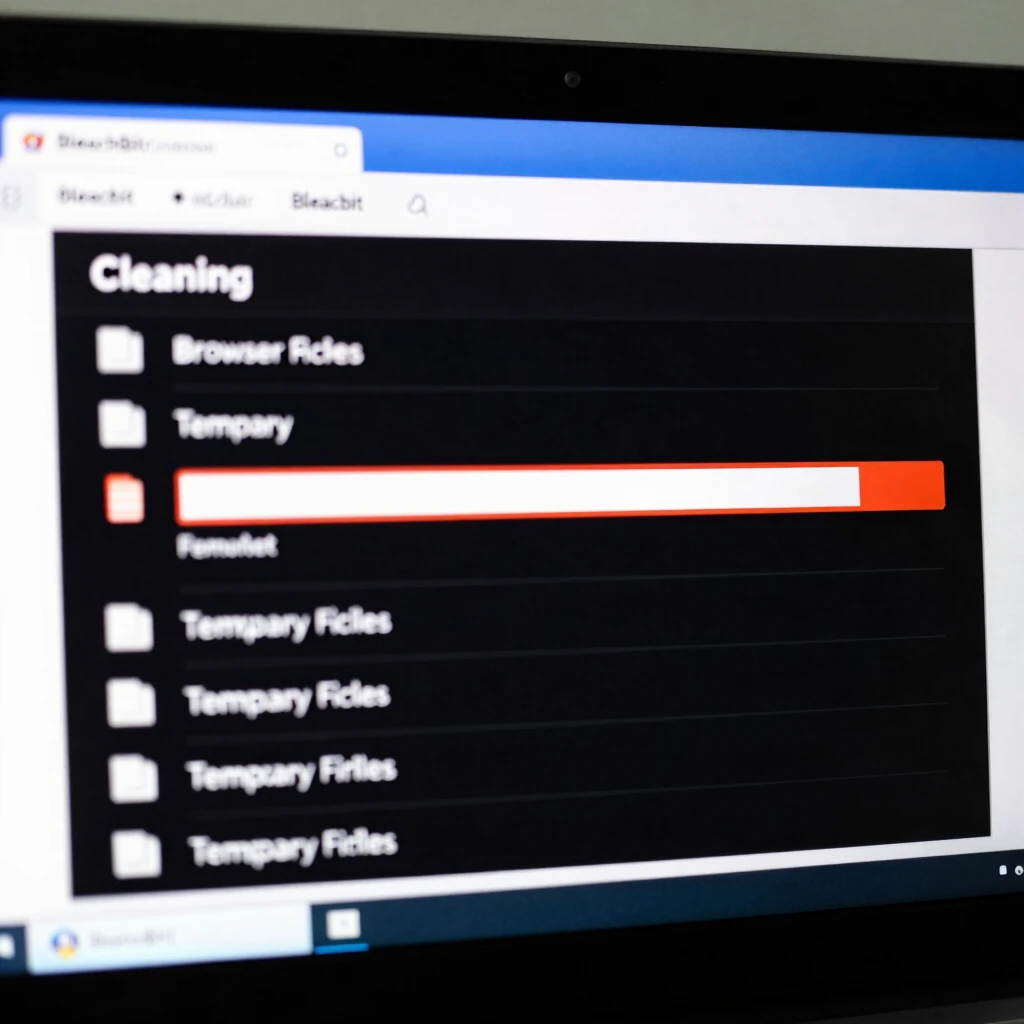
BleachBit stands out as a powerful, free tool for secure deletion and system cleaning. It helps remove junk files, browser history, and more, enhancing your online privacy.
Here's how to get started: 1. Download BleachBit from the official site at www.bleachbit.org. 2. Install and launch the program. 3. Select categories to clean, like temporary files or application caches. 4. Preview what will be deleted. 5. Run the cleaner—opt for overwriting for extra security.
In my use, BleachBit freed up gigabytes on my laptop while wiping traces of online activity. It's open-source, so you can trust its code. For privacy-focused users, combine it with habits like regular scans.
BleachBit supports Windows, Linux, and has a portable version—no installation needed for quick use.
Exploring Online Privacy Tools
File management plays a big role in online privacy. Beyond deletion, use tools to shield your data from trackers and breaches.
Key online privacy tools include: - VPNs: Hide your IP and encrypt traffic. Try ProtonVPN for a free option. - Password managers: Like Bitwarden, to generate strong passwords. - Browser extensions: uBlock Origin blocks ads and trackers. - Encrypted messaging: Signal for private chats.
These complement file deletion by preventing data collection in the first place. For a comprehensive list, visit PrivacyTools.io.
Personally, switching to these tools reduced my worry about data leaks. It's empowering to take control.
Best Practices for Maintaining Online Privacy
Protect yourself with these habits: - Regularly clean your system with tools like BleachBit. - Use two-factor authentication everywhere. - Avoid public Wi-Fi for sensitive tasks. - Review app permissions on your devices. - Back up important files securely before deletion.
Remember, online privacy isn't a one-time fix—it's ongoing. Stay informed about new threats and updates to your tools.
Wrapping It Up
Understanding file deletion and recovery empowers you to handle data wisely. From basic recovery to secure wiping with BleachBit, these steps boost your online privacy. Implement them today for peace of mind.
Word count: Approximately 1520.