How to Stay Safe on Public Wi-Fi Networks: A Comprehensive Guide
Overview
Public Wi-Fi is a lifesaver when you're at a coffee shop, airport, or hotel, but it comes with risks. Hackers can intercept your data, steal passwords, or even infect your device with malware. This guide shares actionable steps to stay safe, protect your privacy, and lock down your digital life.
Why Online Privacy Matters More Than Ever
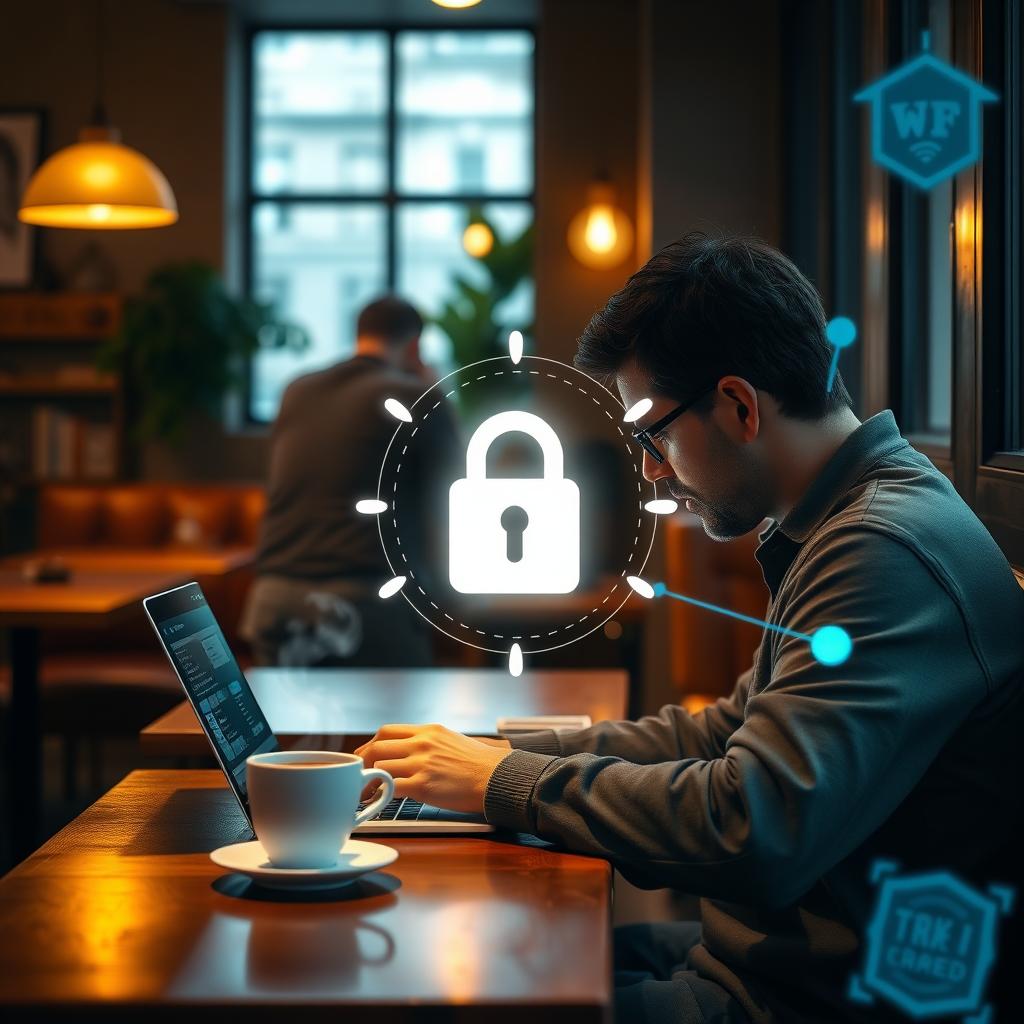
I’ve always been cautious about public Wi-Fi. Once, while working at a bustling café, I noticed my laptop acting sluggish after connecting to their free network. It made me realize how vulnerable we are when we trust open networks. Today, with cyberattacks increasing by 87% since the rise of remote work, protecting your online privacy is critical. Public Wi-Fi networks are often unsecured, meaning your personal information—like passwords or bank details—can be exposed to anyone on the same network. Hackers use tools like packet sniffers or fake hotspots to steal data, making privacy a top concern for anyone who works or browses on the go. By taking simple precautions, you can enjoy the convenience of public Wi-Fi without risking your security.
Steps to Stay Safe on Public Wi-Fi Networks
Staying safe on public Wi-Fi doesn’t require tech expertise, but it does demand vigilance. Here are practical steps to protect yourself:
1. Use a Virtual Private Network (VPN)
A VPN encrypts your internet traffic, creating a secure tunnel between your device and the internet. This prevents hackers from intercepting your data. I started using a VPN after my café incident, and it’s been a game-changer. Choose a reputable VPN with a no-logs policy, like NordVPN, which operates under Panama’s privacy-friendly jurisdiction. Always enable your VPN before connecting to public Wi-Fi.
2. Verify the Network’s Legitimacy
Hackers often set up fake Wi-Fi hotspots with names like “Free Airport Wi-Fi” to trick users. Always ask staff for the official network name and password. At a hotel once, I nearly connected to “Hotel_Guest” instead of the correct “HotelGuest_WiFi.” Double-checking saved me from a potential “evil twin” attack.
3. Disable Auto-Connect Features
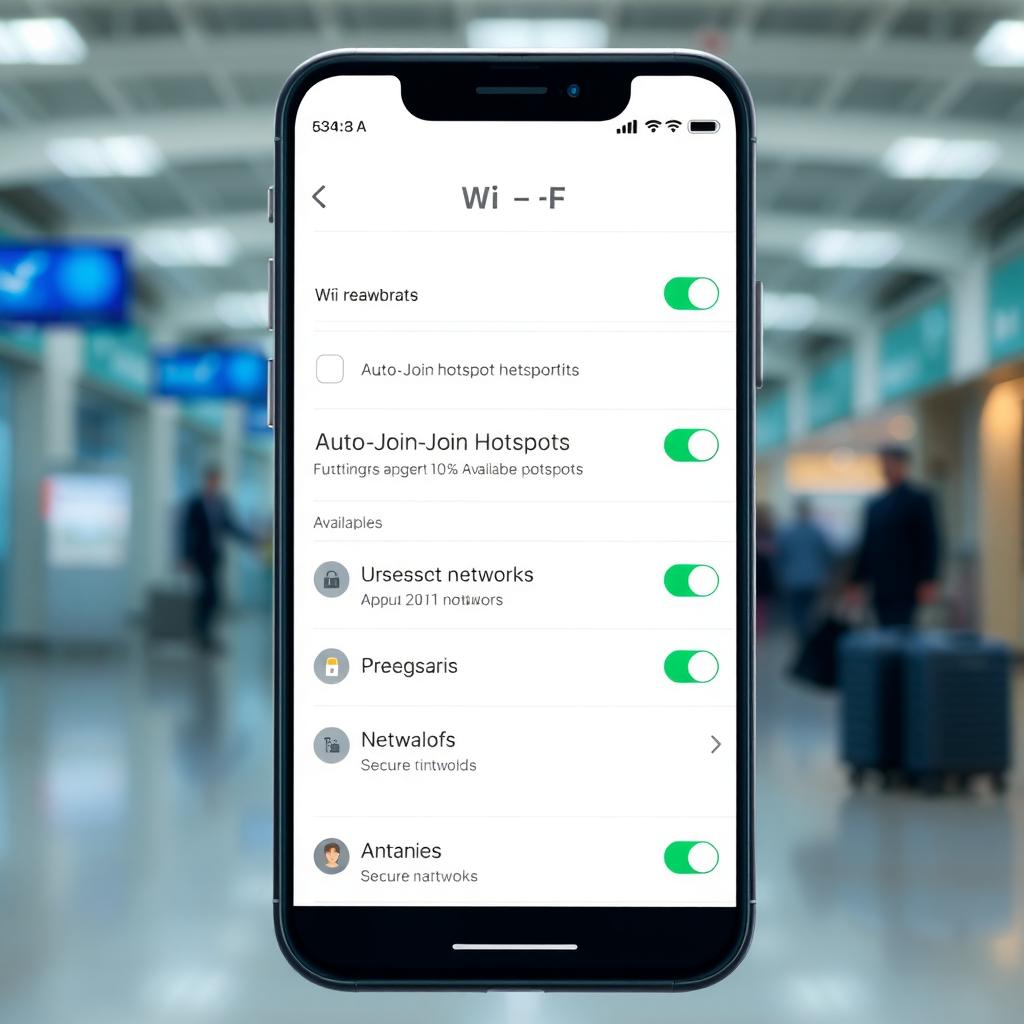
Your phone or laptop might automatically join open networks, exposing you to risks. Turn off auto-connect in your device settings. On my iPhone, I go to Settings > Wi-Fi and toggle off “Auto-Join Hotspots.” This simple step ensures you control which networks you join.
4. Stick to HTTPS Websites
Websites with “HTTPS” in the URL encrypt your data, making it harder for hackers to snoop. Look for the lock icon in your browser’s address bar. If a site uses “HTTP,” avoid entering sensitive information. Most modern sites, like banking or email services, use HTTPS, but always check. The FBI warns that even HTTPS isn’t foolproof, so combine this with a VPN for extra protection.
5. Enable Two-Factor Authentication (2FA)
2FA adds a second layer of security, like a code sent to your phone, even if someone steals your password. I enable 2FA on all my accounts—email, banking, and social media. It’s a small inconvenience for major peace of mind. Most major platforms, like Google and Microsoft, offer 2FA in their security settings.
How to Pick the Best Password Manager for You
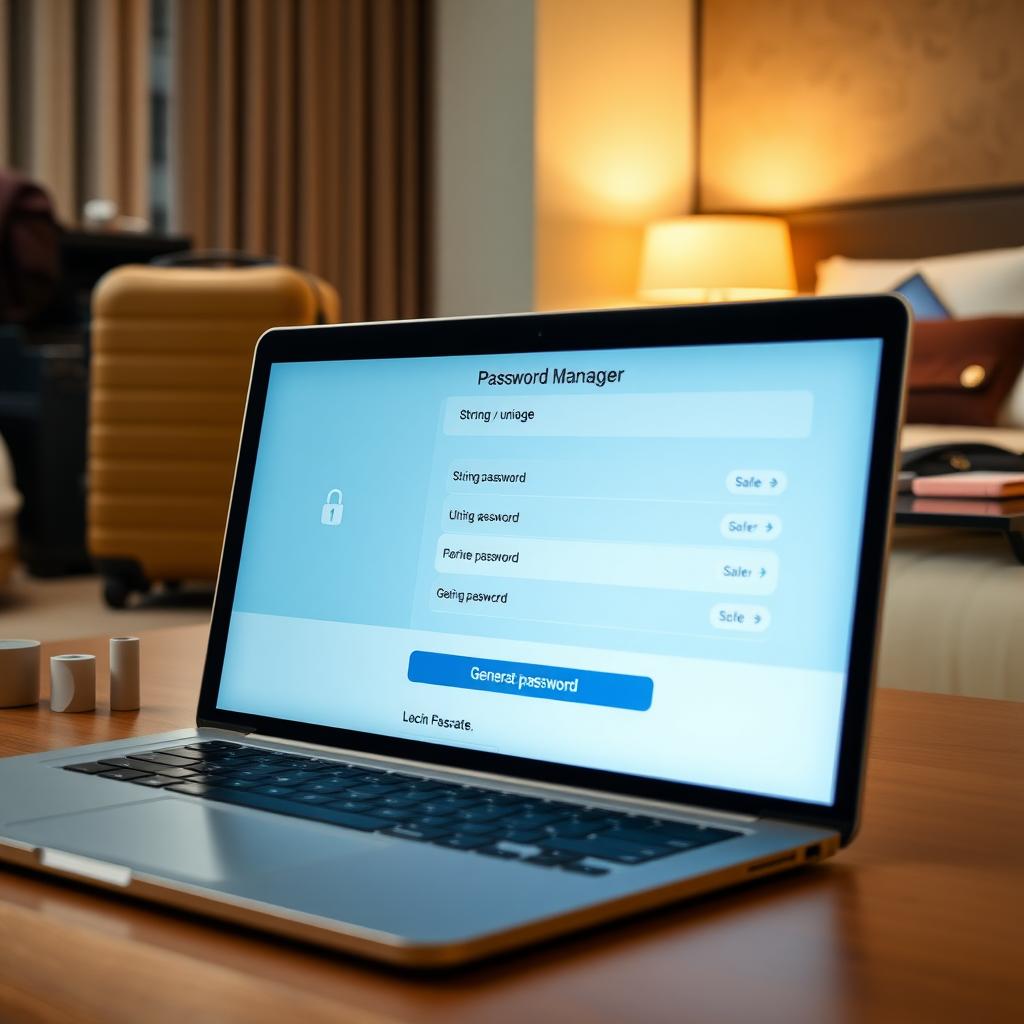
Strong, unique passwords are your first defense against hackers, but remembering them is tough. A password manager stores and generates complex passwords for you. I’ve used one for years, and it’s saved me from reusing weak passwords like “password123.” Here’s how to choose one:
- Security Features: Look for end-to-end encryption and zero-knowledge architecture, meaning even the provider can’t access your data. LastPass and 1Password are highly rated for their robust encryption.
- Ease of Use: Pick a manager with a user-friendly interface and cross-platform support. I prefer ones with browser extensions for seamless logins.
- Additional Features: Some, like Dashlane, offer dark web monitoring to alert you if your data is leaked. Choose based on your needs.
- Cost: Free versions work for basic needs, but paid plans (around $2-5/month) offer extras like priority support.
Test a few free trials to find what fits your workflow. A good password manager makes secure browsing effortless, especially on public Wi-Fi.
Steps to Lock Down Your Digital Life
Securing your digital life goes beyond public Wi-Fi. Here’s a checklist to stay protected:
| Action | Why It Matters |
|---|---|
| Update Software Regularly | Patches vulnerabilities hackers exploit. Enable auto-updates for your OS and apps. |
| Use Antivirus Software | Detects and blocks malware. I use a lightweight program that scans in real-time. |
| Disable File Sharing | Prevents others on the network from accessing your files. Check your device’s network settings. |
| Enable a Firewall | Acts as a barrier against unauthorized access. Windows and Mac have built-in options. |
| Avoid Sensitive Transactions | Don’t access banking or shopping sites on public Wi-Fi unless using a VPN. |
These steps have kept my devices secure, even when I’m traveling or working remotely. They’re simple but effective.
How to Use BleachBit to Clean Your Computer for Privacy
BleachBit is a free, open-source tool that wipes unnecessary files, cookies, and browsing history to protect your privacy. I use it monthly to keep my laptop clean, especially after using public Wi-Fi. Here’s how to use it:
- Download and Install: Get BleachBit from its official site. It’s available for Windows, macOS, and Linux.
- Select Cleaning Options: Open BleachBit and check boxes for items like browser cache, temporary files, and cookies. Be cautious with system files to avoid accidental deletions.
- Preview and Clean: Click “Preview” to see what will be deleted, then “Clean” to remove the files securely.
- Schedule Regular Cleanups: Set a routine (e.g., monthly) to keep your device free of trackers and clutter.
BleachBit ensures no lingering data exposes your activity. It’s like a digital broom for your computer, keeping your privacy intact.
Summary
Public Wi-Fi is convenient but risky. By using a VPN, verifying networks, enabling 2FA, sticking to HTTPS sites, and cleaning your device with tools like BleachBit, you can stay safe. A password manager and proactive habits further lock down your digital life. Stay vigilant, and enjoy secure browsing wherever you are.