The Ultimate Guide to Online Privacy: Protect Your Digital Life
Overview: Why Online Privacy Matters
In today’s digital world, every click, search, or post leaves a trail. Companies, hackers, and even governments can track your activities. The Ultimate Guide to Online Privacy equips you with tools and strategies to take control. From secure email to safe browsing, this guide has you covered.
Understanding Online Privacy
Online privacy is about controlling your personal data. It’s deciding who sees your information and how it’s used. Every day, websites collect details like your location, browsing habits, and even your device type. Without protection, this data can be sold or stolen.
I learned this the hard way. A few years ago, I noticed ads following me across websites, eerily specific to my recent searches. It felt invasive. That’s when I dove into online privacy tools and changed my habits. Let’s explore how you can do the same.
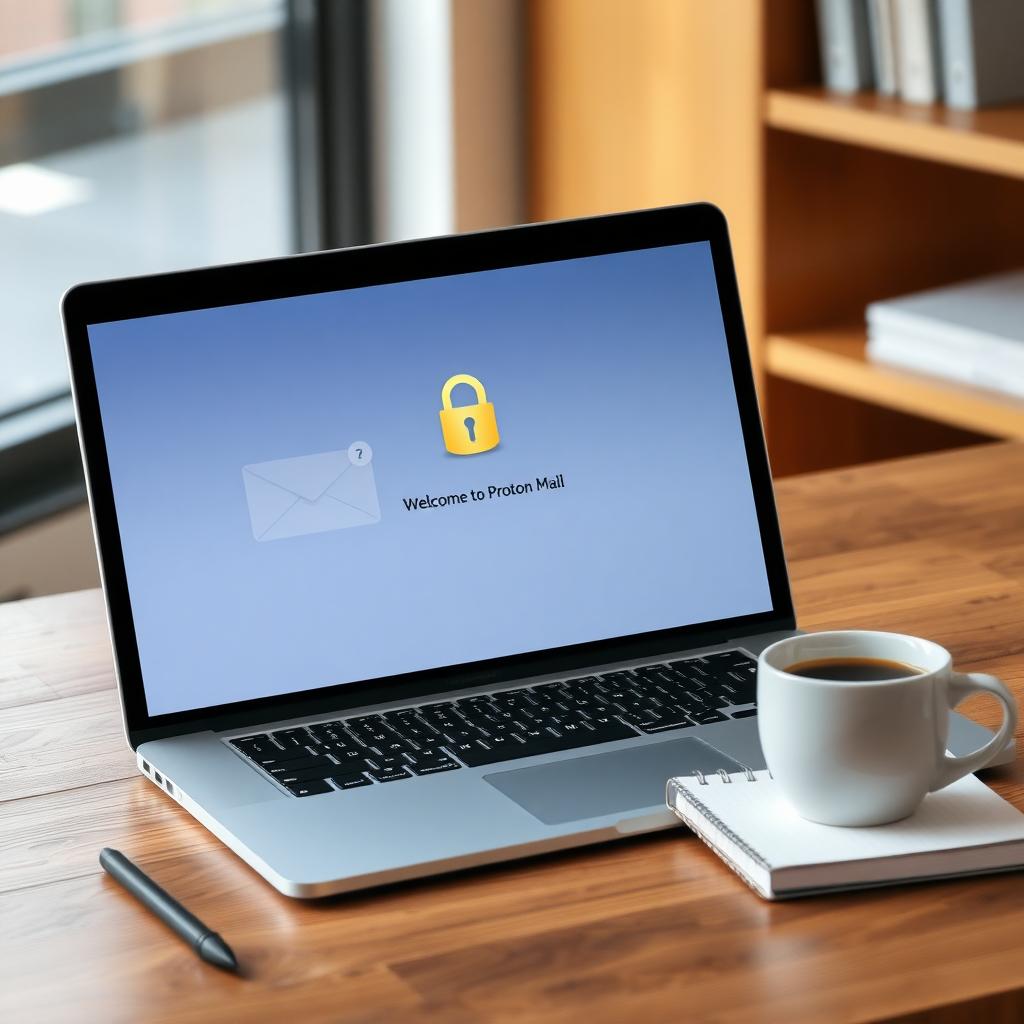
Step 1: Secure Your Email with Proton Mail
Email is a gateway to your digital life. Standard providers often scan your messages for ads. Proton Mail, a privacy-focused service, encrypts your emails so only you and the recipient can read them. Setting it up is simple, even for beginners.
Proton Mail Setup Guide for Beginners
- Visit Proton Mail’s Website: Go to proton.me and click 'Sign Up.'
- Choose a Plan: The free plan works for most, offering 1 GB of storage and 150 emails per day.
- Create an Account: Pick a username and password. Proton Mail doesn’t require personal info, unlike other providers.
- Verify Your Account: Use a phone number or alternate email for verification.
- Explore Features: Enable two-factor authentication (2FA) for extra security.
I set up Proton Mail in under 10 minutes. The interface is clean, and knowing my emails are private gives me peace of mind. If you’re new, start with the free plan and upgrade later if needed.
Step 2: Use a VPN for Anonymous Browsing
A Virtual Private Network (VPN) hides your IP address and encrypts your internet connection. This stops websites, ISPs, and hackers from tracking you. I use a VPN daily, especially on public Wi-Fi, like at coffee shops.
Top VPN Features to Look For
- No-Log Policy: Ensures your activity isn’t recorded.
- Fast Speeds: Avoids slowdowns during streaming or browsing.
- Kill Switch: Cuts your connection if the VPN fails, preventing leaks.
Popular options include NordVPN and ExpressVPN. Check their websites for trials or money-back guarantees to test them out.
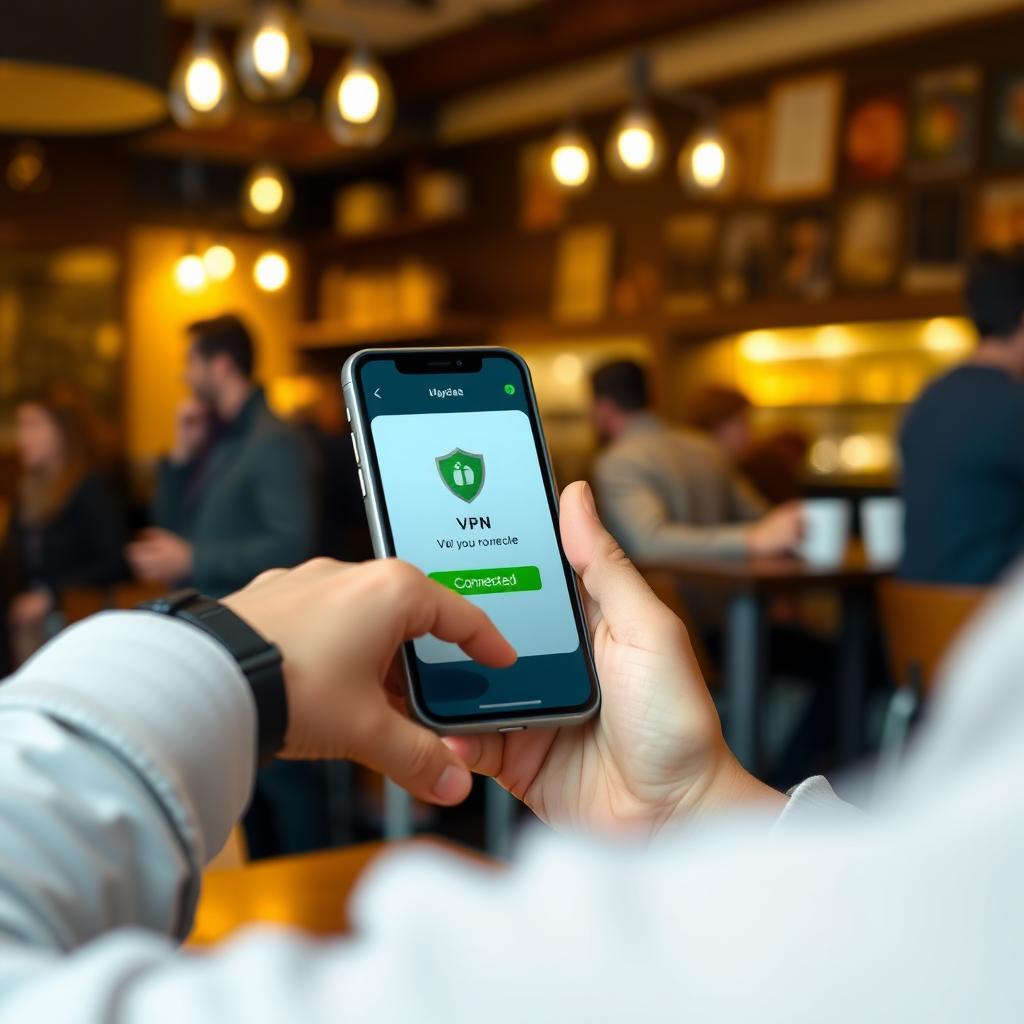
Step 3: Switch to Privacy-Focused Browsers
Your browser is a window to the internet—and to trackers. Standard browsers like Chrome collect extensive data. Instead, try privacy-focused options like Firefox or Brave.
- Firefox: Open-source, customizable, and blocks trackers by default.
- Brave: Automatically blocks ads and trackers, plus it’s fast.
I switched to Brave last year. Pages load quicker, and I don’t see creepy ads anymore. Both browsers let you add extensions like uBlock Origin for extra protection.
Step 4: Master Password Security
Weak passwords are a hacker’s dream. Use strong, unique passwords for every account. A password manager like Bitwarden or 1Password can help.
Password Tips
- Length Over Complexity: Aim for 12+ characters.
- Use a Passphrase: Combine random words, like 'CloudyRiverGuitar42.'
- Enable 2FA: Adds a second layer, like a code sent to your phone.
I store over 100 passwords in Bitwarden. It’s free, secure, and syncs across devices. Never reuse passwords—it’s a common mistake that can cost you.
Step 5: Limit Data Sharing on Social Media
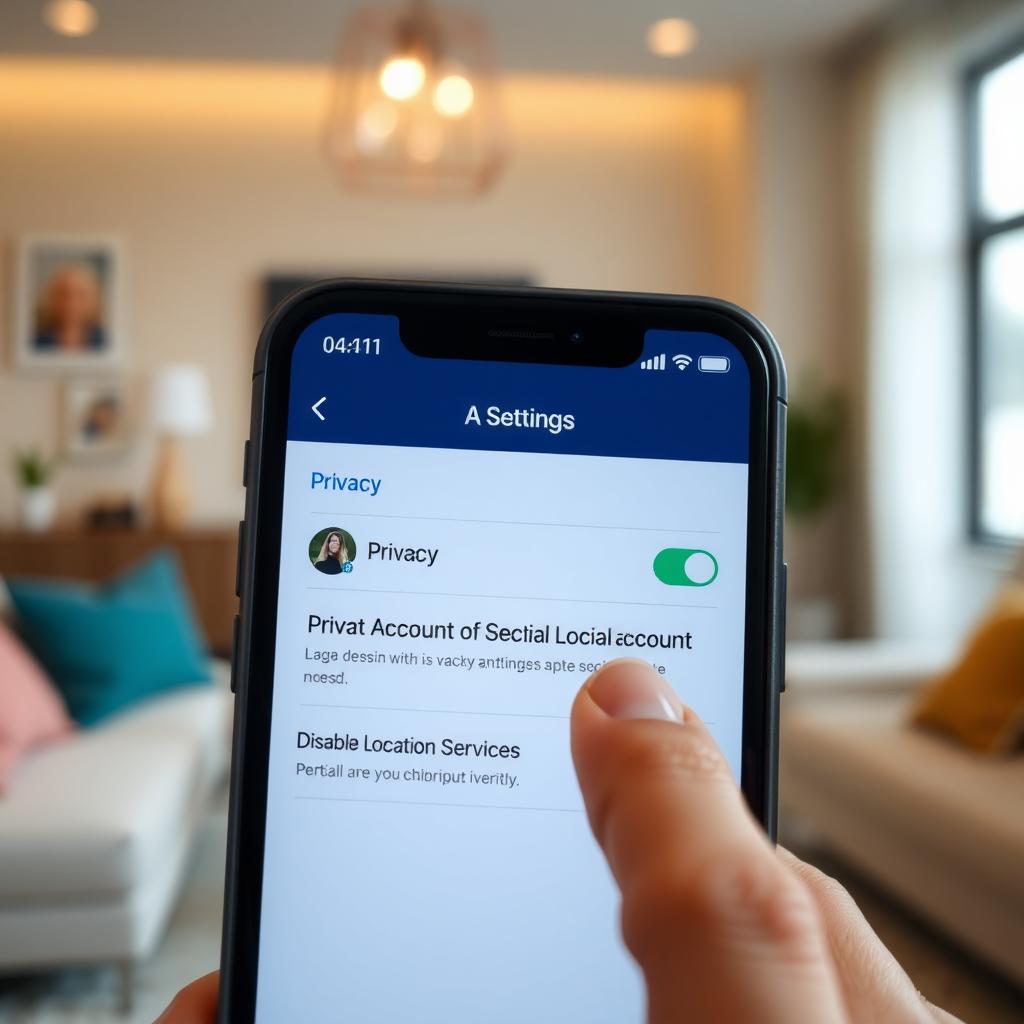
Social platforms thrive on your data. Oversharing can expose you to identity theft or targeted scams. I once posted a vacation photo in real-time, only to realize it signaled my home was empty. Now, I’m cautious.
Social Media Privacy Checklist
| Action | Why It Helps |
|---|---|
| Set profiles to private | Limits who sees your posts |
| Disable location tags | Prevents tracking your whereabouts |
| Review app permissions | Stops apps from accessing your data |
| Post after events | Avoids signaling you’re away |
Check your settings on platforms like X or Instagram. It takes minutes but saves headaches.
Step 6: Explore Other Online Privacy Tools
Beyond email, VPNs, and browsers, other tools boost your privacy:
- Signal: Encrypted messaging app for texts and calls.
- Tor Browser: For anonymous browsing, though slower than standard browsers.
- DuckDuckGo: A search engine that doesn’t track you.
I use Signal for sensitive chats. It’s as easy as texting but far safer. DuckDuckGo has been my go-to search engine for years—same results as Google, minus the tracking.
Step 7: Stay Educated and Vigilant
Online privacy evolves fast. New threats emerge, but so do solutions. Subscribe to newsletters from sites like The Electronic Frontier Foundation for updates. I also follow privacy-focused accounts on X for real-time tips.
Check your digital footprint regularly. Google yourself to see what’s out there. Remove old accounts using services like JustDeleteMe. Staying proactive keeps you ahead of threats.
Summary: Take Control of Your Privacy
Protecting your online privacy doesn’t have to be hard. Start with Proton Mail, add a VPN, switch browsers, and secure your passwords. Small changes make a big difference. Stay curious, keep learning, and own your digital life.