How to Stay Safe on Public Wi-Fi: Protect Your Data and Privacy
Overview
Public Wi-Fi is a lifesaver when you're working from a coffee shop or traveling, but it comes with risks. Hackers can exploit these networks to steal your data. This guide shares actionable steps to stay safe, shrink your digital footprint, and protect your online privacy.
Why Public Wi-Fi Can Be Risky
I’ve used public Wi-Fi at airports, cafés, and hotels, and while it’s convenient, I’ve learned it’s not always safe. Public networks are often unsecured, meaning anyone on the same network could potentially see your activity. Hackers can set up fake hotspots or use tools to intercept your data, grabbing passwords, emails, or credit card details. According to a study by the University of California, San Diego, unencrypted Wi-Fi connections are vulnerable to attacks like packet sniffing, where hackers capture data you send or receive.
Even password-protected public Wi-Fi isn’t foolproof. A password might keep out casual users, but it doesn’t encrypt your data end-to-end. That’s why knowing how to stay safe on public Wi-Fi is critical, especially if you’re handling sensitive tasks like online banking or shopping.
Key Steps to Stay Safe on Public Wi-Fi
Here are practical steps I’ve used to protect myself on public Wi-Fi. They’re simple, effective, and don’t require technical expertise.
1. Verify the Network
Always confirm you’re connecting to the legitimate network. Hackers often create fake hotspots with names like “Free_Cafe_WiFi” to trick users. I once almost connected to a suspicious network at a library until I asked the staff for the official name. Check with the venue to confirm the correct network name and avoid anything that looks off.
2. Use a VPN for Encryption
A Virtual Private Network (VPN) is your best friend on public Wi-Fi. It encrypts your data, making it unreadable to anyone trying to snoop. I use a VPN whenever I’m on a public network, and it’s saved me from worrying about who’s watching. Services like NordVPN or Surfshark are affordable and easy to set up. The FBI recommends using a VPN on public networks to prevent data theft.
3. Stick to HTTPS Websites
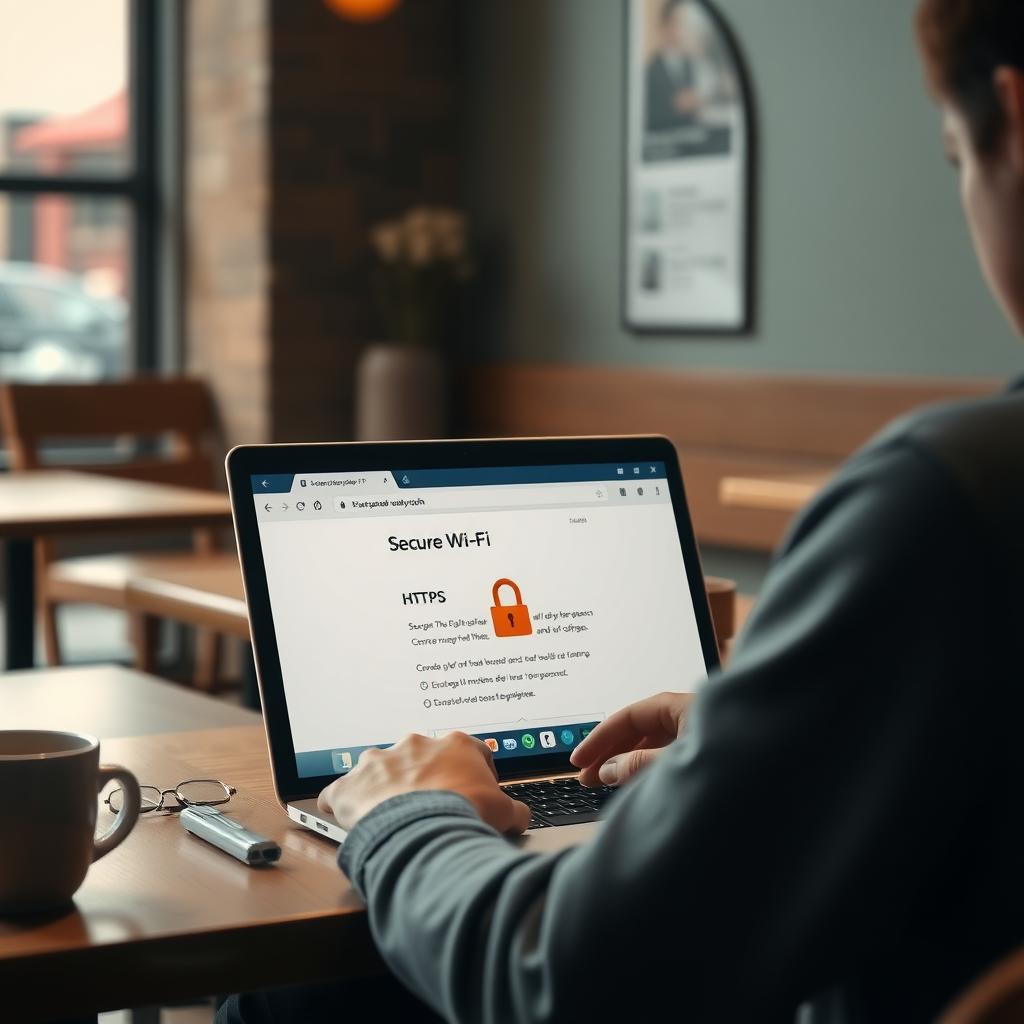
Always check that websites use HTTPS, which encrypts data between your device and the site. Look for the padlock icon in the browser’s address bar. I avoid entering sensitive information, like passwords or credit card numbers, unless I see that padlock. Most modern browsers, like Chrome or Firefox, warn you if a site isn’t secure, so pay attention to those alerts.
4. Turn Off Auto-Connect
Your phone or laptop might automatically connect to saved networks, which can be risky. I learned this the hard way when my phone reconnected to an old, unsecured network without me noticing. Go to your device settings and disable auto-connect for Wi-Fi. On iPhones, head to Settings > Wi-Fi and toggle off “Auto-Join.” For Android, it’s Settings > Network & Internet > Wi-Fi.
5. Enable Two-Factor Authentication (2FA)
Two-factor authentication adds an extra layer of security by requiring a second form of verification, like a text code or app notification. I’ve enabled 2FA on my email, banking, and social media accounts. Even if someone intercepts your password on public Wi-Fi, they can’t log in without that second step.
6. Avoid Sensitive Transactions
I never do online banking or shopping on public Wi-Fi unless I’m using a VPN. If you must access sensitive accounts, use your mobile data instead. It’s more secure than an open network. If you’re in a pinch, limit your activity to browsing or non-sensitive tasks.
How to Shrink Your Digital Footprint
Using public Wi-Fi can expose your data, adding to your digital footprint—the trail of information you leave online. Shrinking your digital footprint reduces what hackers can find. Here’s how I’ve minimized mine:
- Delete Unused Accounts: I went through old social media and shopping accounts I hadn’t used in years, like an ancient MySpace profile. Deleting these reduces the data out there. Check your email for old account confirmations to track them down.
- Use Privacy-Focused Browsers: I switched to browsers like Brave or Firefox, which block trackers by default. They’re great for limiting how much data websites collect.
- Limit Social Media Sharing: I used to overshare on social media, posting my location or personal details. Now, I keep my profiles private and avoid sharing sensitive info like my address or phone number.
For a deeper clean, consider online privacy tools like data removal services. These tools scrub your information from data brokers—companies that collect and sell your personal data. I was shocked to find my name, address, and even my relatives’ names on sites like Whitepages. That’s when I decided to try a service to remove my data.
How to Set Up Incogni to Delete Personal Data
Incogni is one of the best online privacy tools I’ve used to reduce my digital footprint. It automates the process of requesting data removal from brokers, saving hours of manual work. Here’s how to set it up, based on my experience:
- Sign Up: Visit Incogni’s website and choose a plan. The Standard plan is affordable, but the Unlimited plan offers custom removals for specific sites.
- Provide Your Info: Enter details like your name, email, phone number, and address. Incogni uses this to find and remove your data from brokers. Don’t worry—they secure your information.
- Authorize Requests: Digitally sign a form allowing Incogni to act on your behalf. This lets them send removal requests to data brokers under laws like GDPR and CCPA.
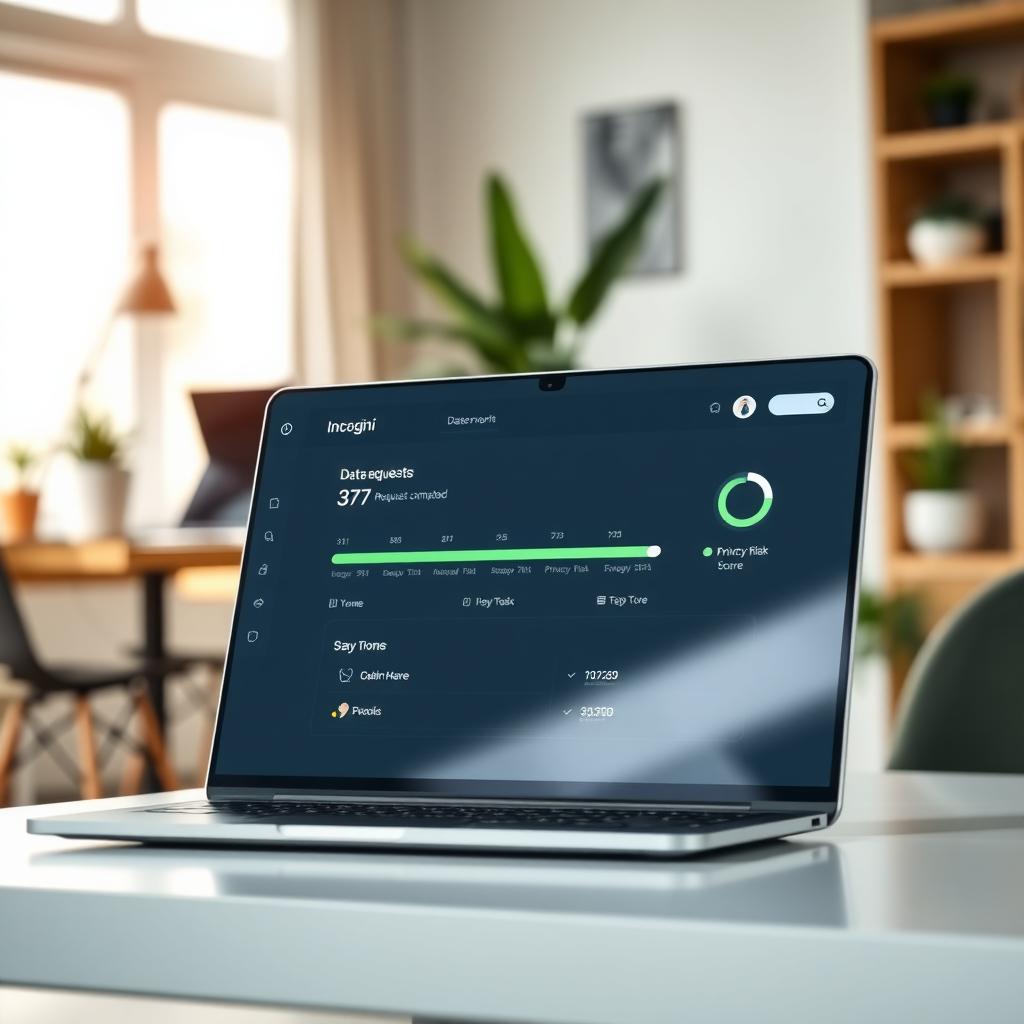
- Monitor Progress: Incogni’s dashboard shows how many requests are sent, in progress, or completed. I saw results within weeks, with my info removed from over 100 sites.
- Ongoing Protection: Incogni rechecks sites every 60-90 days to ensure your data stays off. This is key since brokers can reacquire your info.
Incogni saved me from manually contacting hundreds of data brokers. A 2025 report by Security.org praises Incogni for its speed and affordability, covering over 420 data broker sites.
Other Online Privacy Tools to Consider
Beyond Incogni, other tools can boost your online privacy:
| Tool | Purpose | Why I Like It |
|---|---|---|
| DeleteMe | Data removal | Covers over 700 sites, great for U.S. users |
| NordVPN | VPN | Fast, reliable, and easy to use on public Wi-Fi |
| Brave Browser | Privacy-focused browsing | Blocks trackers and ads automatically |
| ProtonMail | Secure email | End-to-end encryption for emails |
These tools complement each other. For example, I use NordVPN on public Wi-Fi and Brave for daily browsing. Together, they create a strong privacy shield.
Extra Tips for Ongoing Privacy
- Update Your Firewall: Ensure your device’s firewall is active to block unauthorized access. On Windows, go to Control Panel > System and Security > Windows Firewall. On Mac, it’s System Preferences > Security & Privacy > Firewall.
- Use Antivirus Software: I run regular scans with antivirus software to catch malware that might sneak in on public networks.
- Clear Browsing Data: I clear my browser history and cookies weekly to reduce stored data. In Chrome, go to Settings > Privacy and Security > Clear Browsing Data.
- Be Cautious with Emails: Avoid clicking links in emails while on public Wi-Fi. Phishing scams can trick you into sharing personal info.
Summary
Staying safe on public Wi-Fi takes a few simple habits: verify networks, use a VPN, stick to HTTPS sites, and avoid sensitive tasks. Shrinking your digital footprint with tools like Incogni and privacy-focused browsers further protects your online privacy. Start small, stay consistent, and you’ll keep your data secure.