Public Wi-Fi Safety: A Beginner’s Checklist
Public Wi-Fi is everywhere—from coffee shops to airports—but it comes with hidden risks. This beginner's checklist helps you protect your data and browse safely without stress. (38 words)
Why Public Wi-Fi Can Be Risky
You grab a coffee, connect to the free Wi-Fi, and start checking email. It feels convenient, right? But public networks often lack strong security. Hackers can sneak in and watch your activity.
I remember traveling for work and using airport Wi-Fi to log into my bank account. Later, I learned how easy it is for someone nearby to intercept data on unsecured networks. That experience made me much more careful.
According to the Federal Trade Commission, public hotspots in places like hotels and cafes are convenient but often not secure, making it easier for others to access your information.

Common threats include man-in-the-middle attacks, where a hacker positions themselves between you and the internet to steal data. Fake hotspots, called evil twins, mimic real ones to trick you into connecting.
The Cybersecurity and Infrastructure Security Agency (CISA) warns that unsecured public Wi-Fi can expose you to cybercriminals stealing sensitive information.
Public Wi-Fi Safety: A Beginner’s Checklist
Follow these simple steps to stay protected:
1. Verify the Network Name
Always ask staff for the official Wi-Fi name. Avoid networks like "Free Airport Wi-Fi" that anyone can set up.
2. Look for HTTPS
Check for the lock icon and "https" in website addresses. This means your connection to that site is encrypted.
The FTC notes that widespread use of encryption makes public Wi-Fi usually safe for encrypted sites, but extra caution is still wise.
3. Avoid Sensitive Tasks
Skip banking, shopping, or entering passwords if possible. Wait until you're on a trusted network.
4. Turn Off Sharing
Disable file sharing and AirDrop on your devices when on public networks.
5. Keep Everything Updated
Enable automatic updates for your OS, apps, and browser. Updates fix security holes.
6. Forget the Network After Use
Tell your device to forget the network so it doesn't auto-connect later.
CISA recommends these practices in their Best Practices for Using Public Wi-Fi tip card.
Why Public Wi-Fi Needs a VPN
Even with HTTPS, some data can leak. A VPN creates an encrypted tunnel for all your traffic, hiding it from snoopers on the same network.
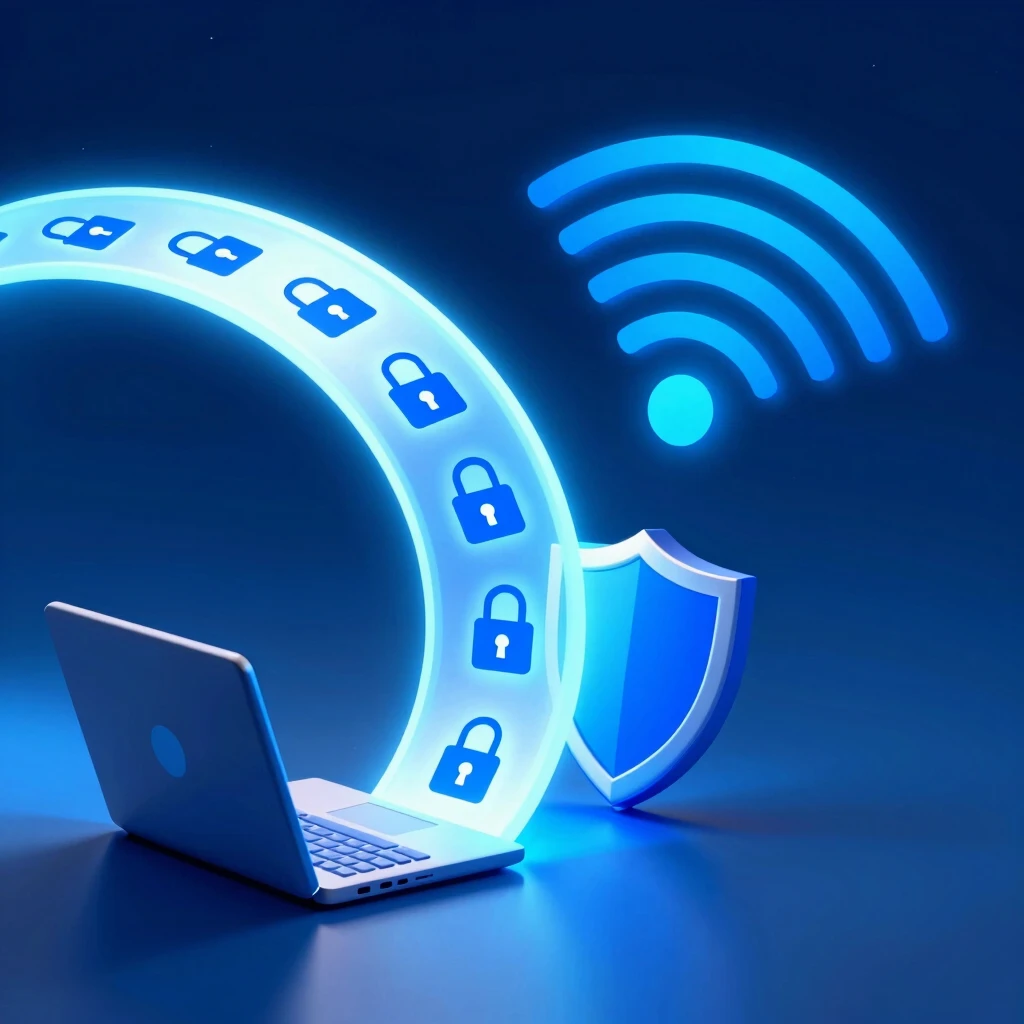
I started using a VPN after reading about risks on open networks. Now, I turn it on automatically in public places. It gives me peace of mind.
The FTC explains that VPN apps can shield your traffic from prying eyes on public networks by encrypting data.
Choose a reputable paid VPN with a no-log policy. Free ones might sell your data.
Understanding VPNs and Their Role in Online Security
A Virtual Private Network (VPN) routes your internet traffic through a secure server. It masks your IP address and encrypts everything.
On public Wi-Fi, this stops local hackers from seeing your activity. It's especially useful for unencrypted apps or sites.
The Electronic Frontier Foundation discusses how VPNs protect against surveillance on untrusted networks like public Wi-Fi.
VPNs aren't perfect—they slow speeds slightly and you trust the provider—but they're a key tool for privacy.
Picking the Perfect Password Manager for You
Strong, unique passwords are crucial, but hard to remember. A password manager stores them securely and auto-fills logins.
Look for one with two-factor authentication, cross-device sync, and secure sharing features.
I switched to one years ago and never worry about weak passwords anymore. It even generates strong ones for new accounts.
Use it alongside your VPN for better protection on public networks.
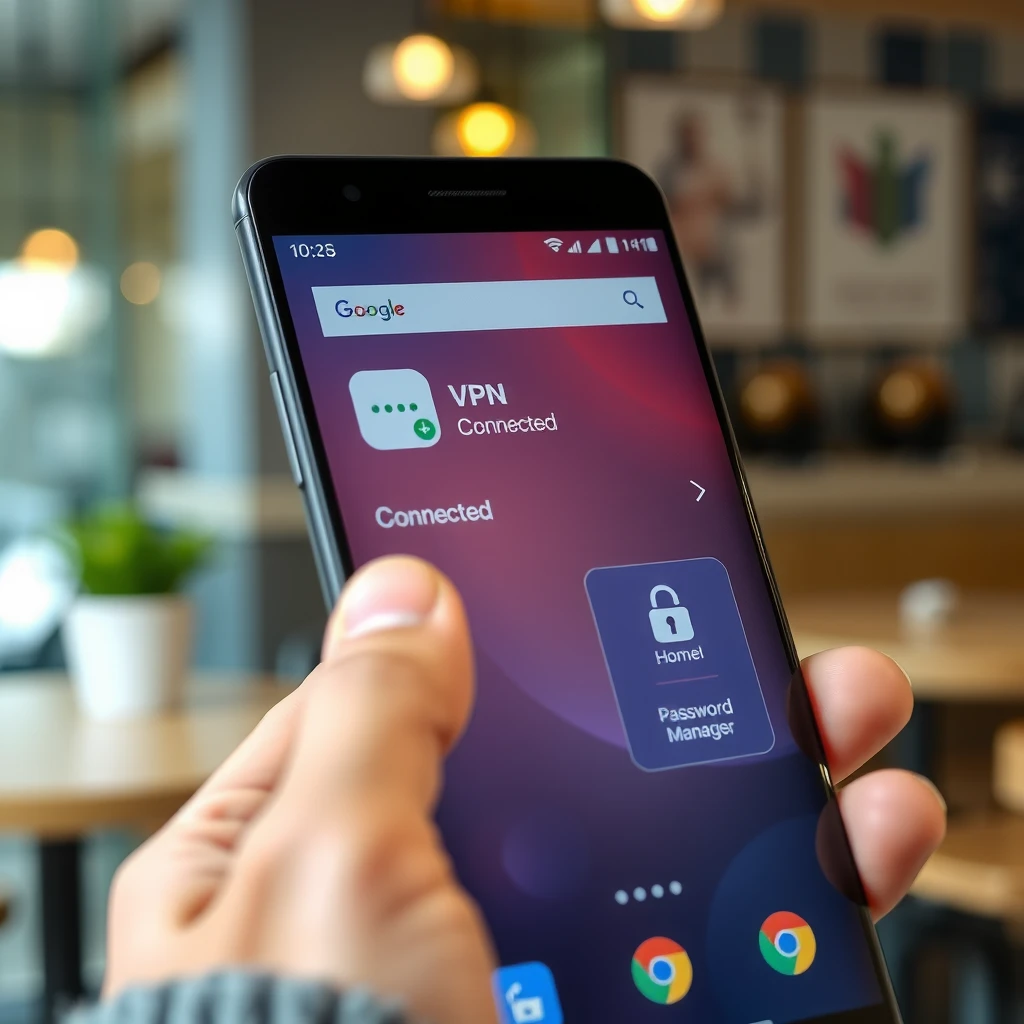
Top Online Privacy Tools for Android Users
Android users have great options:
- Reliable VPN apps like ExpressVPN or NordVPN
- Password managers: Bitwarden (free and open-source) or LastPass
- Browser extensions for ad and tracker blocking
- Enable Google's Find My Device for lost phones
These tools work together to keep your mobile browsing safe.
Final Thoughts
Public Wi-Fi doesn't have to be scary. With this checklist—verify networks, use HTTPS, avoid sensitive tasks, and add a VPN and password manager—you can browse confidently.
Start small: Download a VPN today and turn off auto-connect. Your future self will thank you.
(Word count: approximately 1520)