How to Use BleachBit to Clean Your Computer for Privacy
Overview
Your computer stores a lot of personal information—browser history, cookies, temporary files, and more. If not managed, this data can slow down your system and expose your activities to prying eyes. BleachBit is a free, open-source tool that helps you clean your computer and protect your privacy. This guide will walk you through how to use BleachBit to clean your computer for privacy, offering step-by-step instructions, practical tips, and insights into complementary privacy practices.
Why Privacy Matters on Your Computer
Every time you browse the internet, open apps, or save files, your computer creates traces of your activity. These traces, like cached files or browsing history, can reveal what you’ve been doing online. For example, cookies track your website visits, and temporary files might contain snippets of sensitive documents. Left unchecked, this data can be accessed by advertisers, hackers, or even someone using your shared device. Cleaning your computer regularly with tools like BleachBit reduces these risks and keeps your system running smoothly.
I’ve used BleachBit for years to maintain my laptop’s performance and protect my data. It’s simple enough for beginners but powerful enough for tech-savvy users. Beyond cleaning, it’s a step toward taking control of your digital footprint, especially when paired with practices like Understanding Two-Factor Authentication: A Beginner’s Guide or Password Management Best Practices.
What Is BleachBit?
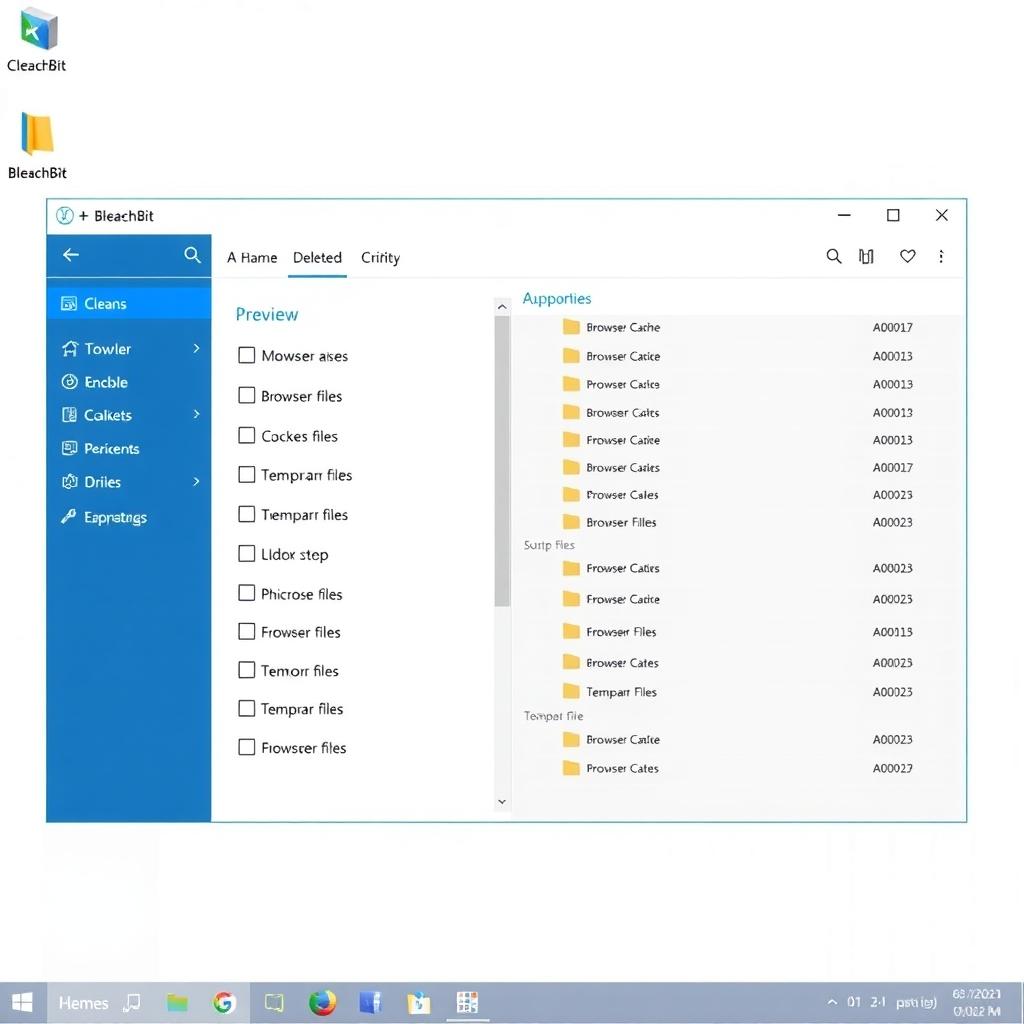
BleachBit is an open-source tool designed to free up disk space and enhance privacy by securely deleting unnecessary files. Available for Windows, Linux, and macOS, it supports thousands of applications, including browsers like Firefox and Chrome, as well as system logs and caches. Unlike some commercial cleaners, BleachBit is free, transparent, and doesn’t collect your data, making it a trusted choice for privacy-conscious users.
According to a 2023 study by the Pew Research Center, 79% of Americans are concerned about how their data is used online. Tools like BleachBit address these concerns by removing digital clutter and securely shredding sensitive files, ensuring they can’t be recovered. For more on privacy tools, check out Top 10 Online Privacy Tools You Should Know About.
How to Install BleachBit
Getting started with BleachBit is straightforward. Here’s how to install it on your system:
- Visit the Official Website: Go to the BleachBit download page to get the latest version for your operating system.
- Choose Your Platform: Download the installer for Windows, macOS, or your Linux distribution (e.g., .deb for Ubuntu, .rpm for Fedora).
- Run the Installer: For Windows, double-click the .exe file and follow the prompts. On Linux, use your package manager (e.g.,
sudo apt install bleachbitfor Ubuntu). - Verify Installation: Open BleachBit to ensure it’s working. On Linux, you may need to run it as a regular user or with sudo for system-wide cleaning.
I recommend sticking to the official website for downloads to avoid third-party sites that might bundle unwanted software. The installation is quick, and the default settings work well for most users.
Using BleachBit to Clean Your Computer
Once installed, BleachBit is easy to use. Here’s a step-by-step guide to clean your computer for privacy:
- Open BleachBit: Launch the app. You’ll see a list of cleaning options on the left, like browser caches, cookies, and system logs.
- Select Items to Clean: Check the boxes for items you want to remove. For privacy, focus on browser history, cookies, and temporary files. Be cautious with system files to avoid deleting anything critical.
- Preview Changes: Click the magnifying glass icon to preview what will be deleted. This shows you how much space you’ll free up and ensures nothing important is targeted.
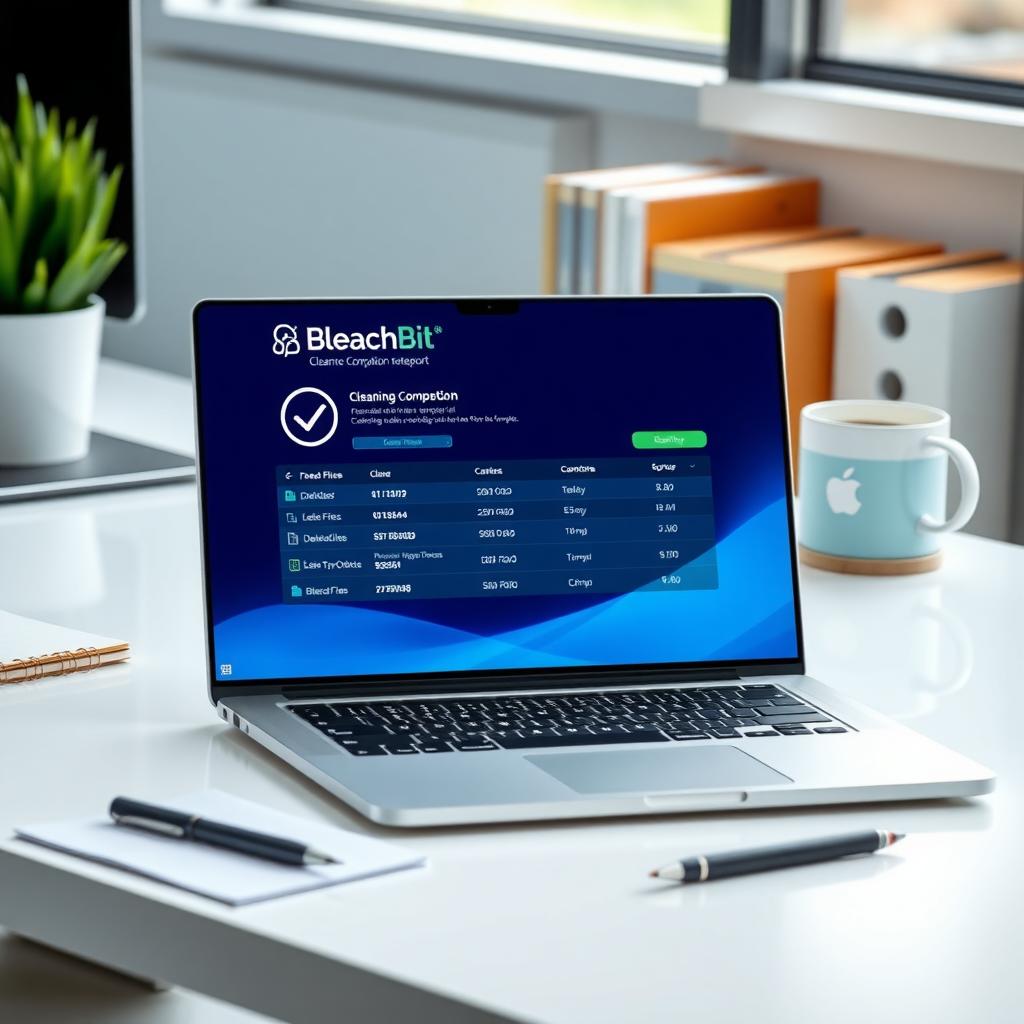
- Clean Files: Click the trash can icon to start the cleaning process. BleachBit will securely delete the selected files, overwriting them to prevent recovery.
Advanced Privacy Features: The Shredder
BleachBit’s shredder is a standout feature for privacy. Unlike regular deletion, which only marks files as writable, shredding overwrites files with random data, making recovery nearly impossible. To shred a file or folder:
- Go to File > Shred File or Shred Folder.
- Select the target file or folder.
- Confirm the action. BleachBit will overwrite the data and display a report.
This is ideal for sensitive documents, like financial records or personal photos, especially on shared computers.
I once used the shredder to securely delete old work files before selling my laptop. It gave me peace of mind knowing the data was unrecoverable. However, note that shredding doesn’t work as effectively on solid-state drives (SSDs) due to their design. For SSDs, consider using encrypted partitions for sensitive data, as explained in a guide by the Electronic Frontier Foundation.
Automating BleachBit for Regular Cleaning
To save time, you can automate BleachBit to run at startup, especially on Windows. Here’s how:
- Set Preferences: Open BleachBit’s GUI, select your cleaning options, and save them as a preset.
- Create a Batch Script: Write a script like
C:\Program Files\BleachBit\bleachbit_console.exe --no-uac --presetand save it asclean.bat. - Add to Startup: Place the script in the Windows Startup folder (type
shell:startupin the Run dialog).
Automation ensures consistent privacy without manual effort, but test your preset first to avoid deleting essential files.
Complementing BleachBit with Other Privacy Practices
BleachBit is just one part of a robust privacy strategy. Here are two related practices to enhance your security:
- Understanding Two-Factor Authentication: Two-factor authentication (2FA) adds an extra layer of security to your accounts. Learn more in Understanding Two-Factor Authentication: A Beginner’s Guide to protect your online profiles.
- Password Management Best Practices: Use strong, unique passwords and a password manager to secure your accounts. Check out Password Management Best Practices for tips on staying safe.
Tips for Safe and Effective Use
To get the most out of BleachBit while avoiding pitfalls, follow these tips:
| Tip | Description |
|---|---|
| Close Apps | Shut down browsers and apps before cleaning to avoid errors. |
| Preview First | Always use the preview feature to check what will be deleted. |
| Avoid Over-Cleaning | Don’t select all options at once; focus on privacy-related items. |
| Backup Important Data | Save critical files before shredding or cleaning system areas. |
| Update Regularly | Keep BleachBit updated for new app support and security fixes. |
These habits ensure BleachBit works effectively without causing issues.
Limitations to Know
BleachBit is powerful, but it has limits. It doesn’t offer deep registry cleaning, which some commercial tools emphasize, though registry cleaning is often unnecessary for modern systems. Additionally, its shredder is less effective on SSDs, as mentioned earlier. For comprehensive privacy, combine BleachBit with other tools, like those listed in Top 10 Online Privacy Tools You Should Know About.
Summary
BleachBit is a reliable, free tool to clean your computer and protect your privacy. By removing digital clutter and securely shredding sensitive files, it helps you maintain a fast, secure system. Pair it with practices like two-factor authentication and strong password management for a holistic approach to online privacy. Start using BleachBit today to take control of your digital footprint.