How to Protect Your Data When Using Online Tools
Overview
In today’s digital world, online tools make life easier but come with risks. From cloud storage to productivity apps, every click could expose your data. Protecting your information isn’t just for tech experts—it’s something everyone can do with the right steps. This guide shares practical ways to stay safe online.
Why Data Protection Matters
Every time you use an online tool, you share personal details—your name, email, or even financial information. Hackers, advertisers, and even some companies want this data. A 2021 study from the Pew Research Center found that 81% of Americans think data collection is a major privacy concern. Without protection, you risk identity theft, financial loss, or unwanted tracking.
I’ve had moments where I hesitated before clicking 'accept' on a website’s terms. It’s unsettling to think about how much data we share without realizing it. The good news? You don’t need to be a cybersecurity expert to take control. Simple habits and tools can make a big difference.

Use Strong, Unique Passwords
Weak passwords are an open door for hackers. Use a mix of letters, numbers, and symbols, and make each password unique. A password manager like LastPass or 1Password can help you generate and store them securely. I started using a password manager last year, and it’s saved me from reusing the same weak password across sites.
Here’s a quick checklist for better passwords: - At least 12 characters long - Avoid common words (e.g., 'password123') - Use a mix of uppercase, lowercase, numbers, and symbols - Never reuse passwords across accounts - Update passwords every 6-12 months
Enable Two-Factor Authentication (2FA)
Two-factor authentication adds an extra layer of security. Even if someone gets your password, they’ll need a second step—like a code sent to your phone—to access your account. Most online tools, from Google to banking apps, offer 2FA. According to a Microsoft Security Report, 2FA blocks 99.9% of automated attacks.
I enable 2FA wherever possible. It takes an extra minute to set up, but the peace of mind is worth it. Apps like Authy or Google Authenticator make it easy to manage those codes.
Understand VPNs and Why They Matter
A Virtual Private Network (VPN) encrypts your internet connection, hiding your activity from prying eyes. Whether you’re on public Wi-Fi or just browsing at home, a VPN keeps your data private. For a deeper dive, check out VPNs Explained: What They Are and Why You Need One. I use a VPN when working from coffee shops—it’s like a digital shield for my data.
Choose Privacy-Focused Browsers
Your browser can either protect or expose your data. Standard browsers like Chrome track your activity for ads, but privacy-focused options like Firefox Focus or DuckDuckGo prioritize your security. Curious about which is better? Read Firefox Focus vs DuckDuckGo: which mobile browser is more private? for a detailed comparison. I switched to Firefox Focus for mobile browsing, and the automatic tracker blocking feels like a breath of fresh air.
Encrypt Your Data
Encryption scrambles your data so only authorized people can read it. Many online tools, like Google Drive or Dropbox, offer encryption, but you should always check. For sensitive files, use tools like VeraCrypt to encrypt them before uploading. A Stanford University guide explains encryption in simple terms—it’s like locking your data in a safe.
I once uploaded a sensitive document without checking the platform’s encryption. Now, I double-check or encrypt files myself. It’s a small step that feels empowering.
Be Cautious with Public Wi-Fi
Public Wi-Fi is convenient but risky. Hackers can intercept your data on unsecured networks. Always use a VPN on public Wi-Fi, and avoid accessing sensitive accounts like banking. If you must use public Wi-Fi without a VPN, stick to basic browsing.
| Do’s and Don’ts on Public Wi-Fi | | --- | --- | | Do | Use a VPN, stick to HTTPS websites, enable 2FA | | Don’t | Log into sensitive accounts, share personal info, use unsecured networks |
Limit Data Sharing
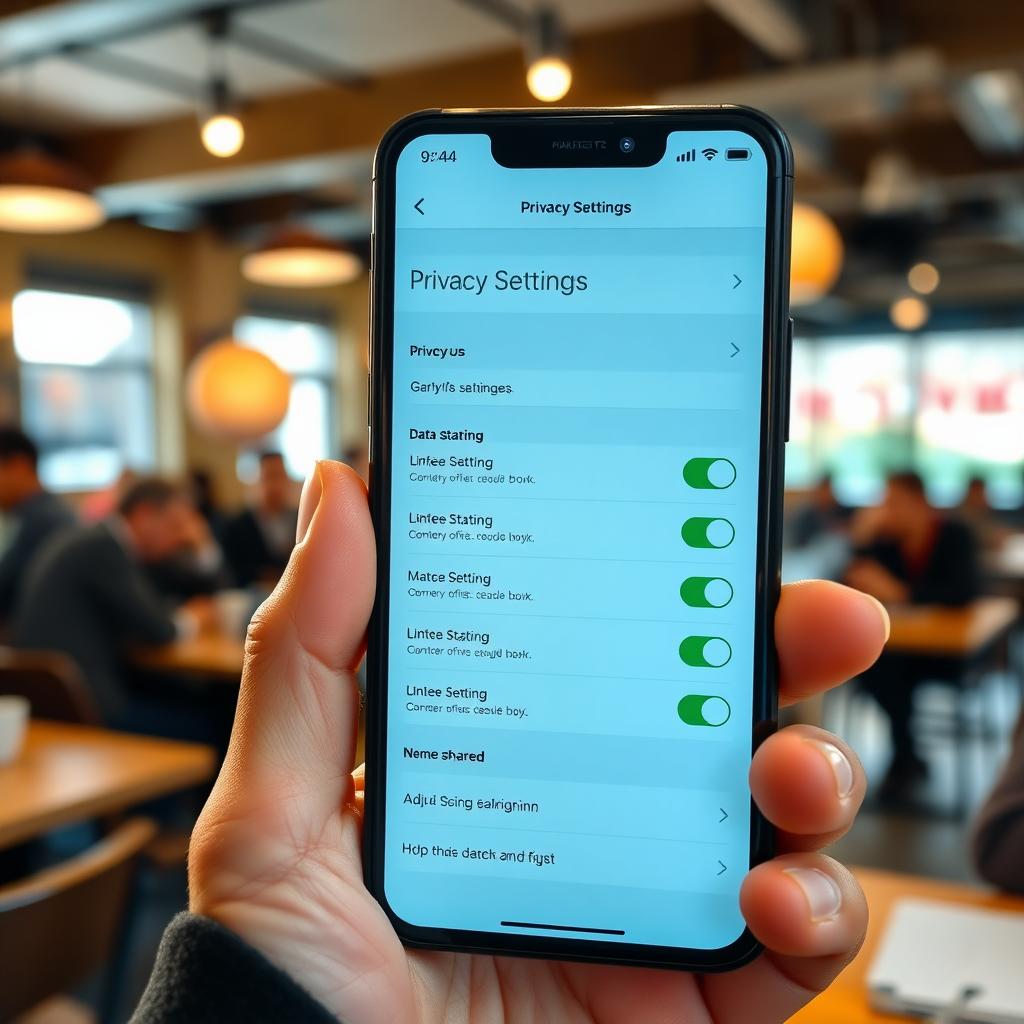
Many online tools ask for more data than they need. Before signing up, read the privacy policy (or at least skim it). Opt out of data sharing when possible, and use temporary email addresses for one-off services. I’ve started using services like 10MinuteMail for sign-ups I don’t fully trust—it’s a game-changer.
Keep Software Updated
Outdated software is a hacker’s playground. Updates fix security flaws, so always install them promptly. Set your apps and devices to update automatically if possible. A Cybersecurity & Infrastructure Security Agency (CISA) guide emphasizes that updates are one of the easiest ways to stay safe.
I used to ignore update notifications, thinking they were annoying. Then I learned how many breaches exploit old software. Now, I treat updates like a quick security boost.
Explore Top Privacy Tools
From antivirus software to encrypted messaging apps, the right tools can transform your online safety. For a curated list, see Top Online Privacy Tools for 2023 - https://example.com/privacy-tools. Tools like Signal for messaging or ProtonMail for email have become my go-to for secure communication.
Monitor Your Accounts
Regularly check your accounts for suspicious activity. Set up alerts for logins or transactions, and review privacy settings often. If something looks off, act fast—change passwords, enable 2FA, or contact the platform. I check my bank and email accounts weekly, and it’s caught odd logins more than once.
Summary
Protecting your data when using online tools doesn’t have to be overwhelming. Start with strong passwords, enable 2FA, use a VPN, and choose privacy-focused tools. Small changes, like encrypting files or updating software, add up to big protection. Stay proactive, and you’ll keep your data safe.